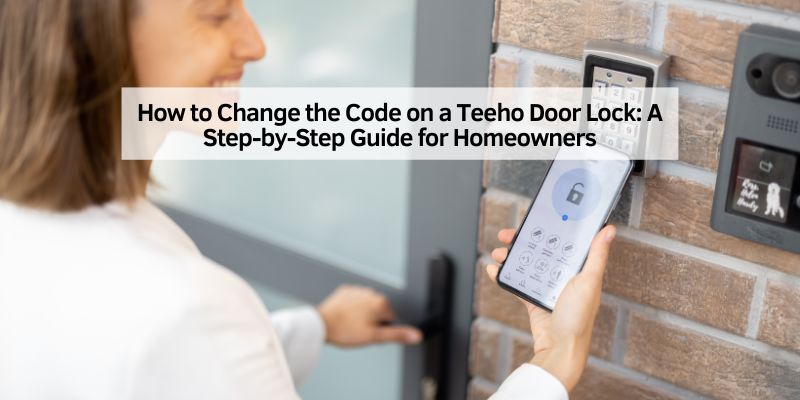
How to Change the Code on a Teeho Door Lock: A Step-by-Step Guide for Homeowners
Hey there! If you’ve recently installed a Teeho door lock or you’re looking to update your home’s security, you’re in the right place. I’ve been tinkering with smart locks for years, and let me tell you, changing the code on a Teeho door lock is one of the easiest ways to keep your home safe and secure. Whether you’re a homeowner wanting to update your access codes or a renter managing temporary guest access, this guide will walk you through everything you need to know.
I’ve spent hours exploring the ins and outs of Teeho locks, from their keypads to their app features, and I’m excited to share my experience with you. So, grab a cup of coffee, and let’s dive into how to change the code on your Teeho door lock, step by step, with all the tips and tricks I’ve learned along the way.
Why Changing Your Teeho Door Lock Code Matters
Let’s start with the basics. Your Teeho door lock is a fantastic piece of tech. It’s keyless, convenient, and packed with features like auto-lock and anti-peeping password protection. But here’s the thing: the default master code (usually 12345678) is like leaving your front door wide open. Anyone with a bit of know-how could guess it. I learned this the hard way when I forgot to change the default code on my first smart lock. A neighbor’s kid punched in the default code as a prank, and it worked! That was my wake-up call.
Changing the code regularly keeps your home secure. It’s not just about preventing unwanted access; it’s also about customizing your lock to fit your lifestyle. Maybe you’re giving a temporary code to a dog walker or updating codes for new family members. Whatever the reason, knowing how to change the code gives you control. Plus, it’s super easy once you get the hang of it.
Understanding Your Teeho Door Lock
Before we jump into the steps, let’s get to know your Teeho lock a bit better. Teeho makes several models, like the TE001, TE002K, and TZ001, but they all share a similar setup. You’ve got a keypad on the outside for entering codes, a thumb turn on the inside for manual locking, and sometimes a mobile app for extra control. Most models support up to 20 user codes, plus a one-time temporary code for guests. The master code is your key to programming everything—it’s like the admin password for your lock.
I’ve got the TE002K on my front door, and I love how the backlit keypad makes it easy to use at night. The lock also has cool features like vacation mode (which disables all user codes except the master code) and a wrong-entry limit that shuts the lock down after 10 failed attempts. Knowing these features helped me feel confident about tweaking the settings, and it’ll help you too.
Preparing to Change the Code
Okay, before you start punching buttons, let’s make sure you’re ready. Changing the code on a Teeho lock is simple, but a little prep goes a long way. Here’s what I do to make the process smooth:
- Check the Battery: Your lock runs on AA batteries, usually four of them. If the battery is low, you might run into issues. My lock has a low-battery indicator, but I always pop in fresh batteries before programming to avoid any hiccups.
- Know Your Current Master Code: If you haven’t changed it yet, the default is 12345678. If you’ve already set a custom master code, have it ready. I keep mine written down in a safe place, just in case.
- Choose a New Code: Pick a code that’s 4 to 10 digits long. Avoid simple patterns like 1111 or 1234—trust me, I tried using my birthday once, and my teenager guessed it in seconds. Go for something unique but easy for you to remember.
- Keep the Door Open: This is a pro tip I learned after locking myself out during a programming attempt. Keep the door open while you’re changing codes to avoid any accidental lockouts.
Once you’ve got these covered, you’re ready to roll. Let’s get to the fun part—changing that code!
Step-by-Step Guide to Changing the Master Code
Changing the master code is the first thing you should do after installing your Teeho lock. It’s the key to all programming, so let’s make it yours. Here’s how I do it on my TE002K, and it works for most Teeho models:
- Wake Up the Keypad: Press the “Teeho” button (usually labeled with the brand name or a specific symbol) twice. This tells the lock you’re about to program it. You’ll see a green light flash.
- Enter the Current Master Code: Punch in the existing master code (12345678 if it’s the default) and press the Teeho button again. Wait for a long green flash. If you get a red flash, double-check your code and try again.
- Select the Change Code Function: Press the number 1 on the keypad and wait for another green flash. This puts the lock in master code change mode.
- Enter Your New Master Code: Type in your new 4- to 10-digit code and press the Teeho button. You’ll see a green flash if it’s accepted.
- Confirm the New Code: Re-enter the new master code and press the Teeho button again. A final green flash means you’re done!
I remember the first time I did this, I was nervous about messing it up. But the green flashes are super reassuring. If you see a red flash at any point, it means something went wrong—usually a wrong code or a timing issue. Just start over, and take your time.
Here’s a quick table to summarize the steps:
| Step | Action | Indicator |
|---|---|---|
| 1 | Press Teeho button twice | Green flash |
| 2 | Enter current master code, press Teeho | Long green flash |
| 3 | Press 1 | Green flash |
| 4 | Enter new master code, press Teeho | Green flash |
| 5 | Re-enter new master code, press Teeho | Green flash |
Adding and Changing User Codes
Now that your master code is set, let’s talk about user codes. These are the codes you’ll share with family, friends, or guests. I love this feature because I can give my sister a code when she visits without handing over a key. Here’s how to add a user code:
- Start Programming Mode: Press the Teeho button twice, enter your master code, and press the Teeho button again. Wait for the green flash.
- Select User Code Mode: Press the number 2 and wait for another green flash.
- Enter the New User Code: Type in a 4- to 10-digit code and press the Teeho button. You’ll get a green flash.
- Confirm the Code: Re-enter the same user code and press the Teeho button. A green flash confirms it’s set.
To change a user code, you’ll need to delete the old one first and then add a new one. Here’s how to delete a user code:
- Enter Programming Mode: Press the Teeho button twice, enter your master code, and press the Teeho button.
- Select Delete Mode: Press the number 3 and wait for a green flash.
- Enter the Code to Delete: Type the user code you want to remove and press the Teeho button. A green flash means it’s gone.
I always test the new code by locking the door and trying to unlock it. One time, I added a code for my dog walker but forgot to test it. Turns out, I mistyped one digit, and she was stuck outside! Lesson learned: always double-check.
Setting Up a One-Time User Code
Teeho locks have this awesome feature where you can create a one-time user code. It’s perfect for contractors, delivery people, or anyone who needs access just once. I used this when I had a plumber over, and it was a game-changer. Here’s how to set it up:
- Enter Programming Mode: Press the Teeho button twice, input your master code, and press the Teeho button.
- Select One-Time Code Mode: Press the number 4 and wait for a green flash.
- Enter the One-Time Code: Type a 4- to 10-digit code and press the Teeho button.
- Confirm the Code: Re-enter the code and press the Teeho button. A green flash means it’s ready.
The code will work once and then delete itself automatically. I love this because I don’t have to worry about remembering to delete the code later.
Enabling and Customizing the Auto-Lock Feature
One of my favorite features is the auto-lock. It locks the door automatically after 30 seconds by default, but you can adjust the timing or turn it off. I set mine to 10 seconds because I’m forgetful about locking the door manually. Here’s how to enable or adjust it:
- Start Programming Mode: Press the Teeho button twice, enter your master code, and press the Teeho button.
- Select Auto-Lock Mode: Press the number 5 and wait for a green flash.
- Enable or Disable: Press 1 to enable auto-lock or 2 to disable it, then press the Teeho button.
- Set the Delay (Optional): If you want to change the delay (10 to 99 seconds), press 6, enter the number of seconds, and press the Teeho button.
This feature gives me peace of mind, especially when I’m rushing out the door. But if you’re in and out a lot, you might want to disable it to avoid the lock engaging too soon.
Using the Teeho App for Code Management
Some Teeho models, like the TE012W, come with a mobile app. I was skeptical about using the app at first, but it’s made managing my lock so much easier. You can change codes, check the lock’s status, and even pair it with Alexa for voice control. Here’s how to change the master code using the app:
- Download the App: Get the Teeho app from the App Store or Google Play. Make sure your phone’s Bluetooth is on.
- Pair the Lock: Follow the app’s instructions to pair your lock. You’ll need to enter the default master code (12345678) if you haven’t changed it yet.
- Navigate to Settings: Open the app, go to “Settings,” and find the “Admin Passcode” section.
- Change the Code: Enter your new master code and confirm it. The app will sync with your lock.
The app also lets you add or delete user codes and check the lock’s battery status. I find it handy for managing codes when I’m not home, like when I need to let a neighbor in to water my plants.
Troubleshooting Common Issues
Even with a great lock like Teeho, you might run into hiccups. I’ve had my share of “why isn’t this working?” moments, so here are some common issues and fixes:
- Red Flashing Light: This usually means you entered the wrong code or the lock didn’t register your input. Double-check your code and try again. Make sure you’re pressing the buttons firmly.
- Lock Won’t Respond: Check the batteries. I had this issue once, and it turned out one battery was loose. Re-seat the batteries or replace them.
- Code Doesn’t Work: If a new code isn’t working, try reprogramming it. I once entered a code too quickly, and it didn’t save properly.
- Lock Jams: If the deadbolt isn’t moving smoothly, the lock might not be installed correctly. I had to adjust the alignment of my lock’s torque blade to fix this. Make sure the deadbolt moves freely when the door is open.
If all else fails, you can reset the lock to factory settings. Hold the reset button (usually inside the battery compartment) for 3 seconds until you hear a beep. Then, use the default code (12345678) to start over. I had to do this once when I forgot my master code, and it saved the day.
Tips for Maintaining Your Teeho Door Lock
To keep your Teeho lock in top shape, a little maintenance goes a long way. Here’s what I’ve learned:
- Clean the Keypad: Use a soft, damp cloth to wipe down the keypad. I made the mistake of using a harsh cleaner once, and it dulled the finish.
- Check Batteries Annually: Replace the batteries every year, even if the low-battery indicator hasn’t gone off. I mark my calendar to do this every spring.
- Test Codes Regularly: Every few months, I test all my user codes to make sure they’re working. It’s a quick way to catch any issues early.
- Keep the App Updated: If you use the app, make sure it’s up to date. I missed a feature update once because I ignored the app’s notification.
Why I Love My Teeho Door Lock
After using my Teeho lock for over a year, I can honestly say it’s one of the best home upgrades I’ve made. The ability to change codes easily means I’m always in control of who has access to my home. Whether it’s setting a temporary code for a delivery or enabling vacation mode when I’m away, the lock fits seamlessly into my life. Plus, the sleek design looks great on my front door, and the weatherproof build handles rain and snow like a champ.
Conclusion
Changing the code on your Teeho door lock is more than just a security task—it’s about taking charge of your home’s safety and making your life easier. From setting a new master code to adding user codes for family or guests, the process is straightforward once you know the steps. I’ve shared everything I’ve learned from my own experience, from the importance of testing codes to the convenience of the app. With a little practice, you’ll be programming your lock like a pro in no time.
So, go ahead and update those codes, enable that auto-lock, and enjoy the peace of mind that comes with a secure home. Your Teeho lock is ready to make your life safer and more convenient—now it’s your turn to unlock its full potential!
FAQs
How Often Should I Change My Teeho Door Lock Code?
I recommend changing your master and user codes every six months or whenever you have a new guest or service provider. It’s a good habit to keep your home secure, especially if you share codes with others.
Can I Use the Same Code for Multiple Users?
You can, but I wouldn’t recommend it. Each user should have a unique code so you can track who’s coming and going. Plus, if you need to delete one person’s access, you won’t affect others.
What Happens If I Forget My Master Code?
Don’t panic! You can reset the lock to factory settings by holding the reset button for 3 seconds until you hear a beep. Then, use the default code (12345678) to set a new master code. I’ve done this before, and it’s a lifesaver.
Is the Teeho App Necessary to Change Codes?
No, you can change codes directly on the keypad. But I find the app super convenient for managing codes remotely or checking the lock’s status when I’m not home.
What Should I Do If My Lock Keeps Flashing Red?
A red flash usually means an incorrect code or a programming error. Double-check your code and try again. If it persists, check the batteries or reset the lock. I had this issue once, and new batteries fixed it right away.