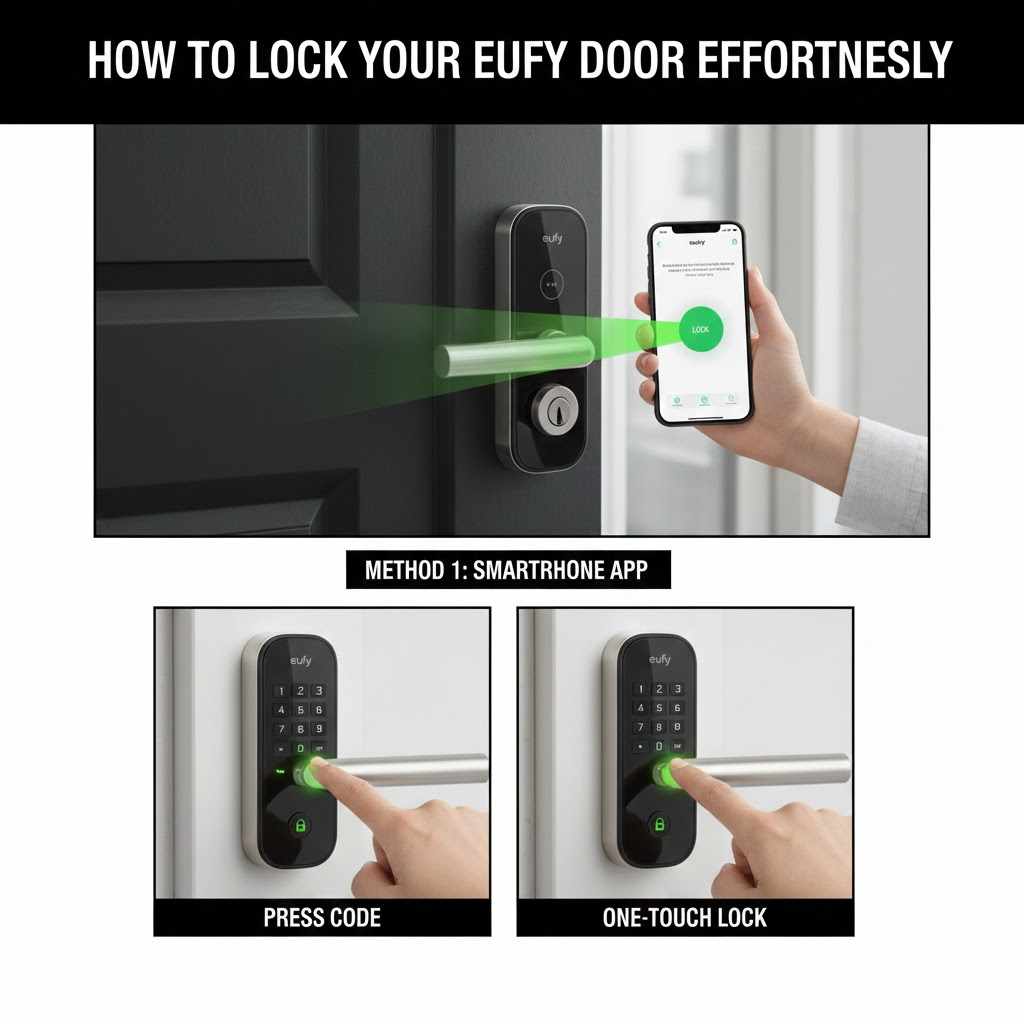
How to Lock Your Eufy Door Effortlessly
Many people wonder about How to Lock a Eufy Door Step by Step. It might seem tricky at first, especially if you are new to smart locks. You might worry about making a mistake or not getting it right.
But don’t worry! This guide will show you the easy way to do it. We will go through each step simply.
Get ready to secure your home with confidence. Let’s start by looking at the different ways you can lock your Eufy door.
Understanding Your Eufy Door Lock Options
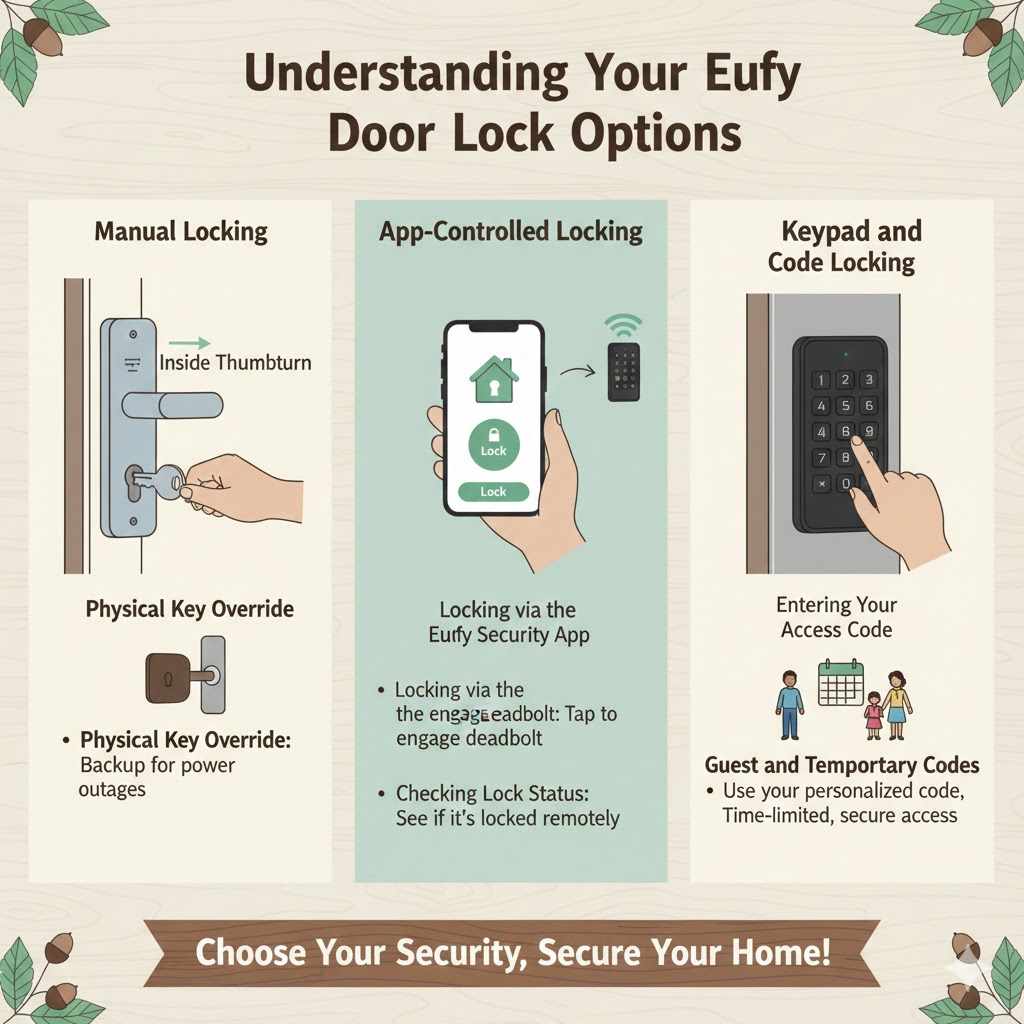
This section helps you learn about the different ways your Eufy door lock can be secured. We’ll explore the various methods available, making it clear how each one works. This will help you choose the best option for your needs and understand the basics of keeping your door locked with your Eufy device.
You will find simple explanations for each locking method.
Manual Locking
Manual locking is the most straightforward way to secure your Eufy door. It’s like using a traditional deadbolt. You can usually do this directly from the inside of your home.
This is a great option if you are home and want to quickly lock the door. It requires no apps or special codes.
- Inside Thumbturn: Most Eufy smart locks have a physical thumbturn on the inside. You simply rotate this thumbturn to engage the deadbolt. It’s a familiar motion for anyone used to standard door locks.
- This ensures your door is locked securely from the inside, giving you peace of mind when you are home.
- Physical Key Override: While Eufy locks are smart, they also often include a traditional keyhole. This allows you to use a physical key to lock or unlock the door from the outside or inside. This is a vital backup in case of power outages or electronic malfunctions.
It provides an extra layer of security and convenience.
App-Controlled Locking
Using the Eufy Security app offers a convenient way to manage your door lock remotely. You can lock your door from anywhere with an internet connection. This is perfect for those times you’re not sure if you locked up before leaving.
The app provides a clear interface for all lock functions.
- Locking via the Eufy Security App: Open the Eufy Security app on your smartphone. Find your Eufy door lock in the device list. Tap on the lock icon or the specific “Lock” button for your device.
- The app will send a command to your lock to engage the deadbolt. You will usually get a confirmation in the app when the door is successfully locked.
- Checking Lock Status: The app also shows you the current status of your lock. You can see if it’s locked or unlocked at a glance. This is very useful for ensuring your home is secure without having to physically check the door.
The status indicator is typically a visual cue within the app’s interface.
Keypad and Code Locking
Eufy door locks with keypads allow for quick locking and unlocking using unique codes. This is ideal for family members, guests, or even deliveries.
- Entering Your Access Code: On the Eufy keypad, enter your personalized access code. After entering the correct code, the lock will usually disengage or engage based on its current state and your intended action. For locking, you might press a specific lock button after entering your code, or the lock might automatically secure after a set time if configured.
- Guest and Temporary Codes: You can set up temporary or recurring codes for guests. These codes can be time-limited, ensuring they only work when needed. This is a secure way to grant access without sharing your main code.
The app allows you to manage these codes easily.
How to Lock a Eufy Door Step by Step Using Auto-Lock
The auto-lock feature is a standout function for many Eufy door locks. It automates the locking process, removing the need for manual intervention. This feature ensures your door secures itself after a set period, providing continuous security and peace of mind.
It’s designed to prevent accidental forgetting of locking your door.
Setting Up Auto-Lock
Configuring the auto-lock feature is straightforward and can be done through the Eufy Security app. This feature ensures your door locks itself after a predetermined time, enhancing security and convenience. It’s a valuable tool for busy households or when you’re in a rush.
- Accessing Auto-Lock Settings in the App: Open the Eufy Security app and select your Eufy door lock. Navigate to the settings menu, often represented by a gear icon. Look for an option labeled “Auto-Lock” or “Auto-Lock Timer.” Tap on this to open the auto-lock configuration screen.
- Choosing Your Auto-Lock Time Interval: Within the auto-lock settings, you will find options to set the delay time before the lock engages. Common intervals include 30 seconds, 1 minute, 5 minutes, or 10 minutes. Select the time that best suits your needs and daily routine.
- For instance, a shorter interval is good if you’re frequently coming and going.
- Enabling Auto-Lock: Once you have set your desired time interval, there will usually be a toggle switch or a confirmation button to enable the auto-lock feature. Make sure this feature is activated. You should receive a confirmation message in the app that auto-lock is now active for your Eufy door lock.
How Auto-Lock Works in Practice
Once enabled, the auto-lock feature works seamlessly in the background. After the door is unlocked or opened, the lock begins a countdown. When the set time expires, the deadbolt automatically extends, securing your door.
This is incredibly useful if you’re prone to forgetting to lock up after returning home.
- Scenario 1: Bringing in Groceries: Imagine you’ve just returned from grocery shopping. You unlock your Eufy door and step inside, leaving the door ajar while you bring in the bags. You then close the door.
- If your auto-lock is set to 1 minute, the lock will wait for 60 seconds after the door is closed. Then, it will automatically extend the deadbolt, locking the door for you. This means you don’t have to remember to do it yourself.
- Scenario 2: Quick Exit: You’re in a hurry and quickly step outside. You forget to manually lock the door. If your auto-lock is set to 30 seconds, the door will automatically secure itself shortly after you’ve closed it.
This feature provides a passive layer of security, ensuring your home remains protected even when you’re distracted or in a rush.
Advanced Locking Features and Integrations
Eufy smart locks offer more than just basic locking. They integrate with other smart home systems and have advanced features for enhanced security and convenience. These options allow for a more automated and secure home environment, responding to your lifestyle needs.
Voice Control Integration
Many Eufy door locks can be controlled using voice commands through popular smart assistants like Amazon Alexa and Google Assistant. This allows for hands-free operation, which is particularly useful when your hands are full. It adds another layer of convenience to managing your home security.
- Linking Eufy to Your Smart Assistant: First, ensure your Eufy lock is connected to your Wi-Fi network and linked to the Eufy Security app. Then, open the app for your smart assistant (e.g., Alexa app, Google Home app). Search for the Eufy skill or service and follow the prompts to link your Eufy account.
- This process usually involves signing into your Eufy account within the smart assistant’s app.
- Using Voice Commands to Lock: Once linked, you can use simple voice commands. For example, say “Alexa, lock my Eufy door” or “Hey Google, lock the front door.” The smart assistant will communicate with your Eufy lock to engage the deadbolt. This is a quick and easy way to secure your home without needing your phone or to be near the lock itself.
Note that for security reasons, unlocking via voice command often requires a spoken PIN or is disabled by default.
Smart Home Automation Routines
Eufy locks can be part of larger smart home automation routines. This means your door lock can work in conjunction with other smart devices in your home. For example, it can trigger other actions when locked or unlocked.
- Creating a “Goodnight” Scene: You can set up a “Goodnight” routine. When you say “Goodnight” to your smart assistant, it can lock your Eufy door, turn off your smart lights, and adjust your thermostat. This simplifies your nightly routine and ensures your home is secured for the night with a single command.
- The Eufy app or your smart assistant’s app allows you to create these custom routines.
- Setting Up an “Away” Mode: Similarly, an “Away” mode could lock your Eufy door, arm your security system, and turn off unnecessary appliances. This helps ensure your home is protected and energy is saved when you leave. These integrations make your smart home work more efficiently as a connected system.
Physical Lock Maintenance
To ensure your Eufy door lock functions correctly, regular maintenance is key. This includes keeping the locking mechanism clean and ensuring batteries are charged. Proper care prevents issues and ensures reliable operation.
- Battery Replacement: Eufy door locks are typically battery-powered. The Eufy Security app will notify you when the batteries are low. It is essential to replace them promptly.
- Always use the type of batteries recommended by Eufy to ensure optimal performance and longevity. Low batteries can cause the lock to malfunction or fail to engage.
- Cleaning the Keypad and Lock Mechanism: Keep the exterior keypad clean from dirt and debris. You can use a soft, damp cloth for cleaning. Avoid using harsh chemicals that could damage the finish or electronic components.
A clean mechanism ensures smooth operation of the bolt. If you notice any stiffness, a small amount of graphite lubricant might be recommended, but check your Eufy manual first.
Troubleshooting Common Locking Issues
Sometimes, even with the best setup, you might run into minor problems with your Eufy door lock. This section aims to help you solve these common issues quickly and easily. Knowing how to troubleshoot can save you time and frustration.
Lock Not Engaging
If your Eufy door lock isn’t engaging the deadbolt, there could be a few reasons. It’s often a simple fix, so don’t panic. Let’s look at what might be happening.
- Misalignment Issues: The most common cause is misalignment between the deadbolt and the strike plate on the door frame. Ensure the door is fully closed and not sagging. Sometimes, slightly adjusting the strike plate or the door itself can resolve this.
- Check if the bolt is hitting the edge of the strike plate hole.
- Low Battery Power: As mentioned, insufficient battery power can prevent the motor from fully extending the deadbolt.
- Obstruction in the Bolt Mechanism: Small objects or debris can sometimes get lodged in the bolt mechanism, preventing it from moving freely. Inspect the bolt and its housing for any visible obstructions. You can gently try to clear any debris with a soft brush or compressed air.
App Connectivity Problems
Occasionally, the Eufy Security app might not connect to your door lock, preventing remote locking or status checks. This usually relates to your Wi-Fi or Bluetooth connection.
- Check Wi-Fi Signal Strength: Ensure your Eufy door lock has a strong and stable Wi-Fi connection. If the lock is too far from your router, the signal may be weak. Consider moving your router closer or using a Wi-Fi extender.
- The Eufy app often has a tool to check signal strength.
- Restart Router and Lock: A simple reboot can often resolve connectivity issues. Turn off your Wi-Fi router, wait about 30 seconds, and then turn it back on. Also, try removing and reinserting the batteries in your Eufy lock to perform a soft reset.
- Once both devices are back online, try connecting the app again.
- App and Firmware Updates: Make sure you are using the latest version of the Eufy Security app and that your Eufy door lock’s firmware is up to date. Developers regularly release updates to fix bugs and improve performance, including connectivity. Check the app’s settings for update options.
Keypad Not Responding
If the keypad on your Eufy door lock isn’t lighting up or responding to your touch, here’s what to do.
- Clean the Keypad: Fingerprints, dirt, or moisture can interfere with the keypad’s responsiveness. Gently clean the keypad surface with a soft, dry cloth. For stubborn grime, use a slightly damp cloth, ensuring no excess water gets into the lock’s electronic components.
- Check Battery Power: While the lock might still function manually, low batteries can affect electronic components like the keypad. As always, ensure your batteries are fresh and correctly installed. A power issue is a common cause for non-responsive electronic parts.
- Reset the Lock: If cleaning and battery checks don’t help, a factory reset of the lock might be necessary. This will erase all settings and codes, so you’ll need to set it up again. Refer to your Eufy manual for specific instructions on how to perform a factory reset for your model.
This should be a last resort.
Real-Life Examples and Statistics
Understanding how Eufy locks are used in the real world and looking at some data can highlight their effectiveness. These examples and statistics show the practical benefits and the growing reliance on smart home security devices like Eufy door locks.
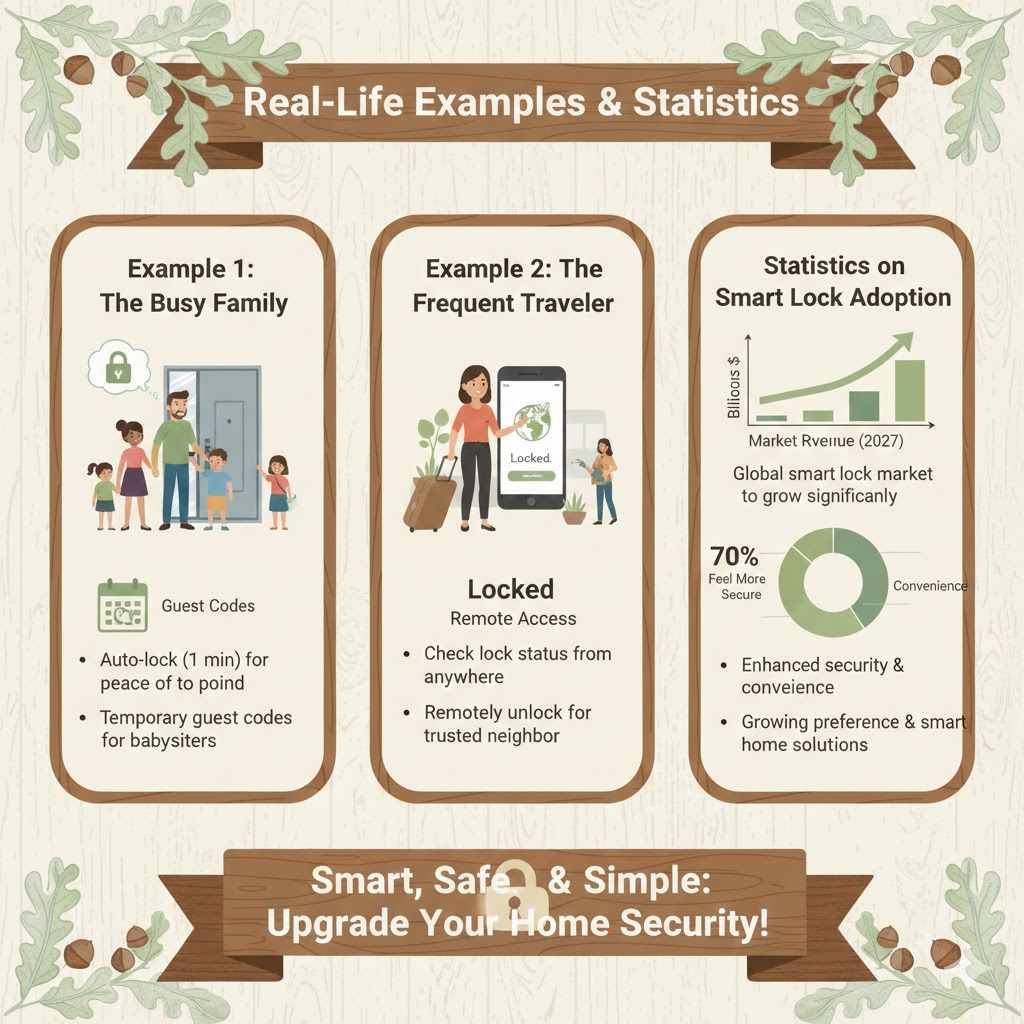
Example 1: The Busy Family
The Smith family has two working parents and three active children. They often find themselves rushing out the door in the morning and returning at different times. Before their Eufy door lock, they frequently worried about who forgot to lock the door.
The auto-lock feature, set to 1 minute, has been a lifesaver. It automatically secures the house after the last person leaves or arrives. They also use temporary guest codes for babysitters, which expire automatically, ensuring security without constant monitoring.
Example 2: The Frequent Traveler
Sarah travels extensively for work. Being away from home for weeks at a time used to cause anxiety about her home’s security. With her Eufy door lock, she can check the lock status from anywhere in the world via the Eufy Security app.
She can even remotely unlock the door for a trusted neighbor to water her plants if needed. This provides her with complete peace of mind and control over her home’s security, regardless of her location.
Statistics on Smart Lock Adoption
The adoption of smart locks is steadily increasing. According to a report by Statista, the global smart lock market is projected to grow significantly in the coming years. By 2027, the market is expected to reach billions in revenue.
This trend indicates a growing consumer preference for smart home security solutions that offer convenience and enhanced safety features. Many users are drawn to the ability to control and monitor their home access remotely.
Another study highlighted that a significant percentage of smart lock owners cite enhanced security and convenience as primary motivators for their purchase. For instance, a survey indicated that over 70% of smart lock users feel more secure knowing they can remotely lock their doors or grant access to trusted individuals. This data underscores the value people place on the control and peace of mind these devices provide.
Frequently Asked Questions
Question: How do I know if my Eufy door is locked?
Answer: You can check the status in the Eufy Security app, which shows if the door is locked or unlocked. Many Eufy models also have an indicator light on the lock itself, and you can listen for the sound of the deadbolt engaging.
Question: Can I lock my Eufy door from outside without my phone?
Answer: Yes, if your Eufy door lock has a physical keypad, you can enter your access code and then press the lock button (if applicable) to secure the door. You can also use a physical key if your model has a keyhole.
Question: What happens if my Eufy door lock’s batteries die?
Answer: If the batteries die, you can usually still unlock and lock the door using a physical key if your model has a keyhole. Some Eufy models also have a backup battery terminal where you can connect a 9V battery externally to power the lock temporarily for access.
Question: How often should I replace the batteries in my Eufy door lock?
Answer: Battery life varies depending on usage and battery type. The Eufy Security app will notify you when the batteries are low, typically when they reach around 10-20% remaining. It’s best to replace them as soon as you get the notification.
Question: Can someone hack my Eufy door lock and unlock it?
Answer: Eufy employs security measures to protect against hacking. Using strong, unique passcodes, keeping firmware updated, and securing your home Wi-Fi network are important steps to maintain security.
Wrap Up
Mastering how to lock your Eufy door is simple with the right steps. Whether you use the physical thumbturn, the Eufy Security app, or set up auto-lock, securing your home is straightforward. Enjoy the peace of mind that comes with knowing your Eufy door is safely locked.