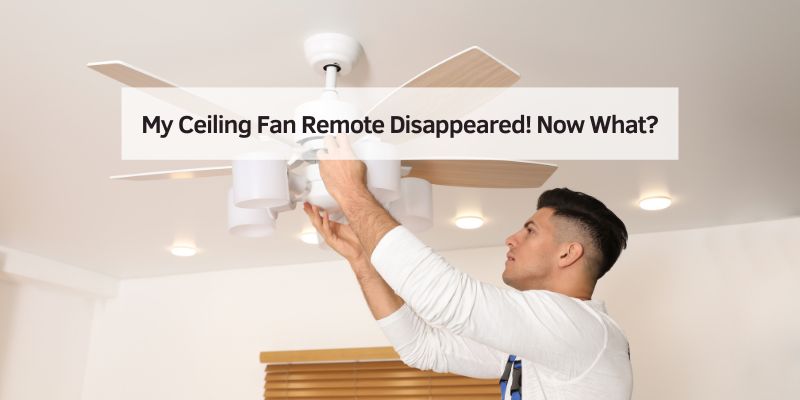
How to Turn On a Ceiling Fan Without a Remote (4 Ways)
Last summer, I lost my ceiling fan remote. It was hot, and I needed that fan spinning fast! I learned how to turn on a ceiling fan without a remote, and it was easier than I thought. In this article, I’ll share simple ways to get your fan working without a remote. You’ll find clear steps, handy tips, and some mistakes to avoid. Whether you’re a beginner or a fan enthusiast, I’ve got you covered with easy ideas to keep your home cool.
Why You Might Need to Turn On a Ceiling Fan Without a Remote
Ceiling fans cool your home and save energy. But remotes can break, get lost, or run out of batteries. Knowing how to turn on a ceiling fan without a remote helps you stay comfortable. It’s also a great skill if you’re in a new home or helping a friend. Let’s explore the easiest ways to do this.
Data Callout: Real Fan Energy Savings
Energy Star says a ceiling fan lets you raise your thermostat about 4°F with no loss of comfort — combined with the DOE’s 3-5% cooling-cost savings per degree, that’s roughly 12-20% in real savings, not the inflated 40% figure sometimes repeated online — Source: Energy Star.
Method 1: Use the Wall Switch
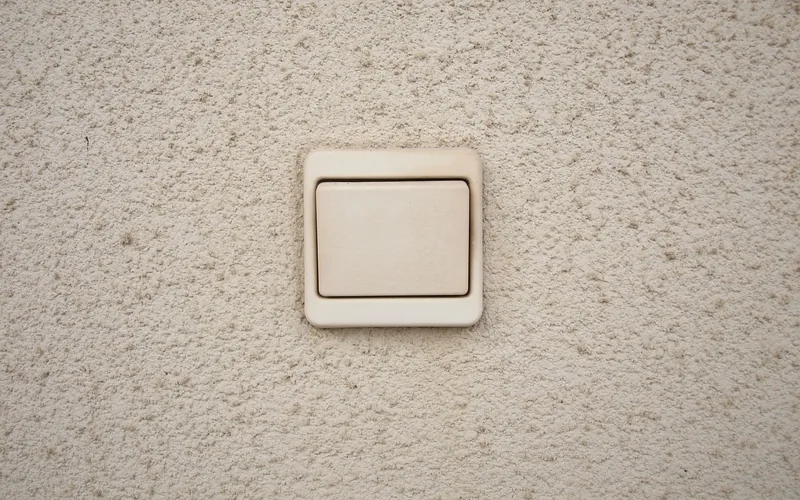
Most ceiling fans connect to a wall switch. This is the simplest way to turn your fan on.
How to Use the Wall Switch
- Find the switch. Look for a wall switch near the fan. It might be a regular light switch or a special fan control.
- Flip it on. Push the switch to the “on” position. The fan should start spinning.
- Adjust the speed. Some switches have speed settings (low, medium, high). Try each one to find what works.
- Check the light. If your fan has a light, the switch might control it too. Flip it to see what happens.
Wall Switch Tips
- If the switch doesn’t work, check if the fan is plugged in or if the breaker is off.
- Some fans need a specific switch type, like a dimmer or fan control switch.
| Feature | Wall Switch | Remote Control |
|---|---|---|
| Ease of Use | Very easy | Convenient |
| Cost | Free (already there) | $10-$50 to replace |
| Reliability | Always works | Needs batteries |
Method 2: Pull Chains for Control
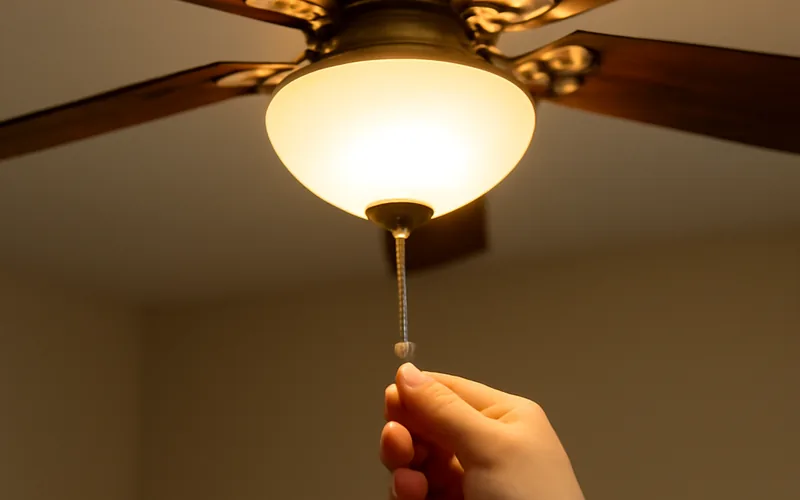
Many fans have pull chains. These are strings hanging from the fan that control power, speed, and lights.
How to Use Pull Chains
- Locate the chains. Look under the fan for one or two chains. One usually controls the fan, the other the light.
- Pull gently. Tug the fan chain to turn it on. Pull again to change speeds or turn it off.
- Test the light chain. If there’s a second chain, pull it to turn the light on or off.
- Mark the chains. Use colored tape to label which chain does what.
Pull Chain Tips
- If the chain is stuck, don’t force it. It might need a quick fix (see FAQs).
- Chains can break, so pull softly to avoid damage.
Visual Idea: A diagram showing where pull chains are on a ceiling fan and what each one does.
Method 3: Rewire to Bypass the Remote
If your fan only works with a remote, you can rewire it to use a wall switch. This is a bit advanced, so be careful!
Steps to Rewire Your Fan
- Turn off power. Flip the breaker off at your electrical panel for safety.
- Remove the remote receiver. Open the fan’s canopy (the part near the ceiling). Find the small box (the receiver) and unplug it.
- Connect wires. Match the fan’s wires to the ceiling wires (usually black to black, white to white). Use wire nuts to secure them.
- Test the switch. Turn the breaker back on and try the wall switch.
Safety First
- Never work on live wires. Always turn off the power.
- If you’re unsure, call an electrician. It’s safer and saves time.
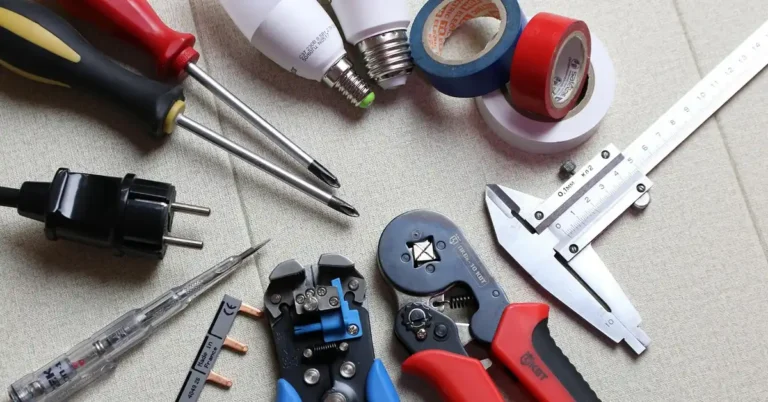
| Tool | Purpose | Cost Estimate |
|---|---|---|
| Screwdriver | Open the fan canopy | $5-$10 |
| Wire Nuts | Connect wires safely | $2-$5 |
| Voltage Tester | Check if power is off | $10-$20 |
Best Universal Remote Pick
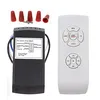
LPHUMEX Universal Ceiling Fan Remote Kit – $12.99
The quick fix this guide’s FAQ recommends if the original remote is lost for good — works with most AC-motor ceiling fans, no rewiring needed.
- Best for: Replacing a lost or broken remote
- Why we picked it: Cheapest fix, no electrical work required
- Main drawback: Check fan motor compatibility before buying
Compare more fan control options
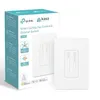 Option 1 Kasa Smart Fan Control & Dimmer – $36.99
|
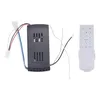 Option 2 6-Speed Universal Remote Kit – $19.99
|
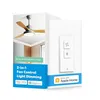 Option 3 meross Smart Fan Control & Dimmer – $35.99
|
As an Amazon Associate we earn from qualifying purchases.
Method 4: Smart Ceiling Fan Controls
You can add smart controls to turn your fan on with your phone or voice. This is a fun, modern option!
How to Add Smart Controls
- Buy a smart switch. Try a Lutron Caséta Fan Switch or Bond Bridge. They work with Alexa or Google Home.
- Install the switch. Follow the product’s instructions to replace your wall switch. Some need an electrician.
- Connect to an app. Download the app (like Lutron or Bond) and pair it with your fan.
- Use voice commands. Say, “Hey Google, turn on the fan!” It’s that easy.
Why Go Smart?
- Control your fan from anywhere.
- Save energy with schedules or motion sensors.
Benefits and Drawbacks of These Methods
Each method has pros and cons. Here’s a quick look:
- Wall Switch: Free and easy but might not control speed or light.
- Pull Chains: Simple and reliable but hard to reach on high ceilings.
- Rewiring: Permanent fix but needs electrical skills.
- Smart Controls: Cool and convenient but costs $30-$100.
| Method | Cost | Difficulty | Best For |
|---|---|---|---|
| Wall Switch | Free | Easy | Beginners |
| Pull Chains | Free | Easy | Quick Fixes |
| Rewiring | $10-$20 | Hard | Advanced Users |
| Smart Controls | $30-$100 | Medium | Tech Lovers |
My Personal Tips for Success
I’ve worked with ceiling fans for years, and here are my top tips:
- Check the breaker first. A tripped breaker can make you think the fan is broken.
- Keep spare batteries. If you find your remote later, batteries are often the issue.
- Label everything. Mark pull chains or wires to avoid confusion.
- Ask for help if stuck. Electricians are worth it for tricky wiring.
Common Mistakes to Avoid
- Forgetting safety. Always turn off the power before touching wires.
- Pulling chains too hard. This can break them, leaving you stuck.
- Ignoring the manual. Check your fan’s manual for specific instructions.
See our guide on fixing a stuck ceiling fan pull chain if yours won’t engage.
Why Ceiling Fans Matter
Ceiling fans keep you cool and cut energy bills. Energy Star says a ceiling fan lets you raise your thermostat about 4°F with no loss of comfort — combined with the Department of Energy’s 3-5% cooling-cost savings per degree, that’s roughly 12-20% in real savings. Learning to control them without a remote means you’re never left sweating!
Frequently Asked Questions
How do I know if my fan has a wall switch?
Look for a switch near the fan, often on the wall. It might look like a light switch or have speed settings. Check your home’s wiring or manual to confirm. If there’s no switch, try pull chains or consider rewiring.
What if my pull chain is stuck?
A stuck chain might be tangled or broken. Gently wiggle it to free it. If it’s broken, replace it with a new chain from Home Depot. Turn off the power first for safety.
Can I use a universal remote instead?
Yes! Universal remotes work with most fans. Buy one from Amazon for $15-$30. Follow the instructions to pair it with your fan. It’s a quick fix if rewiring feels too hard.
Is rewiring my fan safe for beginners?
Rewiring can be tricky. If you’re new, stick to wall switches or pull chains. For rewiring, use a voltage tester and follow guides from Family Handyman. Call an electrician if unsure.
How much does a smart fan control cost?
Smart controls like Lutron Caséta or Bond Bridge cost $30-$100. They’re easy to install and work with apps or voice assistants. Check compatibility with your fan before buying.
What if my fan still doesn’t turn on?
Check the breaker, wires, or pull chains. If nothing works, the motor might be broken. Contact the fan’s maker or an electrician for help. Don’t keep trying if you smell burning!
Can I add a pull chain to my fan?
Some fans allow you to add a pull chain kit. Check your fan’s manual or buy a kit from a hardware store. It’s a simple fix for remote-only fans.
Conclusion
Turning on a ceiling fan without a remote is easy once you know the steps. Use a wall switch, pull chains, or try smart controls for a modern fix. Rewiring works but needs care. My favorite is the wall switch—it’s free and fast! Try one of these methods to stay cool. Share your fan tips in the comments or tell a friend how you fixed yours. Let’s keep the breeze going!
Sponsored / affiliate links. As an Amazon Associate I earn from qualifying purchases. I may earn additional commission from eligible campaigns.