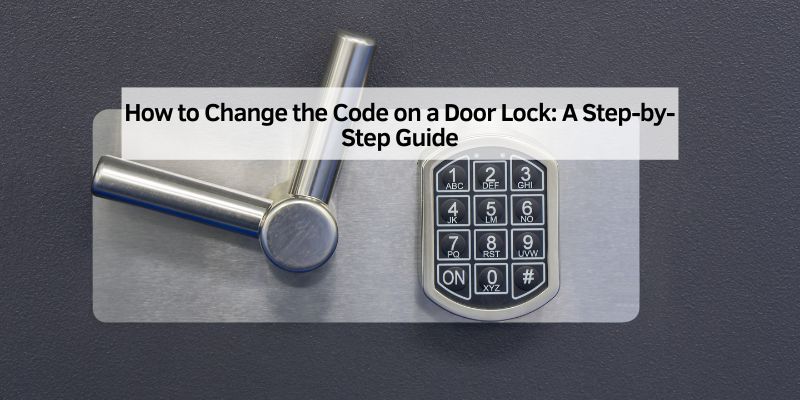
How to Change the Code on a Door Lock: A Step-by-Step Guide
Hey there! If you’re like me, you’ve probably wondered how to keep your home secure without handing out keys like candy. Changing the code on your door lock is one of those simple yet powerful ways to boost your home’s security. Whether you’ve got a new tenant, a houseguest who’s moved on, or just want a fresh code for peace of mind, I’ve got you covered. I’ve tackled this task myself a few times, and let me tell you, it’s easier than it sounds! In this guide, I’ll walk you through everything you need to know about changing the code on your door lock, from understanding your lock type to troubleshooting common hiccups. Let’s dive in and make your home a safer place, one code at a time.
Why You Should Change Your Door Lock Code Regularly
I can’t stress this enough: updating your door lock code is like changing the batteries in your smoke detector—it’s a small task that makes a big difference. When I first got a keypad lock for my front door, I didn’t think much about changing the code. But after a year of the same code, I realized how many people might have seen it: contractors, delivery folks, even my neighbor’s dog walker! Regularly changing your code keeps your home secure and gives you control over who has access.
Think about it. If you’ve shared your code with someone temporary, like a pet sitter or a repair person, you don’t want them waltzing back in uninvited. Plus, if you’ve got a smart lock, outdated codes could be a weak point in your home’s security system. I usually change my code every six months or whenever someone new has had access. It’s a habit that’s saved me a lot of worry. Not to mention, it feels good to know I’m staying one step ahead of potential risks.
Types of Door Locks That Use Codes
Before we get into the nitty-gritty, let’s talk about the types of door locks you might be working with. I’ve learned from experience that not all keypad locks are created equal. Knowing your lock type is the first step to changing its code successfully. Here’s a quick rundown of the most common ones I’ve come across:
- Mechanical Keypad Locks: These don’t need batteries or Wi-Fi. You punch in the code, and a mechanical system unlocks the door. They’re sturdy but sometimes trickier to reprogram.
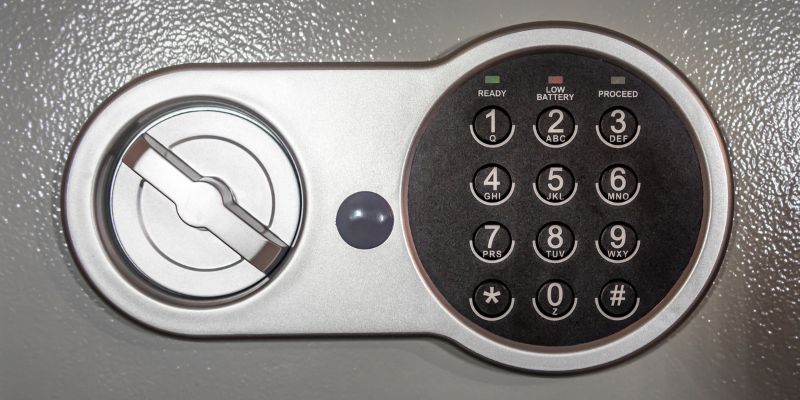
- Electronic Keypad Locks: These run on batteries and often have backlit keypads. I love these because they’re user-friendly and usually have clear instructions for changing codes.
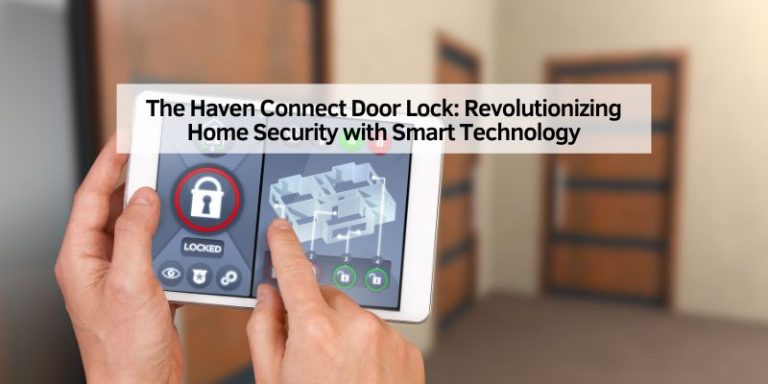
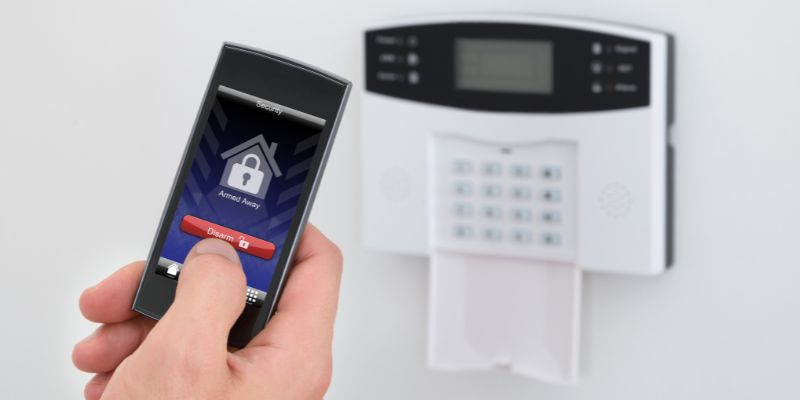
- Smart Locks: These are the high-tech ones that connect to your phone or home Wi-Fi. I have one of these at my house, and it’s a game-changer—you can change codes from an app!
- Biometric Locks: These use fingerprints or codes. They’re fancy but less common for home use, so I’ll focus on the others.
Each type has its own quirks, so check your lock’s manual or brand website to confirm what you’ve got. If you’re unsure, look for a brand name or model number on the lock itself. That’s what I did when I moved into my current place, and it saved me a lot of guesswork.
Tools and Materials You’ll Need
I’m all about being prepared, so let’s make sure you’ve got everything you need before you start. The good news? Changing a door lock code doesn’t require a toolbox the size of a small car. Here’s what I typically gather:
| Item | Purpose |
|---|---|
| Screwdriver | For removing the lock’s cover or battery compartment (usually a small Phillips). |
| User Manual | Your lock’s specific instructions (check the manufacturer’s website if lost). |
| New Code | Pick a code you’ll remember but isn’t obvious (avoid 1234 or your birthday!). |
| Batteries (if needed) | Some electronic locks need fresh batteries for programming to work smoothly. |
| Smartphone (for smart locks) | To access the app for Wi-Fi-enabled locks. |
| Pen and Paper | To jot down your new code or programming steps (trust me, it helps). |
I always keep a small screwdriver in my junk drawer for tasks like this. If you don’t have one, borrow one from a neighbor—it’s a quick job. Also, I can’t tell you how many times I’ve forgotten a new code because I didn’t write it down. Save yourself the headache and keep a record somewhere safe, like a locked note on your phone.
Step-by-Step Guide to Changing the Code on a Mechanical Keypad Lock
Let’s start with mechanical keypad locks since they’re a bit old-school but still common. I had one of these at my old apartment, and while it felt like cracking a safe at first, it’s pretty straightforward once you get the hang of it. Here’s how I do it:
- Locate the Programming Button: Most mechanical locks have a small button or switch inside the lock’s back panel. You might need to remove a cover with your screwdriver. I found mine hidden behind a small plate on the interior side of the door.
- Enter the Current Code: Punch in the existing code to access programming mode. If you don’t know it, check the manual or contact the manufacturer. I once had to call customer service for an old lock, and they were super helpful.
- Press the Programming Button: Hold it down or press it a specific number of times (the manual will say). You might hear a click or see a light flash.
- Enter the New Code: Type in your new code slowly and clearly. I usually pick something memorable but random, like the year my favorite movie came out.
- Confirm the New Code: Some locks ask you to re-enter the code to lock it in. Double-check for typos—I’ve messed this up before!
- Test the Lock: Close the door and try the new code. I always test it a few times to make sure it works smoothly.
If it doesn’t work, don’t panic. I’ve had to restart the process a couple of times when I rushed through it. Just go back to step one and take your time.
How to Change the Code on an Electronic Keypad Lock
Electronic keypad locks are my go-to because they’re so user-friendly. I installed one on my front door last year, and changing the code is a breeze. Here’s the process I follow:
- Wake Up the Lock: Press any key to light up the keypad. Some locks require you to touch the screen or press a specific button, like “Y” or “*”.
- Enter the Programming Code: This is usually a default code from the manufacturer, like 0000 or 1234. My lock came with a sticker on the manual that had this code—check there first.
- Access Programming Mode: Press the programming button (often labeled “P” or a gear icon). You might hear a beep or see a green light.
- Input the New Code: Type in your new code. I like to use a mix of numbers that’s easy for me but hard for others to guess.
- Save the Code: Press the lock button or a specific key (like “#”) to save it. My lock beeps twice when it’s done.
- Test It Out: Lock the door and try the new code. I always do this with the door open first, just in case I need to troubleshoot.
One time, my lock didn’t save the new code because the batteries were low. I swapped them out, and it worked like a charm. If your lock isn’t responding, check the batteries before you stress out.
Changing the Code on a Smart Lock
Smart locks are my favorite because they’re so convenient. I have a smart lock that syncs with my phone, and I can change the code from my couch! Here’s how I do it:
- Open the App: Download the lock’s app (like Schlage Home or August) if you haven’t already. I set mine up when I first got the lock, and it’s a lifesaver.
- Log In: Use your account details to access the lock settings. Make sure your phone is connected to Wi-Fi or Bluetooth.
- Find the Code Settings: Look for a section like “User Codes” or “Access Codes.” My app has a little key icon for this.
- Add a New Code: Enter your new code. Some apps let you name the code, like “Family” or “Guest.” I label mine to keep track of who’s using what.
- Save and Sync: Hit save, and the app will sync the new code to your lock. This usually takes a few seconds.
- Test the Code: Go to the door and try it out. I always test it right away to make sure the sync worked.
If the app isn’t connecting, make sure your lock’s batteries are fresh and your phone is close to the lock. I had an issue once where my Wi-Fi was spotty, and switching to Bluetooth fixed it.
Troubleshooting Common Issues
I’ve hit a few snags while changing lock codes, so let me save you some frustration. Here are the most common issues I’ve faced and how I fixed them:
- Lock Won’t Enter Programming Mode: This usually means the batteries are low or the programming code is wrong. I check the manual or replace the batteries first.
- New Code Doesn’t Work: Double-check that you entered it correctly. I’ve fat-fingered a number before and had to start over. Also, ensure the lock saved the code (listen for beeps or check the app).
- Smart Lock Won’t Sync: Make sure your phone is close to the lock and your Wi-Fi or Bluetooth is on. I once had to restart my router to get it working.
- Mechanical Lock Feels Stuck: Sometimes, the buttons need a good press. I clean the keypad with a damp cloth to remove dirt or grime.
If all else fails, I call the manufacturer’s customer service. They’ve always been helpful when I’ve hit a dead end.
Tips for Choosing a Secure Code
Picking a good code is just as important as changing it. I’ve learned a few tricks to make sure my codes are secure but easy to remember:
- Avoid Obvious Choices: Don’t use 1234, 0000, or your birthday. I once used my house number, and my friend pointed out how easy that was to guess!
- Mix It Up: Use a random string of numbers, like the last four digits of a favorite phone number from childhood.
- Keep It Memorable: I tie my codes to something personal but obscure, like the year I got my first pet.
- Don’t Reuse Codes: I never use the same code twice. It’s tempting, but it defeats the purpose of changing it.
Write your code down in a secure place, like a password manager or a locked drawer. I’ve learned the hard way that forgetting a code can be a hassle.
How Often Should You Change Your Code?
I change my code every six months, but it depends on your situation. If you’ve had a lot of visitors, like during the holidays, or if you’ve shared your code with someone temporary, change it sooner. I also update mine if I suspect someone might have seen it, like after a big party. Smart locks often let you set temporary codes for guests, which I love because they expire automatically. If you’re not sure, a good rule of thumb is to refresh your code at least once a year.
Maintaining Your Door Lock for Longevity
Changing the code is just one part of keeping your lock in tip-top shape. I’ve found that a little maintenance goes a long way:
- Clean the Keypad: Use a damp cloth to wipe away dirt or grime. I do this every few months to keep the buttons responsive.
- Check Batteries: For electronic or smart locks, replace batteries every year or when the low-battery warning appears. I keep spare AA batteries handy.
- Lubricate Mechanical Locks: If your lock is mechanical, a bit of lock lubricant can keep it smooth. I’ve used graphite spray before, and it works great.
- Inspect for Wear: Look for loose screws or worn-out buttons. I tighten any loose parts with my trusty screwdriver.
A well-maintained lock is less likely to give you trouble when you’re changing the code, so don’t skip this step.
When to Call a Professional
Most of the time, changing a lock code is a DIY job. But sometimes, you might need a pro. I’ve called a locksmith twice: once when I lost the programming code for an old lock, and once when my smart lock wouldn’t sync no matter what I tried. If your lock is damaged, the keypad is unresponsive, or you’re just not comfortable messing with it, a locksmith can help. They’re also great for installing a new lock if you’re ready to upgrade. I found a local locksmith through a quick Google search, and they were worth every penny for the peace of mind.
Conclusion
Changing the code on your door lock might seem daunting at first, but trust me, it’s one of those home improvement tasks that’s way easier than it looks. Whether you’ve got a mechanical, electronic, or smart lock, the process is straightforward once you know the steps. I love the feeling of control and security I get every time I update my code—it’s like giving my home a little hug. By following this guide, you’re not only keeping your home safe but also building confidence in tackling small home projects. So grab that screwdriver, pick a new code, and take charge of your home’s security. You’ve got this!
Frequently Asked Questions
How do I find my lock’s programming code?
Check the user manual or a sticker on the lock itself. If you’ve lost it, visit the manufacturer’s website or call their customer service. I’ve had to do this before, and they usually have a way to reset it.
Can I use the same code for multiple locks?
You can, but I don’t recommend it. If someone guesses one code, they’ll have access to all your locks. I use different codes for each door to stay extra safe.
What if my smart lock won’t connect to the app?
Make sure your phone’s Wi-Fi or Bluetooth is on and you’re close to the lock. I’ve had to restart my phone or router to fix connection issues. Fresh batteries can also help.
How long should my lock code be?
Most locks accept 4-6 digits. I stick with 4 for simplicity, but longer codes are more secure. Check your lock’s manual for specific requirements.
What do I do if I forget my new code?
If it’s a smart lock, you can often reset it through the app. For other locks, you might need the master code or a locksmith. I always write my code down in a secure place to avoid this!