How to Lock Tesla Doors: A Comprehensive Guide
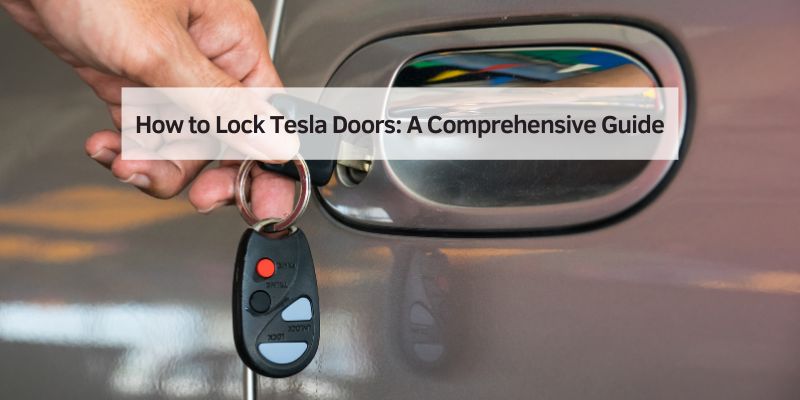
Hey there! If you’re a Tesla owner or just curious about how these sleek electric vehicles work, you’ve probably wondered, how to lock Tesla doors. I’ve been driving my Tesla Model 3 for a couple of years now, and let me tell you, figuring out the locking system was a bit of a learning curve! Unlike traditional cars, Teslas have a high-tech approach to securing your ride. In this guide, I’ll walk you through every method to lock your Tesla, whether you’re inside, outside, or miles away. I’ll keep it simple, share my experiences, and make sure you feel confident about keeping your Tesla safe.
Why Tesla’s Locking System Feels So Different
When I first got my Tesla, I was surprised by how different it felt compared to my old gas-powered sedan. Traditional cars have physical keys and obvious lock buttons, but Tesla? It’s a whole new world! The doors are flush with the body, there’s no traditional keyhole, and everything seems to rely on tech like the Tesla app or Tesla key fob. This futuristic setup is part of what makes owning a Tesla so exciting, but it can also feel a bit overwhelming at first.
Tesla’s locking system is designed for convenience and security. It uses a combination of Bluetooth technology, key cards, and even voice commands to lock and unlock your car. Whether you have a Model 3, Y, S, or X, the process is similar but has some model-specific quirks. I’ve locked my car in every way possible—sometimes by accident—and I’m here to break it all down for you.
Locking Your Tesla from the Inside
Let’s start with locking your Tesla while you’re sitting inside. Maybe you’re waiting for a friend or just want to feel secure in a busy parking lot. Here’s how I do it.
The easiest way is to use the touchscreen display in the center of your Tesla. At the top of the screen, you’ll see a lock icon next to the clock. Tap it, and boom—your doors and trunk are locked. The icon changes from an open padlock to a closed one, so you know it’s secure. I love how simple this is, but here’s a tip: if you tap it before getting out, the car stays locked when you exit, which is super handy.
Another cool option is using voice commands. If you’re in a Model 3 or Y, press the right scroll button on the steering wheel. In a Model S or X, tap the voice button on the yoke. Just say, “Lock the car,” and your Tesla obeys. I tried this once while eating a burger in my car, and it felt like I was in a sci-fi movie!
One thing to watch out for: if you’re using the Tesla phone key and your phone is inside the car, the doors might not stay locked unless you override the settings. I learned this the hard way when my car kept unlocking because my phone was in my pocket. To fix this, use the touchscreen to lock it manually.
Locking Your Tesla from the Outside
Now, let’s talk about locking your Tesla when you’re outside. This is where the auto-lock feature shines. Tesla’s Walk-Away Door Lock is a game-changer. When you walk away with your phone key or key fob, the car locks itself automatically. You’ll know it worked because the exterior lights flash, and if you’ve enabled Lock Confirmation Sound, you’ll hear a quick chirp. I love this feature because I don’t have to fumble with keys.
To set it up, go to the touchscreen, tap Controls, then Locks, and turn on Walk-Away Door Lock. You can also tweak settings like Exclude Home, so your car doesn’t lock when you’re parked at your house. I use this because I’m always in and out of my garage.
If you prefer more control, you can lock your Tesla using:
- Tesla app: Open the app, find the lock icon below your car’s image, and tap it. This works even if you’re halfway across the world, as long as you have an internet connection.
- Tesla key card: Tap it against the card reader on the driver’s side door pillar, just below the Autopilot camera. It’s like using a credit card at a store—quick and reliable.
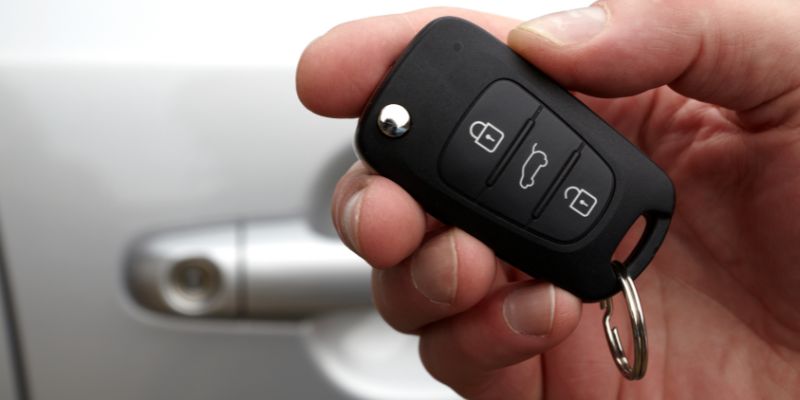
- Tesla key fob: Press the lock button once. The lights flash, and the door handles retract. I carry my key card as a backup because I’ve had moments where my phone died.
One time, I forgot to close my trunk fully, and the auto-lock feature didn’t work. Lesson learned: always double-check that your doors and trunk are shut tight!
Using the Tesla App for Remote Locking
The Tesla app is like a magic wand for your car. I use it all the time to lock my Tesla from anywhere. Whether I’m at the grocery store or on vacation, I can open the app, tap the lock icon, and secure my car. It’s a lifesaver if you’re like me and occasionally wonder, “Did I lock my car?”
To use it, make sure your phone has Bluetooth and a cellular connection. If the app isn’t connecting, try signing out and back in or updating your phone. I had an issue once where my app wouldn’t lock the car because my phone’s Bluetooth was off—oops! Also, the app only locks or unlocks the doors, not opens them, so don’t expect it to pop the handles out.
For extra convenience, you can set up your Apple Watch as a key. I tried this, and it’s so cool to lock my car from my wrist. Just open the Tesla app on your watch and tap the lock button. It’s like being James Bond, but with an electric car.
Voice Commands and Third-Party Apps
I mentioned voice commands earlier, but they’re worth diving into more. Saying “lock the car” or “lock doors” works like a charm in any Tesla model. It’s perfect for hands-free moments, like when you’re carrying groceries. I once locked my car while balancing a pizza box, and it felt like a small victory.
You can also explore third-party Tesla apps. These apps, available for iPhone, Android, or even Apple Watch, often include lock/unlock features. I’ve tried a couple, like Tessie, and they work similarly to the official Tesla app. Just look for a lock icon in the app’s interface. Be cautious, though—stick to reputable apps to avoid security risks. I always check reviews before downloading anything.
Automatic Locking Features
Tesla’s automatic locking features make life so much easier. Besides Walk-Away Door Lock, there’s Drive Away Locking. When you hit 5 mph (8 km/h), your Tesla locks all doors and trunks automatically. I noticed this the first time I drove my Model 3—it’s reassuring to know the car secures itself while I’m on the move.
You can customize these settings on the touchscreen. For example, Driver Door Unlock Mode lets you unlock just the driver’s door when you approach, keeping the rest locked. I use this in busy areas to feel extra safe. To set it up, go to Controls > Locks > Driver Door Unlock Mode.
One thing to note: auto-lock won’t work if your phone key is left inside the car, the trunk is open, or your phone’s Bluetooth is off. I once left my phone in the center console, and my car refused to lock. Now I always double-check before walking away.
Child Safety Locks for Extra Protection
If you’ve got kids, child safety locks are a must. I have a toddler, so I use these all the time to keep my little one from opening the rear doors. On the touchscreen, go to Controls > Locks > Child Lock, and choose whether to lock both rear doors or just one. It’s super easy to toggle on and off.
This feature prevents the rear doors from being opened from the inside, even with the interior release button. It’s a small thing, but it gives me peace of mind when my kid is in the backseat playing with every button she can find.
What to Do If Your Tesla Loses Power
One scary scenario I’ve thankfully never faced is a dead 12-volt battery. If your Tesla loses power, the electronic door locks might not work, which could trap you inside or out. Here’s what I’ve learned about handling this.
If you’re inside, look for the manual door release. For the front doors, it’s a latch in front of the window switches—pull it up to open the door. For rear doors (if equipped), lift the carpet under the seat to find a release cable. Pull it toward the center of the car. These are emergency options, so use them carefully to avoid damaging anything.
If you’re locked out, you’ll need to access the front trunk to jump-start the 12-volt battery. There’s a manual release cable in the front bumper, but it’s tricky to find. I recommend checking your owner’s manual for exact instructions. One time, I watched a YouTube video to figure this out just in case—it’s worth being prepared!
Comparing Locking Methods Across Tesla Models
Each Tesla model has slight differences in how you lock the doors. I put together a table to make it clear:
| Model | Locking Method | Unique Features |
|---|---|---|
| Model 3/Y | App, key card, key fob, touchscreen | Flush door handles, Walk-Away Door Lock |
| Model S | App, key fob, touchscreen | Auto-present handles, Passive Entry |
| Model X | App, key fob, touchscreen | Falcon-wing doors, voice command for rear doors |
The Model X is the trickiest because of its falcon-wing doors. To lock them, use the app, key fob, or touchscreen like other models. But for opening, you might need to double-press the key fob’s far-left button for the rear doors. It took me a while to get used to this when I test-drove a friend’s Model X!
Tips to Keep Your Tesla Secure
Over time, I’ve picked up some habits to ensure my Tesla stays locked and safe:
- Check the app: Before walking away, glance at the Tesla app to confirm the lock icon is closed.
- Enable Lock Confirmation Sound: This little chirp reassures you the car is locked.
- Carry a backup: I always keep my Tesla key card in my wallet in case my phone dies.
- Update your app: A glitchy app can cause issues, so keep it updated.
- Test your key fob: If you use a key fob, check its battery every few months.
I also recommend enabling Pin to Drive on the touchscreen (Controls > Safety > Pin to Drive). It requires a PIN before anyone can drive your car, adding an extra layer of security. I set this up after hearing about car thefts in my area—it’s a small step that makes a big difference.
Common Mistakes to Avoid
I’ve made my fair share of mistakes with my Tesla’s locking system. Here are some to watch out for:
- Leaving your phone inside the car, which disables Walk-Away Door Lock.
- Forgetting to close the trunk or a door fully, preventing auto-lock.
- Not checking the lock icon in the app or on the touchscreen.
- Using a weak phone signal, which can mess with the Tesla app connection.
Once, I thought my car was locked, but I’d left a window cracked open. Now I always do a quick walk-around to check everything.
Why Tesla’s Locking System Is a Game-Changer
After using my Tesla for a while, I’ve come to love its locking system. The auto-lock feature means I don’t have to dig for keys, and the Tesla app gives me control from anywhere. Sure, it took some getting used to, but now it feels second nature. Whether you’re a new Tesla owner or just curious, mastering these methods will make your life easier and your car safer.
Owning a Tesla is about embracing the future, and the locking system is a big part of that. It’s not just about security—it’s about convenience and feeling like you’re driving something special. So, next time you lock your Tesla, give yourself a pat on the back for being part of the electric revolution!
FAQs
How do I lock my Tesla without the app?
You can lock your Tesla using the key card by tapping it on the driver’s side door pillar or use the key fob by pressing the lock button. If you’re inside, tap the lock icon on the touchscreen.
Does Walk-Away Door Lock work at home?
Not if you enable Exclude Home in the settings. Go to Controls > Locks and check Exclude Home to prevent auto-locking at your home address.
Can I lock my Tesla with voice commands?
Yes! Say “lock the car” or “lock doors” using the voice button on the steering wheel or yoke. It works in all Tesla models.
What happens if my Tesla’s battery dies?
If the 12-volt battery dies, use the manual door release inside or access the front trunk’s manual release to jump-start the battery. Check your owner’s manual for details.
Can I use my Apple Watch to lock my Tesla?
Absolutely! Open the Tesla app on your Apple Watch and tap the lock icon. It’s a convenient way to lock or unlock your car.
Why won’t my Tesla auto-lock?
Check if your phone key is inside the car, the trunk is open, or your phone’s Bluetooth is off. These can prevent Walk-Away Door Lock from working.
Are third-party apps safe for locking my Tesla?
Stick to reputable third-party Tesla apps like Tessie, and always check reviews. They can lock your car, but use them cautiously to protect your security.