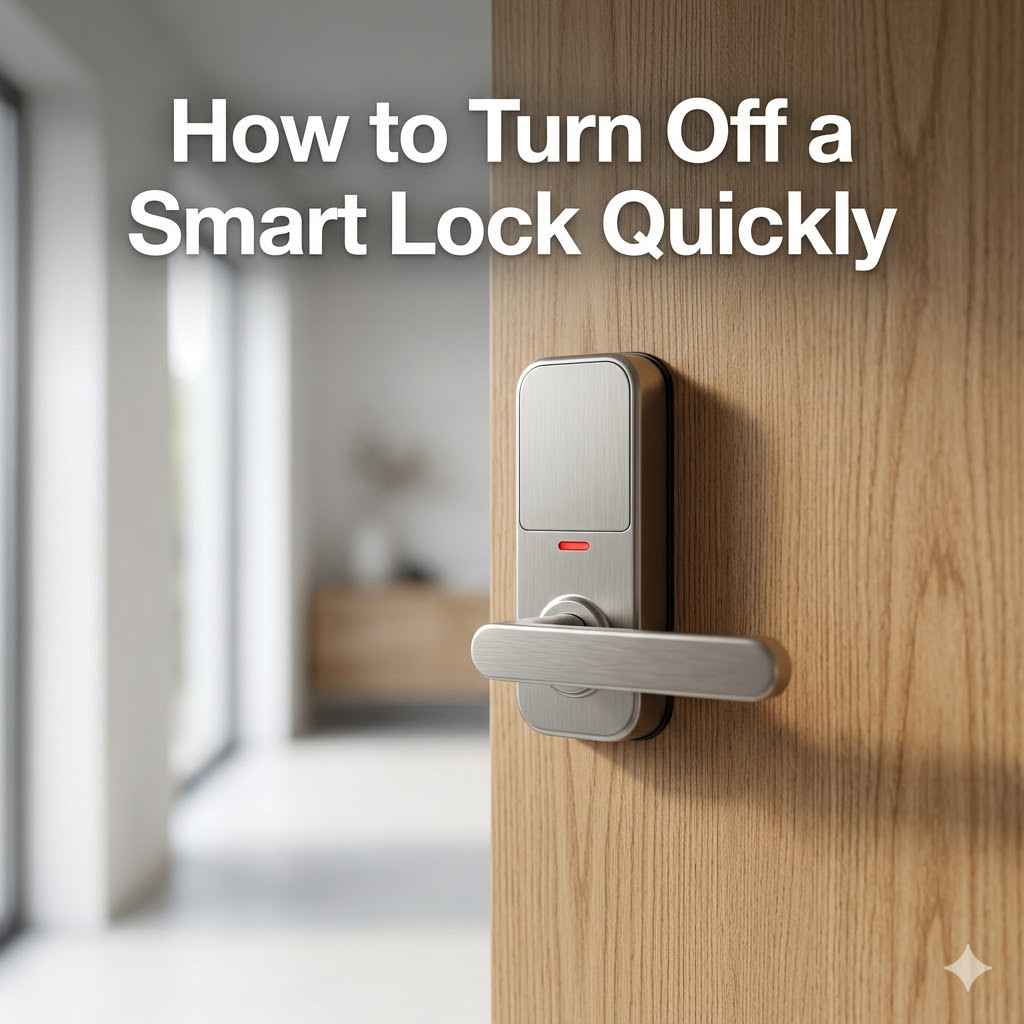
How to Turn Off a Smart Lock Quickly
Many people wonder how to turn off a smart lock quickly. It can seem tricky at first, especially if you’re new to smart home tech. You might worry about accidentally locking yourself out or not knowing how to get back in.
But don’t worry! This guide will show you simple steps to manage your smart lock easily. We’ll cover everything you need to know so you can feel confident using it.
Understanding Smart Lock Operation
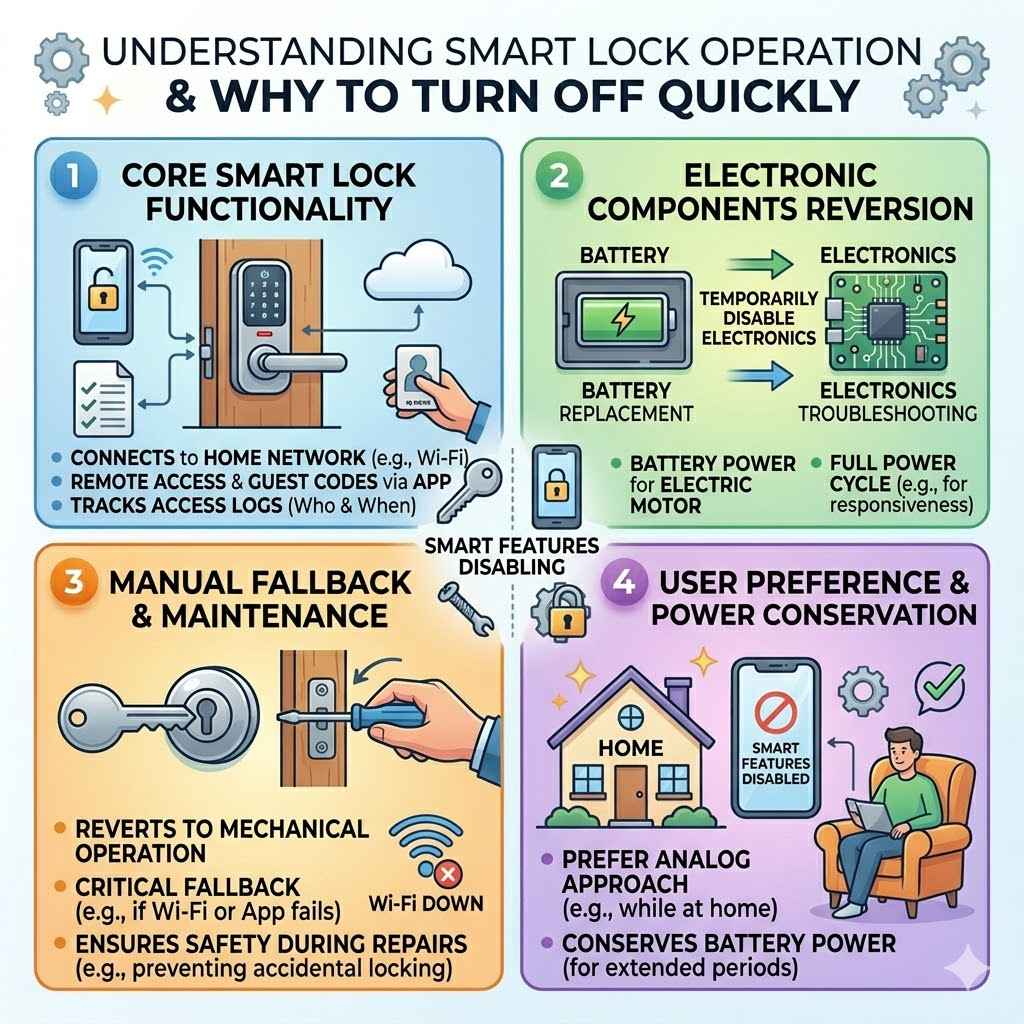
Smart locks offer convenience and advanced security features for your home. They connect to your home network, allowing you to control access through apps, keypads, or even voice commands. While designed for ease of use, understanding how to revert to manual control or temporarily disable features is important.
This section explains the basic ways smart locks function and why knowing how to turn them off is useful.
Core Functionality of Smart Locks
Smart locks are electronic devices that secure doors. They
The smart capabilities allow for remote access. You can grant temporary access to guests or family members from anywhere. This is done by sending digital keys or codes via an app.
The lock also keeps a log of who entered and when, offering an added layer of security and peace of mind. This connectivity is what makes them “smart” and differentiates them from standard locks.
When you want to disable these smart features, it’s often about reverting to a simpler mode of operation. This might be for maintenance, troubleshooting, or simply to ensure the lock functions like a regular deadbolt without relying on its electronic components. Understanding this basic operation is the first step in learning how to turn off a smart lock quickly and effectively.
Why You Might Need to Turn Off Your Smart Lock
There are several reasons why someone might need to turn off a smart lock. One common scenario is during battery replacement. While many smart locks alert you before the battery dies, you might need to remove the battery for a full power cycle or if the lock becomes unresponsive.
In such cases, knowing how to temporarily disable it prevents unexpected issues.
Another reason is for maintenance or repair. If the lock needs a physical adjustment or if a technician is working on it, turning off its electronic functions ensures safety. It prevents accidental locking or unlocking during the process.
This is similar to how you might turn off a smart appliance before cleaning it.
Sometimes, you might want to use a traditional key. Perhaps the Wi-Fi is down, or the app is not functioning correctly. Having the ability to quickly revert to manual key operation is a critical fallback.
This ensures you are never locked out. It also offers a way to test the lock’s mechanical integrity without its electronics interfering.
Finally, for those who prefer a more analog approach or want to conserve battery power, temporarily disabling smart features can be desirable. This might be for extended periods when you are home and don’t need remote access. Knowing these scenarios helps highlight the importance of the “how to turn off a smart lock quickly” skill.
Methods to Turn Off a Smart Lock
Turning off a smart lock isn’t always a single button press. The method often depends on the specific brand and model of your smart lock. However, most smart locks provide a way to disengage their smart features, either temporarily or by cutting power.
We will explore the most common techniques to achieve this, making the process straightforward.
Temporary Disabling Through App Settings
Many smart lock manufacturers offer an “away mode” or “vacation mode” within their mobile applications. This feature typically disables remote access and automatic locking/unlocking functionalities while still allowing manual operation via the keypad or key. It’s a convenient way to conserve battery or prevent unwanted access when you’re away for an extended period.
Accessing this feature usually involves opening the smart lock’s dedicated app on your smartphone. You’ll need to navigate to the settings menu for your specific lock. Look for options related to modes, security settings, or battery saving.
Tapping on the relevant option will allow you to activate the temporary disabling feature.
This method is excellent because it keeps the lock functional mechanically. You can still use your PIN code or a physical key if your lock has one. It’s like putting the smart lock into a sleep mode.
This is often the easiest way to turn off a smart lock quickly without physically tampering with it.
For example, August Smart Locks have an “Auto-Lock” feature that can be turned off, and their “Guest Access” can be revoked. Similarly, Schlage smart locks often allow you to disable Wi-Fi connectivity or specific user codes through their companion app. Always refer to your lock’s user manual for the precise steps, as app interfaces can vary.
Manual Power Cutoff and Battery Removal
If the app is inaccessible or the lock is malfunctioning, physically removing the power source is a direct method. Most smart locks are powered by batteries, usually AA or AAA, located within the interior portion of the lock. Accessing these batteries is often the key to completely turning off the smart lock.
To perform a battery removal, you will typically need to access the inside of your door where the smart lock is mounted. There is usually a small cover or a set of screws that can be removed. Once this cover is off, you will see the battery compartment.
Carefully remove the batteries to cut off power to the lock’s electronics.
This action immediately disables all smart functions, including Wi-Fi connectivity, Bluetooth, and any electronic unlocking mechanisms. The lock will then function purely as a mechanical deadbolt, operable only by a physical key (if your model includes one) or by manually turning the thumb turn on the inside. It’s the most definitive way to ensure the smart lock is off.
It is important to note that after removing the batteries, you will need to reinsert them to restore the smart features. You might also need to go through a brief re-pairing process with your app or smart home system depending on the manufacturer. This method is highly effective for a complete shutdown and is a reliable way to answer how to turn off a smart lock quickly in an emergency.
Some high-end smart locks might have a wired power backup or a s eparate power adapter. If this is the case, you will need to disconnect the power adapter from the wall outlet or the lock itself. Always ensure you are disconnecting the correct power source to avoid damaging the device.
Using the Physical Lock Mechanism
Many smart locks are designed to function as traditional deadbolts even when their smart features are active. This means you can often “turn off” the electronic engagement by simply using the lock’s physical mechanism. This is particularly useful if you are inside the house and want to ensure the door is securely locked without relying on the app.
For example, the thumb turn on the inside of the lock is a primary way to manually lock and unlock. When you rotate this thumb turn, you are engaging the deadbolt mechanism directly. This bypasses the electronic control of the lock, effectively turning it to its locked state through mechanical means.
Similarly, if your smart lock has a physical keyhole on the exterior, you can use a traditional key to lock or unlock the door. This method is also entirely mechanical and does not rely on the smart components. Using the key from the outside engages the deadbolt just like any standard deadbolt would.
While this doesn’t “turn off” the electronics in the sense of cutting power, it ensures the door is locked through traditional means. If you’re concerned about the smart features being active or want to ensure the door is securely locked from the inside, using the thumb turn is a quick and effective solution. It provides a sense of security that is independent of the lock’s smart capabilities.
Resetting the Lock to Factory Settings
A factory reset is a more drastic measure. It returns the smart lock to its original state, as if it were brand new. This process will erase all custom settings, user codes, Wi-Fi connections, and paired devices.
While not a temporary “off” switch, it effectively renders the smart lock inactive until it is set up again.
To perform a factory reset, you typically need to locate a small reset button on the lock itself. This button is often hidden under a battery cover or requires a small pin or paperclip to press and hold for a specific duration. The exact procedure varies greatly between brands and models.
Holding this button for a set period, usually 10-30 seconds, will initiate the reset process. The lock might beep or flash lights to indicate it is resetting. Once completed, the lock will no longer be connected to your Wi-Fi network or your smartphone app.
It will behave like a basic keypad lock that only works with default or newly programmed codes.
This method is useful if you are selling your home, moving, or experiencing persistent software issues that cannot be resolved through other means. It’s a way to effectively “turn off” all its smart functions and start fresh. However, it requires a full reconfiguration to regain smart functionality.
For instance, a common method for many smart locks involves removing batteries, pressing and holding the reset button, and then reinserting the batteries while still holding the button. This sequence forces the lock to clear its memory. Always consult your lock’s manual to find the exact reset procedure for your model.
Troubleshooting Common Issues
Even with clear instructions, you might run into a snag. Smart locks, like any technology, can sometimes have glitches. Here, we’ll tackle some common problems people face when trying to turn off their smart lock quickly and provide easy fixes.
Lock is Unresponsive to App Commands
If your smart lock is not responding to commands from its app, the first step is to check your smartphone’s internet connection and Bluetooth. Ensure both are enabled and functioning correctly. Sometimes, simply toggling them off and on can resolve connectivity issues.
Next, verify that the smart lock itself has power. If it’s battery-powered, check the battery level in the app or physically inspect the batteries. Weak or dead batteries are a frequent cause of unresponsiveness.
Replacing them with fresh ones is often the quickest solution. Make sure they are inserted with the correct polarity.
You might also need to restart the smart lock. This is usually done by removing and reinserting the batteries. Wait about 30 seconds before putting them back in.
This allows the internal components to reset. After reinserting the batteries, give the lock a minute to boot up before trying to connect with the app again.
If the issue persists, try restarting your Wi-Fi router. A glitch in your home network can disrupt communication between your phone, the router, and the smart lock. After the router restarts, try reconnecting the smart lock to your Wi-Fi network if necessary.
Keypad Not Working
When the keypad on your smart lock stops responding, it’s frustrating, especially if it’s your primary way to enter. First, ensure the keypad is clean. Dirt or debris can sometimes interfere with button presses.
Gently wipe it down with a dry, soft cloth.
Check the batteries. A low battery can cause the keypad to become sluggish or completely unresponsive.
If your lock has a physical key override, use that to get inside. Once inside, access the lock’s settings, usually through the companion app. Look for options to recalibrate or reset the keypad.
Follow the on-screen instructions. You might need to re-enter your master code or program new codes.
In some cases, a factory reset might be necessary. Remember, this will erase all settings, so you’ll have to reprogram everything. This is a last resort but can resolve persistent keypad issues.
Always refer to your smart lock’s manual for specific troubleshooting steps for keypad problems.
Physical Key Not Turning
If you find that your physical key is no longer turning in the smart lock, several things could be the cause. The most common issue is a misalignment of the internal locking mechanism. This can happen if the door has shifted slightly, or if the lock itself is not properly seated.
Try gently jiggling the door while turning the key. Sometimes applying a little pressure to the door inwards or outwards can help align the bolt with the strike plate on the door frame. If this doesn’t work, ensure the key is fully inserted into the lock cylinder.
Dirt or debris inside the keyhole can also prevent the key from turning. You can try cleaning the keyhole with a blast of compressed air or a small amount of graphite lubricant. Avoid using oil-based lubricants, as they can attract dust and make the problem worse over time.
If the key still won’t turn, the internal pins within the lock cylinder might be damaged or stuck. In such cases, it might be necessary to remove the entire lock for inspection or replacement. If you are comfortable doing so, you can attempt to remove the lock from the door, following the manufacturer’s instructions, to see if you can manually disengage the mechanism.
Accidental Lockout Scenarios
Accidental lockout is a major concern for many smart lock users. This can happen if the battery dies unexpectedly, if the app malfunctions, or if a wrong code is entered too many times, leading the lock to enter a lockout mode. To prevent this, always maintain a charged battery and know your backup entry methods.
Having a physical key hidden in a secure, accessible location outside your home is a wise precaution. This could be with a trusted neighbor or a weatherproof lockbox. Ensure the key is for your smart lock’s manual override.
For some locks, a spare key stored securely nearby is essential.
Another preventive measure is to always ensure your smart lock is updated. Manufacturers release firmware updates that can fix bugs and improve reliability, reducing the chances of unexpected malfunctions. Regularly check for updates through your smart lock’s app.
If you do get locked out, contact the manufacturer’s support. They can often guide you through advanced troubleshooting or emergency entry procedures. For some high-security locks, a locksmith might be your only option if all other methods fail.
Having a plan in place before an incident occurs is the best defense against accidental lockout.
Best Practices for Smart Lock Management
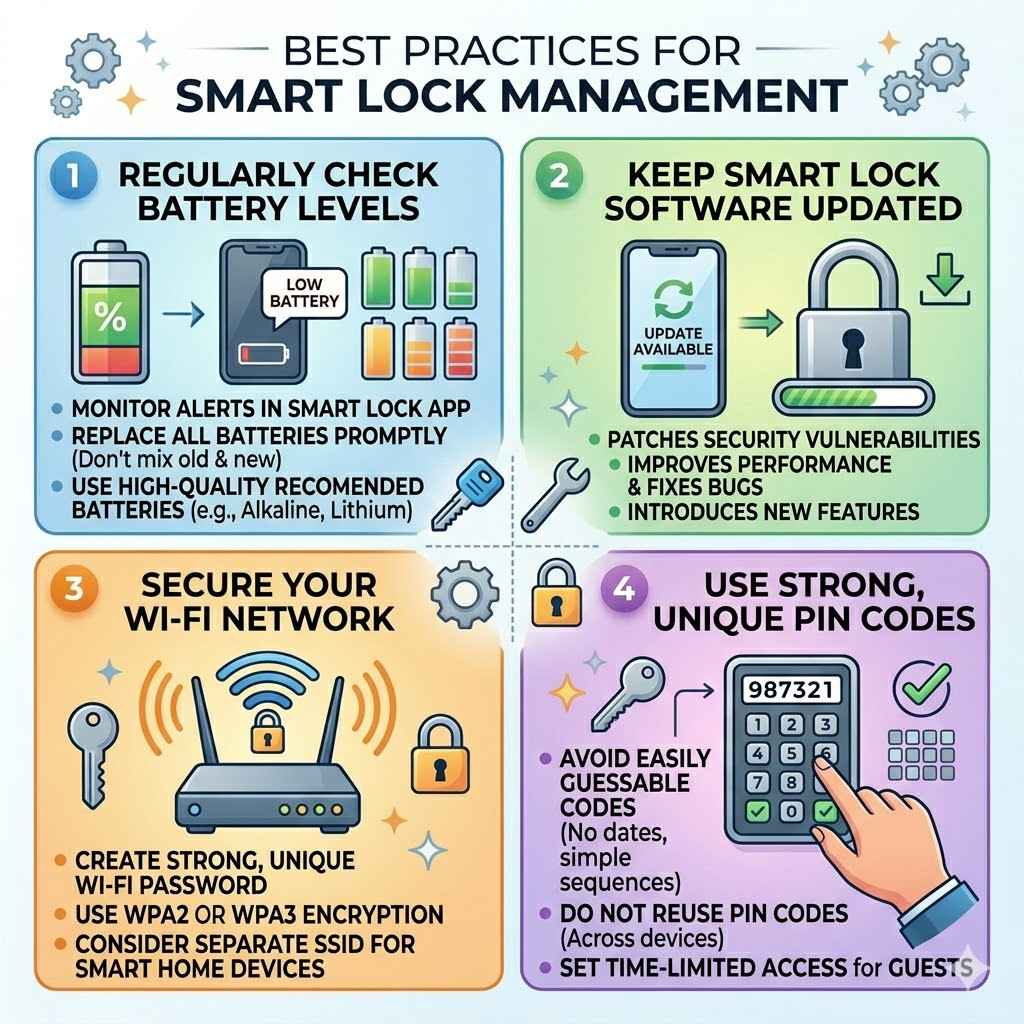
Managing your smart lock effectively ensures you get the most out of its features while maintaining security. These best practices cover everything from battery care to software updates, making sure you know how to turn off a smart lock quickly if needed and keep it running smoothly.
Regularly Check Battery Levels
Smart locks are often battery-powered, and a dead battery can leave you stranded. Most smart lock apps will provide notifications when the battery level is low, but it’s a good habit to check these alerts regularly. Some apps even allow you to set custom thresholds for low battery warnings.
When a low battery warning appears, replace all the batteries promptly. It’s best to replace them all at once, even if some still seem to have charge. This ensures consistent power delivery and prevents one weak battery from affecting the performance of others.
Use high-quality alkaline or lithium batteries as recommended by the manufacturer.
For critical access points, consider using rechargeable batteries. However, be aware of their lifespan and charging needs. Always have a spare set of batteries on hand in a convenient location.
This way, if you encounter an unexpected battery failure, you can quickly
Understanding your specific lock’s battery life expectations is also helpful. Factors like frequency of use, Wi-Fi signal strength, and temperature can affect how long batteries last. By staying proactive with battery checks, you minimize the risk of being locked out due to power loss.
Keep Smart Lock Software Updated
Just like your smartphone or computer, smart locks receive software updates from manufacturers. These updates are crucial for several reasons. They often include security patches that protect your lock from newly discovered vulnerabilities.
Keeping your software up-to-date is one of the most important steps to securing your smart home.
Updates can also improve the performance of the lock, fix bugs that cause glitches, and introduce new features. Most smart lock apps will notify you when an update is available. You can typically initiate the update process directly through the app.
Ensure your phone is connected to Wi-Fi and that the smart lock has sufficient battery power before starting an update.
Some updates might require the lock to restart. This is normal and part of the installation process. Avoid using the lock or trying to change settings during an update to prevent conflicts.
If your lock supports firmware over-the-air (FOTA) updates, it can often do so automatically, but it’s still wise to confirm that this feature is enabled and working.
Regularly checking for and installing updates ensures your smart lock is running at its best and remains secure against potential threats. This proactive approach is a key component of responsible smart lock management.
Secure Your Wi-Fi Network
Your smart lock relies on your home Wi-Fi network for many of its smart functions, including remote access and app control. Therefore, the security of your Wi-Fi network is directly linked to the security of your smart lock. A weak or compromised Wi-Fi network can expose your lock to unauthorized access.
Ensure your Wi-Fi network has a strong, unique password. Avoid using default passwords or easily guessable ones. Use WPA2 or WPA3 encryption, which are the most secure protocols currently available for wireless networks.
Change your router’s default administrator password as well, as this is often a weak point.
Consider creating a separate Wi-Fi network (SSID) exclusively for your smart home devices. This can help isolate them from your main network, limiting the potential damage if one device is compromised. Many modern routers offer guest network features that can be used for this purpose.
Keep your router’s firmware updated. Router manufacturers regularly release updates to patch security holes and improve performance. Regularly checking for and installing these updates is as important as updating your smart lock’s software.
By securing your Wi-Fi network, you create a safer environment for all your connected devices, including your smart lock, ensuring that how to turn off a smart lock quickly is a controlled action, not a security vulnerability.
Use Strong, Unique PIN Codes
If your smart lock uses a PIN code for access, creating strong and unique codes is paramount. Avoid using easily guessable combinations like birthdates, sequences (1234), or repeated numbers (1111). Aim for codes that are at least six digits long, as longer codes are more difficult to guess.
Do not reuse PIN codes across different devices or accounts. If one code is compromised, others remain secure. Keep a record of your PIN codes in a secure, offline location, such as a password manager or a locked journal.
Avoid writing them down on sticky notes near the door.
Regularly change your PIN codes, especially if you suspect they might have been compromised or if you have shared them with many people. For temporary guests, use time-limited access codes that automatically expire after a certain period. This adds an extra layer of control over who has access to your home.
When programming new codes, always follow the manufacturer’s instructions carefully. Some locks allow for multiple user codes, while others have a single master code and then individual user codes. Understanding your lock’s code management system is key to its effective and secure use.
Frequently Asked Questions
Question: Can I turn off my smart lock without an app?
Answer: Yes, you can often turn off your smart lock without an app by removing the batteries. This cuts power to the electronics and makes it function like a manual lock. Some locks also have a physical key override.
Question: What happens if the battery dies on my smart lock?
Answer: If the battery dies, the smart features will stop working. You will likely not be able to unlock it with your phone or keypad. However, most smart locks have a backup keyhole or a terminal for a 9-volt battery to provide temporary power for entry.
Question: How often should I replace the batteries in my smart lock?
Answer: Battery life varies by model and usage, but generally, batteries last between 6 months to a year. Your smart lock app should notify you when the batteries are low, but it’s good practice to check periodically.
Question: Is it safe to use a physical key if my smart lock’s electronics are off?
Answer: Yes, if your smart lock has a physical key cylinder, it is designed to function as a standard deadbolt. Using the key is a safe and reliable way to lock and unlock your door when the smart features are disabled.
Question: Can I manually lock my smart lock from the inside?
Answer: Yes, most smart locks have a thumb turn on the interior side that allows you to manually lock and unlock the door without using the app or keypad. This is a mechanical function independent of the electronic components.
Wrap Up
Knowing how to turn off a smart lock quickly is essential for peace of mind and practical management. Whether you need to replace batteries, perform maintenance, or simply prefer manual control, simple methods like battery removal or using the physical key are readily available. These techniques ensure you can always secure your home, keeping your smart lock functional and accessible when you need it.