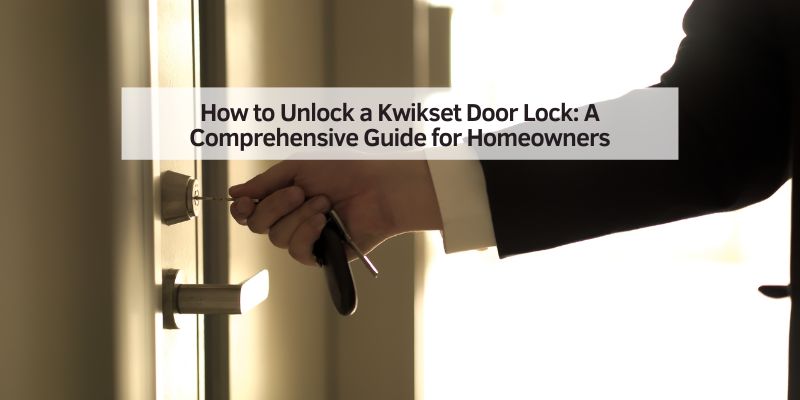
How to Unlock a Kwikset Door Lock: A Comprehensive Guide for Homeowners
Hey there! So, you’ve got a Kwikset door lock, and you’re stuck outside, scratching your head, wondering how to get in. I’ve been there, and let me tell you, it’s not as daunting as it seems. Whether you’ve lost your key, forgotten your code, or just want to understand your lock better, I’m here to walk you through every step of unlocking a Kwikset door lock. As a homeowner who’s spent hours tinkering with these locks, I’ve learned the ins and outs of Kwikset’s designs—both traditional and smart models. In this guide, I’ll share practical tips, step-by-step instructions, and even some pro tricks to help you unlock your Kwikset lock with confidence. Let’s dive in and get that door open!
Kwikset locks are a staple in American homes, known for their reliability and user-friendly features. From traditional deadbolts to high-tech smart locks, they offer a range of options to keep your home secure. But what happens when you can’t get in? Maybe your keypad isn’t responding, or you’re dealing with a dead battery. Don’t worry—I’ve explored every common method to unlock a Kwikset lock, and I’ll break it all down for you. By the end of this article, you’ll feel like a lock-unlocking pro, ready to tackle any situation.
Understanding Your Kwikset Lock
Before we jump into unlocking, let’s talk about what makes a Kwikset lock tick. I remember the first time I installed a Kwikset lock on my front door—I was amazed at how straightforward it was, but I also learned that knowing your lock’s type is key to unlocking it. Kwikset offers several models, each with its own quirks. Here’s a quick rundown of the main types you might have:
- Traditional Deadbolts: These are the classic key-operated locks. You insert a key, turn it, and the door unlocks. Simple, right? But if you don’t have the key, things get tricky.
- Keyless Entry Locks: These use a numeric keypad where you punch in a code. They’re great for convenience, but you need to know the code or have a backup plan.
- Smart Locks: Models like the Kwikset Halo or Kevo connect to your smartphone via an app or even use your fingerprint. They’re high-tech but can be finicky if the battery dies or the app glitches.
Each type has its own unlocking method, so identifying your lock is the first step. Check the exterior of your lock for a keypad, a keyhole, or a brand logo. If it’s a smart lock, you might see a touchscreen or a small LED light. Once you know what you’re working with, you’re ready to move forward.
Unlocking a Kwikset Lock with a Key
Let’s start with the simplest method: using a physical key. If you’ve got a traditional Kwikset deadbolt or a smart lock with a key backup, this is your go-to. I’ve used this method countless times, especially when my smart lock’s battery decided to give up on me.
Here’s how to do it:
- Find the Right Key: Make sure you’re using the correct key for your lock. Kwikset keys are distinct, often with a specific shape or groove. If you’re using a spare, double-check it matches.
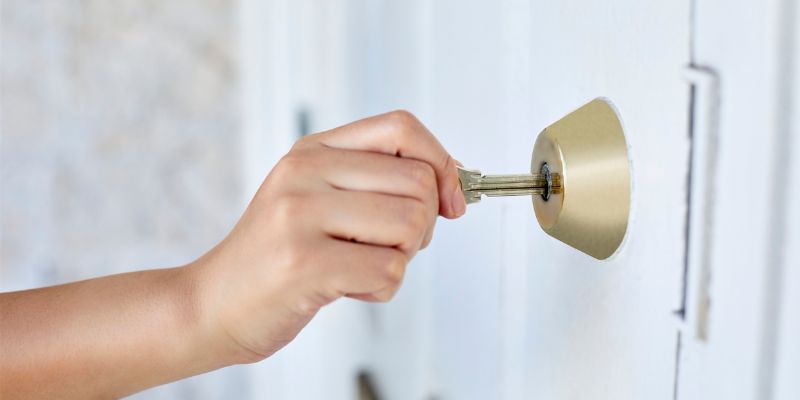
- Insert the Key: Slide the key into the keyhole on the exterior side of the lock. It should go in smoothly—don’t force it.
- Turn the Key: Rotate the key counterclockwise (usually) to unlock the door. You might feel a slight resistance, but it should turn easily if the key is correct.
- Push the Door: Once the bolt retracts, gently push the door open. If it’s stuck, check for misalignment or a sticky latch.
If the key doesn’t work, don’t panic. Sometimes, dirt or debris in the keyhole can cause issues. I once had a key that wouldn’t turn because a tiny pebble was lodged inside. A quick spray of WD-40 and a gentle wiggle fixed it. If your key is bent or damaged, you’ll need to try another method or call a locksmith.
Unlocking a Kwikset Keypad Lock with a User Code
If you’ve got a keyless Kwikset lock, like the SmartCode or Halo, you’re probably relying on a user code. These locks are a lifesaver when you don’t want to carry keys, but forgetting the code can leave you stuck. I’ve had my fair share of “oops, what’s my code again?” moments, so here’s how to unlock your keypad lock:
- Approach the Keypad: Stand in front of the lock. If it’s dark, press the lock button (usually a small button with a lock icon) to light up the keypad.
- Enter Your Code: Punch in your 4- to 8-digit user code. Take your time to avoid mistakes. Most Kwikset keypads beep with each press, so listen for that feedback.
- Press the Lock Button: After entering the code, press the lock button. You should hear the motor whir as the deadbolt retracts.
- Open the Door: Turn the knob or push the door to enter.
If the code doesn’t work, try again slowly. I’ve found that rushing can lead to typos. If it still fails, the code might have been changed, or the batteries could be low. Kwikset locks often flash red or show an “X” on touchscreens when something’s wrong. If this happens, move to the next method or check the batteries.
Using the Kwikset App for Smart Locks
For those with smart locks like the Kwikset Halo or Kevo, the Kwikset app is a game-changer. I love the convenience of unlocking my door with my phone, especially when my hands are full of groceries. Here’s how to use the app to unlock your lock:
- Open the App: Download the Kwikset app from the App Store or Google Play if you haven’t already. Log in with your account.
- Connect to Your Lock: Ensure your phone’s Bluetooth or Wi-Fi is on, depending on your lock model. The app should detect your lock if you’re within range.
- Tap Unlock: Find the “Unlock” button in the app and tap it. You’ll hear the lock’s motor engage as it retracts the bolt.
- Enter Your Home: Push the door open and step inside.
If the app isn’t working, check your phone’s connection or the lock’s battery. I once spent 10 minutes troubleshooting only to realize my Bluetooth was off. If the app still doesn’t connect, you might need to use a physical key or reset the lock.
What to Do If You’re Locked Out Without a Key or Code
Okay, let’s talk about the worst-case scenario: you’re locked out, no key, no code, and the app isn’t an option. I’ve been in this exact spot, and it’s frustrating, but there are ways to get back in without breaking the door down.
Check for a Spare Key
First, check if you’ve hidden a spare key somewhere safe, like under a mat or with a trusted neighbor. I keep a spare in a lockbox in my garage—it’s saved me more than once.
Try a Factory Reset
If you’re dealing with a keypad or smart lock, a factory reset might let you reprogram a new code. Here’s how I’ve done it:
- Locate the Program Button: Open the battery cover on the interior side of the lock. You’ll see a small black button labeled “Program.”
- Press and Hold: Hold the program button for about 30 seconds until the keypad flashes or beeps.
- Reprogram a Code: Follow your lock’s manual to set a new user code. For most models, you press the program button, enter a new code, and press the lock button.
Note: A factory reset erases all existing codes, so you’ll need to reprogram everything. Always keep your door open during this process to avoid getting locked out again.
Pick the Lock (With Caution)
If you’re feeling adventurous, you can try picking the lock with a bobby pin or paperclip. I’ve tried this with mixed success—it’s not as easy as it looks in movies. Here’s a basic guide:
- Prepare Your Tools: Straighten a bobby pin, leaving a small bend at the end. You’ll also need a second pin or a small screwdriver as a tension wrench.
- Insert the Tension Wrench: Place the wrench in the bottom of the keyhole and apply slight pressure.
- Pick the Pins: Insert the bobby pin and gently lift the pins inside the lock until they click into place.
- Turn the Lock: Once all pins are set, turn the tension wrench to unlock the door.
This method takes practice and patience. If you’re not confident, it’s better to call a locksmith to avoid damaging the lock.
Troubleshooting Common Kwikset Lock Issues
Sometimes, unlocking isn’t straightforward because of a glitch. I’ve run into a few of these myself, so let’s cover the most common problems and how to fix them.
Dead Batteries
If your keypad or smart lock isn’t responding, the batteries are often the culprit. Kwikset locks typically use four AA batteries. Here’s what to do:
- Remove the Battery Cover: On the interior side, slide off the cover. You might need a screwdriver for security screws.
- Replace Batteries: Swap out the old batteries for fresh AA alkalines. I always keep a pack on hand for emergencies.
- Test the Lock: Enter your code or use the app to check if it’s working.
Pro tip: If the lock flashes red or beeps rapidly, it’s warning you about low batteries. Change them before they die completely.
Misaligned Door or Bolt
A misaligned door can prevent the bolt from retracting. I had this issue when my door frame shifted slightly after a humid summer. Check if the bolt is hitting the strike plate. If it is, you may need to adjust the strike plate with a screwdriver or file down the frame slightly.
Incorrect Code
If your code isn’t working, it might have been changed or disabled. Try any other codes you’ve programmed. If none work, use a key or reset the lock.
Comparing Unlocking Methods: Which Is Best for You?
To help you choose the best method, here’s a table comparing the main ways to unlock a Kwikset lock:
| Method | Pros | Cons | Best For |
|---|---|---|---|
| Physical Key | Fast, reliable, no tech needed | Requires having the key | Traditional deadbolts, emergencies |
| User Code | Keyless convenience, multiple users | Must remember code, battery-dependent | Keypad locks, daily use |
| Kwikset App | Remote access, high-tech | Needs phone and battery, connectivity issues | Smart lock owners, tech-savvy users |
| Lock Picking | No key or code needed | Difficult, may damage lock | Desperate situations, skilled users |
| Factory Reset | Resets codes for access | Erases all codes, needs reprogramming | Forgotten codes, new installations |
This table helped me decide which method to try when I got locked out last year. If you’ve got a key, use it. If not, the user code or app is your next best bet.
Tips to Prevent Future Lockouts
After a few lockout scares, I’ve learned some tricks to avoid being stuck outside again:
- Keep a Spare Key: Store a spare in a secure place, like a lockbox or with a neighbor.
- Memorize Your Code: Write down your user code somewhere safe, like in a password manager.
- Check Batteries Regularly: Replace batteries every 6-12 months to avoid surprises.
- Program Multiple Codes: Set up a backup code for emergencies or trusted guests.
- Test Your Lock: Periodically test your lock to ensure it’s working smoothly.
These habits have saved me a lot of headaches. Trust me, a little preparation goes a long way.
When to Call a Locksmith
Sometimes, despite your best efforts, you need a pro. I’ve called a locksmith twice—once when my smart lock froze and again when I broke a key in the lock. Here’s when to pick up the phone:
- The lock is jammed or damaged.
- You’ve tried all methods, and nothing works.
- You’re worried about breaking the lock by picking it.
- You need a lock rekeyed or replaced.
Locksmiths are worth their weight in gold when you’re stuck. Look for a local, licensed professional with good reviews. It’s usually faster and cheaper than you’d expect.
Conclusion: You’re Now a Kwikset Unlock Expert!
Phew, we’ve covered a lot! From using a key to mastering the Kwikset app, you now know how to unlock your Kwikset door lock like a pro. I’ve been in your shoes, standing outside, frustrated, but with these steps, you’ll be back inside in no time. Whether you’re dealing with a traditional deadbolt or a fancy smart lock, there’s always a way to get through that door. My biggest takeaway? Always have a backup plan—whether it’s a spare key, a memorized code, or a locksmith’s number on speed dial. Now, go tackle that lock with confidence, and keep these tips handy for next time. You’ve got this!
Frequently Asked Questions
How Do I Know If My Kwikset Lock Is a Smart Lock?
Look at the exterior of your lock. If it has a touchscreen, keypad, or LED light, it’s likely a smart lock like the Halo or Kevo. Traditional deadbolts only have a keyhole. You can also check the Kwikset website or your user manual for model details.
What Should I Do If My Kwikset Keypad Lock Beeps but Doesn’t Unlock?
A beeping keypad usually means a low battery or an incorrect code. Try entering the code again slowly. If it still doesn’t work, replace the batteries with fresh AA alkalines. If the problem persists, use a physical key or contact Kwikset support.
Can I Unlock My Kwikset Lock Without a Smartphone?
Yes! Most Kwikset smart locks have a keypad for entering a user code or a keyhole for a physical key. If you don’t have your phone, try these methods. If all else fails, a factory reset might be needed.
Is It Safe to Pick a Kwikset Lock Myself?
Picking a lock can work, but it’s risky if you’re not experienced. You might damage the lock or make it harder to open. I’d recommend trying a key or code first. If you’re stuck, a locksmith is a safer bet.
How Often Should I Replace the Batteries in My Kwikset Smart Lock?
Based on my experience, replace the batteries every 6-12 months, depending on usage. Kwikset locks typically use four AA batteries, and you’ll get a warning (like a red flash or beeping) when they’re low. Always use alkaline batteries for best performance.