How To Change A Smart Lock Code: Easy Guide
Many people wonder about How to Change a Smart Lock Code Easily. It can seem a bit tricky at first, especially if you’re not used to smart home gadgets. You might worry about messing things up or locking yourself out.
But don’t worry! Changing your smart lock code is actually quite straightforward once you know the steps. This guide will walk you through everything, step-by-step, making it super simple for anyone to do.
Get ready to learn how to update your lock codes without any fuss.
Understanding Your Smart Lock
Smart locks have changed how we secure our homes. They offer keyless entry and added convenience. Knowing your specific smart lock model is the first step to changing its code.
Different brands and models have slightly different procedures. This section will help you identify your lock type and understand the general workings behind smart lock code changes. We’ll cover the basics so you feel confident before you begin the actual code update.
Identifying Your Smart Lock Model
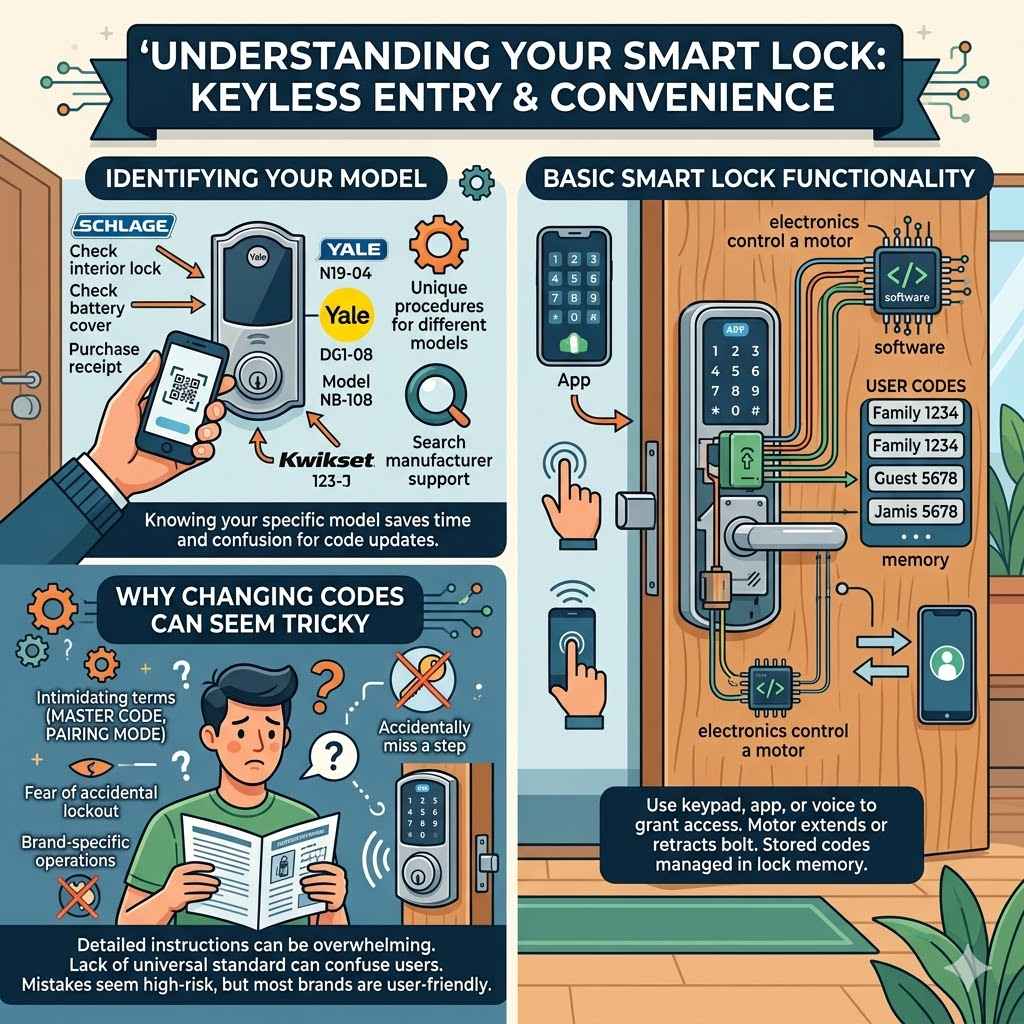
Before you can change your smart lock’s code, you need to know what kind of lock you have. Most smart locks have the brand name and model number printed on them, often on the inside of the lock or on the battery cover. You can also check your original purchase receipt or the product manual if you still have it.
Knowing this detail is key because the exact buttons or app screens you’ll use depend on your specific model. For example, a Yale smart lock will have a different interface than a Kwikset smart lock.
Common smart lock brands include August, Schlage, Kwikset, Yale, and Wyze. Each of these brands offers various models with unique features. Some require physical button presses on the lock itself, while others are entirely controlled through a smartphone app.
If you can’t find the model number anywhere, a quick search online using pictures of your lock can often help you identify it. Once you know your model, you can usually find specific instructions on the manufacturer’s website or in their support documentation.
Having the correct model information allows you to find precise instructions. This saves time and prevents confusion. Without it, you might try steps that don’t apply to your lock, leading to frustration.
It’s like trying to use a manual for a different car model; it won’t be much help. So, take a moment to identify your lock first.
Basic Smart Lock Functionality
At its core, a smart lock uses electronics to control a deadbolt or latch. Instead of a physical key, it uses a keypad, a smartphone app, or sometimes even voice commands to grant access. When you enter a valid code or use the app, the lock sends a signal to a motor that retracts or extends the bolt.
This process is managed by internal software within the lock.
The codes you set are stored in the lock’s memory. When you want to change a code, you’re essentially telling the lock to
Most smart locks allow you to set multiple user codes. This is great for family members, guests, or service providers. Each code can often be customized with specific access times or dates.
The ability to manage these codes remotely or easily update them is a major benefit of smart lock technology.
Why Changing Codes Can Seem Tricky
For many beginners, the idea of changing a smart lock code can feel like a technical challenge. This is often because the instructions provided by manufacturers can be very detailed and sometimes assume a level of technical familiarity. You might see terms like “master code,” “user code,” “pairing mode,” or “factory reset” that sound intimidating.
The fear of accidentally locking yourself out or compromising your home’s security can also make people hesitate.
Furthermore, smart locks vary greatly in their operation. One brand’s method might involve holding down a specific button while entering a sequence, whereas another brand’s method might be entirely app-driven. This lack of a universal standard can make it difficult for users who have experience with one type of lock to adapt to another.
It’s also easy to miss a small step in the process, which can lead to the code not changing correctly. This can be frustrating, especially when you’re in a hurry.
The fear of making a mistake is understandable. Home security is important, and any perceived complexity can be a barrier. However, most smart lock manufacturers aim to make these processes as user-friendly as possible.
They want you to feel secure and in control of your home access. The goal of this guide is to break down these steps into easy-to-follow actions.
How to Change a Smart Lock Code Easily Via Physical Buttons
Many smart locks still rely on physical buttons located on the lock itself for programming. This method is useful if your phone isn’t handy or if you prefer a direct approach. The general idea is to put the lock into programming mode, enter your existing code or master code, and then enter the new code.
We’ll break down common sequences and what to look for.
Accessing the Programming Menu
The first step usually involves putting your smart lock into a special programming mode. On most keypad locks, this starts with pressing a specific button, often labeled “Program,” “Menu,” or a star icon (*). Sometimes, you need to press it twice or hold it down for a few seconds.
After pressing the programming button, you’ll typically be prompted to enter your existing master code or the current access code. This step acts as a security measure to ensure only authorized users can make changes.
For example, a common sequence might be: Press the Program button, then enter your current 4-digit user code, followed by the Program button again. The lock will usually provide audible beeps or flashes of light to indicate it’s ready for the next step. It’s crucial to listen for these cues or watch for visual indicators to know if you’re on the right track.
If you don’t get the expected response, you might need to restart the process.
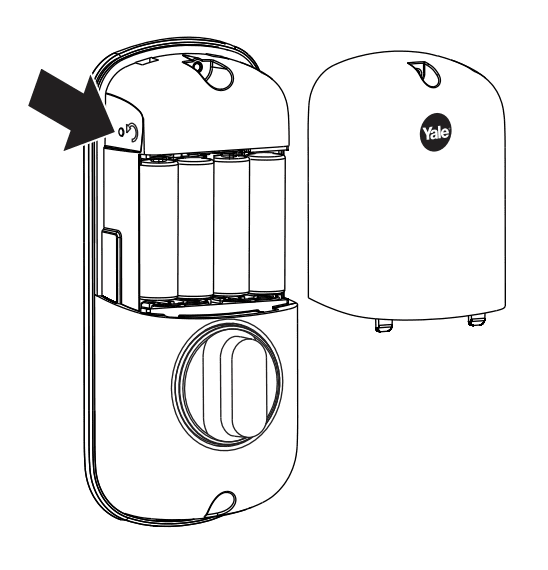
Some locks might require you to remove the battery cover to access a programming button or switch. Always consult your lock’s manual if you’re unsure about locating this button or the initial activation sequence. The goal here is simply to get the lock to recognize that you want to make a change to its settings.
Entering Your New Access Code
Once the lock is in programming mode and has verified your existing code or master code, you’ll be ready to enter your new access code. This is where you’ll type in the new numbers you want to use for entry. Most codes are between 4 and 8 digits long.
When entering the new code, type it carefully and slowly. Some locks require you to press a specific button, like the “Lock” button or the checkmark icon, after entering your new code to confirm it.
After entering the new code and confirming it, the lock will usually indicate success with a beep or a green light. It might even ask you to re-enter the new code to ensure accuracy. This double-checking step is common to prevent accidental entry of incorrect codes.
If you enter the wrong new code, you might need to start the programming sequence over. It’s vital to get this right the first time if possible.
For instance, after pressing the Program button and verifying your old code, you would then press the Program button again. Next, you would enter your desired new 6-digit code, followed by pressing the Program button one last time. The lock will then give you an audible confirmation, like a series of beeps, indicating the code has been successfully updated.
If you hear an error beep, it means something went wrong, and you’ll need to try again.
Testing the New Code
This is perhaps the most important step: testing your new code. After you’ve completed the programming sequence, don’t just assume it worked. Take a step away from the lock, and try to enter the new code you just set.
Listen for the lock to disengage, and check if the bolt retracts smoothly. If it works, congratulations! You’ve successfully changed your smart lock code.
If the new code doesn’t work, don’t panic. It’s likely a small error in the sequence you followed. Go back to the beginning and carefully repeat the steps.
Double-check that you are using the correct programming button and entering the correct master or existing user code. Sometimes, the lock might have timed out during the programming process, so try initiating the programming mode again.
It’s also a good idea to test the old code one last time after you think the new one is working. This helps confirm that the old code has been deactivated. If the old code still works, the new code was not set correctly, and you need to try the entire process again.
Always ensure you have a physical key accessible while testing, just in case of any unexpected issues.
How to Change a Smart Lock Code Easily Using A Smartphone App
Many modern smart locks are heavily integrated with smartphone apps, making code changes incredibly convenient. This method often provides a more visual and guided experience. You can manage user codes, set access schedules, and even receive notifications directly from your phone.
Connecting Your Lock to The App
The first step is to ensure your smart lock is properly connected to its dedicated smartphone app. This usually involves downloading the app for your lock’s brand (e.g., August Home, Kwikset App, Yale Access) from your phone’s app store. You’ll then need to create an account and follow the in-app instructions to pair your lock with your smartphone.
This process typically involves the lock being in Bluetooth range and sometimes requires entering a temporary code or scanning a QR code.
Once connected, the app will display your lock’s status and provide access to its settings. If your lock supports Wi-Fi connectivity, you might also need to connect it to your home network through the app. This allows for remote access, meaning you can change codes or check your lock’s status even when you’re not home.
Ensure your phone’s Bluetooth and Wi-Fi are enabled during the setup process for a smooth experience.
Regularly updating the app and your lock’s firmware through the app is also recommended. These updates often include security patches and performance improvements. If your lock isn’t showing up in the app, try restarting both your phone and the lock (by removing and reinserting batteries), and then attempt to reconnect.
After your lock is connected, the app interface will typically show you a list of user codes. You’ll usually see a primary “owner” or “admin” code and then slots for various “guest” or “user” codes. To change a code, you’ll tap on the specific user slot you want to modify or select an option like “Add User” or “Edit Code.” The app will then prompt you to enter the new code or generate a random one for you.
Many apps allow you to name each user code. For instance, you could label a code “Babysitter” or “Dog Walker.” This makes it easy to track who is using which code and when. You can also often set specific times or days when a particular code is active.
For example, a cleaner’s code might only work between 9 AM and 5 PM on weekdays. This level of control is a significant advantage of app-managed smart locks.
Look for options like “Manage Access,” “Users,” or “Codes” within the app’s main menu. Tapping on these sections will usually bring up a list of all active codes. Select the code you wish to change and then look for an “Edit” or “Change Code” button.
The app will guide you through entering the new code and saving the changes.
Creating and Assigning New Codes
When you decide to change a code, the app often gives you the option to create a new one manually or generate a strong, random code. Generating a random code is generally recommended for better security, as these are much harder for someone to guess. You can then assign this new code to a specific user.
For example, if your old guest code was 1234 and you want to change it, you might tap on the guest code entry in the app.
The app will then ask you to either type in a new code you choose or tap a “Generate Code” button. Let’s say you generate a new code like 789A5B2C. You would then confirm this code.
The app might ask you to enter it again to make sure. You can then assign this code a name, like “Temporary Guest.” This makes it easy to remember who has access and why.
After you’ve entered and confirmed the new code, simply press the “Save” or “Done” button within the app. The app will send the new code information to your smart lock. This usually happens very quickly, often within seconds, especially if the lock is connected via Wi-Fi.
You should receive a confirmation within the app that the code has been updated successfully.
Advanced Smart Lock Features and Tips
Beyond basic code changes, smart locks offer a variety of advanced features. Understanding these can enhance your security and convenience. This section covers topics like temporary codes, activity logs, and troubleshooting common issues.
Temporary and Scheduled Access
A fantastic feature of most app-controlled smart locks is the ability to create temporary access codes. These codes are perfect for visitors, contractors, or guests who only need access for a limited time. For instance, if you have a friend staying for the weekend, you can create a code that’s only active from Friday afternoon to Sunday evening.
After Sunday evening, the code automatically expires and can no longer be used.
This scheduling feature significantly boosts security. It eliminates the need to remember to delete codes after they are no longer needed. You can also set up recurring codes.
For example, a cleaner might have a code that is active every Monday from 9 AM to 12 PM. The app manages these schedules effortlessly. This level of customization provides peace of mind.
When creating these codes in the app, you’ll typically see options to set a start date and time, and an end date and time. You can also often choose to make a code repeat on certain days of the week. This makes managing access for different people and purposes very straightforward.
It’s a key reason many people upgrade to smart locks.
Reviewing Activity Logs
Most smart locks keep a detailed log of all entry activity. This log is accessible through the smartphone app and shows you exactly when and by what code the door was unlocked. You can see entries like “Guest Code ‘Sarah’ unlocked the door at 3:15 PM on October 26th” or “Owner Code unlocked the door at 8:00 AM.” This feature provides an extra layer of security and accountability.
Reviewing these logs can help you keep track of who is coming and going from your home. If you notice any activity that seems suspicious or unexpected, you can immediately take action, such as disabling the associated code or checking your home’s security. It’s like having a digital visitor’s book for your front door.
Some apps even send push notifications to your phone when the lock is used. This means you can get an alert in real-time, no matter where you are. For example, you could get a notification when your kids get home from school.
This constant stream of information about your door’s status can be very reassuring.
Troubleshooting Common Issues
Even with easy-to-use systems, problems can sometimes arise. One common issue is a lock that doesn’t respond. This could be due to dead batteries.
Most smart locks will give you a warning when the batteries are low, but it’s always good to check them regularly. If the lock is completely unresponsive, you may need to use a backup power source, like a 9V battery held against the terminals under the keypad, to get enough power to unlock it and change the batteries.
Another issue can be the app not connecting to the lock. Ensure your phone’s Bluetooth is on and that the lock is within range. Sometimes, simply closing and reopening the app, or restarting your phone, can resolve connectivity problems.
If the lock is connected via Wi-Fi, check your home internet connection as well.
If a new code isn’t working, it’s usually because the programming sequence wasn’t completed correctly. Try the steps again, paying close attention to any beeps or light signals from the lock. If you’re using the app, confirm that the code was saved successfully and that the app shows the updated code.
If you’re still stuck, contacting the manufacturer’s customer support is always a good next step. They can provide model-specific troubleshooting advice.
Lock Battery Life and Replacement
Smart locks are powered by batteries, and their lifespan can vary depending on usage, battery type, and environmental factors. High-traffic locks or those frequently used remotely tend to drain batteries faster. Most manufacturers recommend using high-quality alkaline or lithium batteries for optimal performance.
Lithium batteries generally last longer and perform better in extreme temperatures compared to alkaline batteries.
Your smart lock app should provide an indicator of the battery level. Many locks will also give audible or visual warnings when the batteries are running low. It’s a good practice to replace all batteries at once when you receive a low battery notification.
Never mix old and new batteries or different types of batteries, as this can cause performance issues or damage the lock.
If your smart lock becomes completely unresponsive due to dead batteries, most models have a backup power option. This typically involves touching a 9-volt battery to two specific terminals located on the keypad exterior. This temporary power allows you to enter your code or use the app to unlock the door, so you can then open it and replace the internal batteries.
Always refer to your specific lock’s manual for instructions on emergency battery replacement.
When to Change Your Smart Lock Code
There are several good reasons to change your smart lock code. The most obvious is for security. If you suspect your code might have been compromised, or if you’ve shared it with someone who no longer needs access, changing it is a smart move.
This could include ex-partners, former employees, or even guests who have stayed longer than planned.
You might also want to change your code periodically as a general security practice, similar to how you’d change your passwords for online accounts. Setting a routine, like changing codes every six months, can add an extra layer of protection. This helps ensure that even if a code was accidentally revealed months ago, it would no longer be valid.
Another common reason is when you have new people needing access, like a new tenant, a family member moving in, or a service provider who will be coming regularly. Instead of adding a new code alongside old ones, it can be simpler and more secure to update your primary code and then assign specific temporary or user codes as needed. This keeps your main access code unique and personal.
Security Best Practices
When changing your smart lock code, always choose a code that is unique and not easily guessable. Avoid using common sequences like 1234, 0000, or your birthdate. Combinations of numbers that don’t have a personal connection are best.
If your lock allows for longer codes, use them to increase security.
It’s also a good idea to avoid using the same code across multiple devices or services. If one account is compromised, it won’t affect your smart lock. For app-controlled locks, enable two-factor authentication (2FA) on your account if the app offers it.
This adds an extra layer of security, requiring a code from your phone in addition to your password to access your lock’s settings.
Keep your smartphone secure, as it’s the primary tool for managing your smart lock. Use a strong passcode or biometric lock (fingerprint or facial recognition) on your phone. Regularly check your lock’s activity log for any unusual entry attempts or unauthorized unlocks.
Managing Access for Guests and Services
Smart locks excel at managing access for temporary needs. For guests, you can create a unique code that expires after their visit. This means you don’t have to worry about them having access indefinitely.
For service providers like dog walkers or cleaners, you can set up recurring access codes that only work during their scheduled hours. This provides convenience without sacrificing security.
If you hire a new service provider, you can quickly generate a new code for them and disable it as soon as their service ends. This is much easier than dealing with physical keys. For longer-term rentals or shared living situations, assigning individual codes to each resident makes it easy to track who enters and exits.
Consider using different codes for different types of access. For example, a code for family members might be more permanent, while codes for temporary workers should be strictly time-limited. This structured approach to access management is a key benefit of smart lock technology.
What to Do If You Forget Your Code
Forgetting your smart lock code can happen, but most manufacturers have a solution. If you primarily use a smartphone app to control your lock, you can usually reset or change the code directly through the app. Simply open the app, navigate to the user management section, and select the option to reset or edit the forgotten code.
If you’ve forgotten your master code or can’t access the app, most smart locks have a physical reset procedure. This often involves removing the battery pack and then performing a sequence of button presses or using a reset button located inside the lock. This will usually revert the lock to its factory default settings, which includes a default master code.
You will then need to re-enter the default code and set up new user codes from scratch.
Consult your smart lock’s manual for specific instructions on how to reset it. If you no longer have the manual, you can typically find a digital copy on the manufacturer’s website by searching for your lock’s model number. Remember that a factory reset will erase all custom codes, so you’ll need to set everything up again.
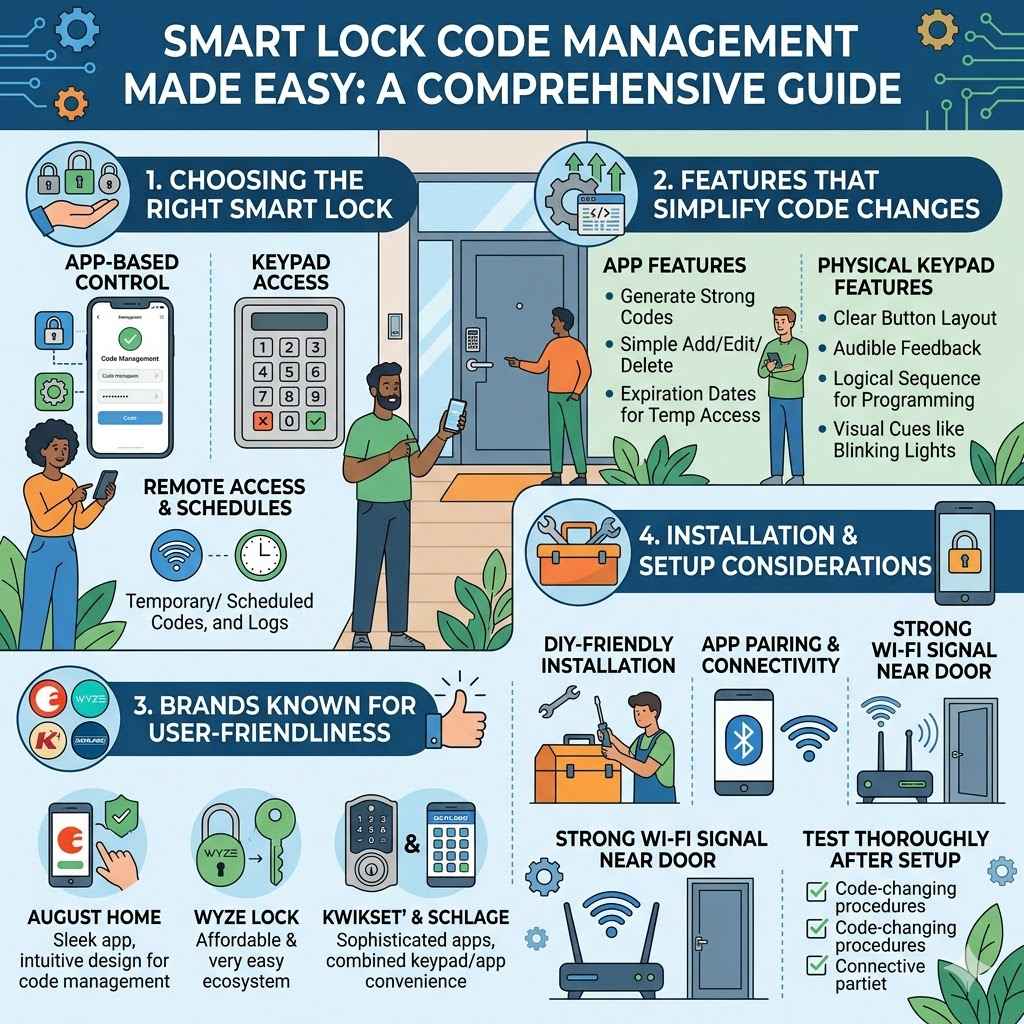
Choosing the Right Smart Lock for Easy Code Management
When looking for a smart lock, ease of code management should be a key consideration. Some locks are designed with user-friendliness in mind, offering intuitive app interfaces and straightforward physical programming options. Brands like August and Wyze are often praised for their simple app designs, making tasks like changing codes very accessible.
Consider the type of user you are. If you’re comfortable with smartphone apps and want remote control, an app-based lock is ideal. If you prefer a more traditional, hands-on approach or want a backup method, a lock with a well-designed keypad and clear programming buttons is a good choice.
Some advanced locks offer both app control and physical keypad access, giving you the best of both worlds.
Look for locks that offer features like temporary codes, scheduled access, and activity logs. These features enhance security and make managing who has access to your home much simpler. Reading reviews from other users can also provide valuable insights into how easy a particular lock is to set up and manage, especially when it comes to changing access codes.
Features That Simplify Code Changes
The best smart locks for easy code changes will have a few key features. First, an intuitive smartphone app is crucial. It should clearly display all user codes, allow for easy naming of codes, and offer simple buttons for adding, editing, or deleting them.
Features like generating random, strong codes and setting expiration dates for temporary access are also very helpful.
For locks that use physical keypads, look for clear button layouts and audible feedback. A simple, logical sequence for entering programming mode and then setting a new code is essential. The manual should be easy to understand and readily available.
Locks that offer visual cues, like blinking lights, to guide you through the process are also a plus.
Some locks even allow for voice commands to change codes, though this is less common and might require integration with a smart assistant like Alexa or Google Assistant. The ability to perform a quick, reliable code change without needing specialized tools or extensive technical knowledge is the hallmark of a user-friendly smart lock.
Smart Lock Brands Known for User-Friendliness
Several smart lock brands consistently receive high marks for their user-friendly interfaces, particularly when it comes to managing codes. August Home is a popular choice, with its sleek design and intuitive app that makes adding, editing, and deleting user codes very straightforward. Their focus is often on app-based control, making remote management simple.
Wyze Lock also offers a very affordable and easy-to-use experience. Their app is generally well-regarded for its simplicity and clarity. Setting up new codes or changing existing ones is a quick process within the Wyze ecosystem.
Kwikset and Schlage, long-standing names in the lock industry, also offer smart lock models that are designed with user convenience in mind. While their physical keypad programming can sometimes be a bit more involved than app-only solutions, their apps are becoming increasingly sophisticated and user-friendly. Many of their models provide clear instructions for both app and keypad code changes.
Installation and Setup Considerations
When choosing a smart lock, consider the installation process. Most smart locks are designed to be DIY-friendly and can
Setup is usually straightforward, involving pairing the lock with your smartphone app. This process requires a stable Bluetooth connection and, for remote access, a Wi-Fi network. Ensure you have a strong Wi-Fi signal near your door for optimal performance.
Download the correct app for your lock brand and follow the on-screen prompts carefully.
Remember to test all functions thoroughly after installation and setup, especially the code-changing procedures. This ensures everything is working as expected before you rely on the smart lock for your home security.
Frequently Asked Questions
Question: How often should I change my smart lock code?
Answer: It’s a good security practice to change your smart lock code periodically, perhaps every six months to a year. You should also change it immediately if you suspect it has been compromised or if someone who no longer needs access has had it.
Question: Can I use the same code for multiple users?
Answer: Most smart locks allow you to assign unique codes to different users. While you might be able to reuse a code, it’s best practice for security to assign a distinct code to each person who needs access.
Question: What if my smart lock runs out of battery?
Answer: Smart locks usually provide low-battery warnings through the app or audible alerts. If the battery dies completely, most models have a backup power option, often a 9V battery terminal, to allow temporary access for battery replacement.
Question: How do I reset my smart lock if I forget the master code?
Answer: If you forget your master code and cannot use the app, you will typically need to perform a factory reset on the lock. This usually involves removing the batteries and pressing a sequence of buttons or a reset button. Consult your lock’s manual for specific instructions.
Question: Are temporary codes secure?
Answer: Yes, temporary codes are a secure feature when used correctly. They are programmed to expire automatically after a set time, meaning they become invalid once their designated period is over, preventing unauthorized access.
Wrap Up
Changing your smart lock code is a simple process that enhances home security. Whether you use physical buttons or a smartphone app, following clear steps makes it easy. Remember to test your new code and manage access responsibly.
You can now update your codes confidently, keeping your home safe and accessible for those you trust.