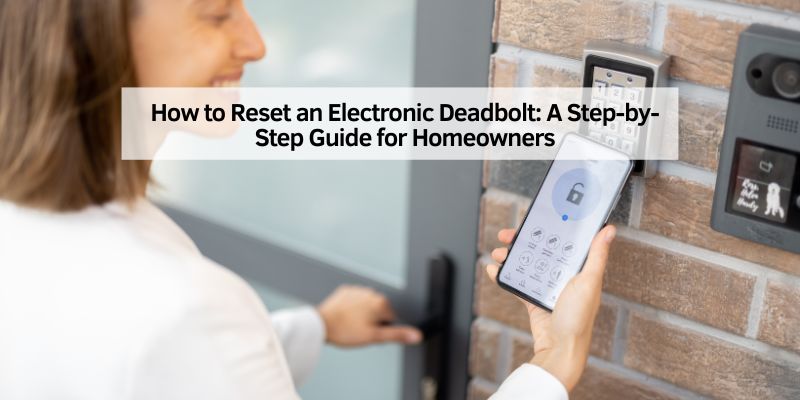
How to Reset an Electronic Deadbolt: A Step-by-Step Guide for Homeowners
Hey there! If you’re reading this, chances are you’ve got an electronic deadbolt that’s acting up, or maybe you just need to reset it for a fresh start. I’ve been there, fumbling with my own Kwikset SmartCode when I moved into my new home. It’s frustrating when the lock won’t cooperate, but don’t worry—I’ve explored this topic thoroughly and I’m here to walk you through the process like we’re sitting side by side at my kitchen table. Resetting an electronic deadbolt isn’t as daunting as it seems, and with a little patience, you’ll have it working like new.
In this guide, I’ll break down everything you need to know about resetting your electronic deadbolt, from why you’d want to do it to step-by-step instructions for popular brands like Kwikset, Schlage, and Honeywell. I’ll also share some troubleshooting tips and maintenance advice to keep your lock in top shape. Let’s dive in!
Why You Might Need to Reset Your Electronic Deadbolt
Let’s start with the basics. Why would you need to reset your electronic deadbolt in the first place? I’ve had my fair share of moments where I realized a reset was the only way to fix a problem or secure my home. Here are the most common reasons:
- Forgotten Codes: Maybe you’ve forgotten the user codes, or someone else set them up and didn’t share them. This happened to me when I bought a house with a pre-installed lock, and the previous owner left no record of the codes.
- Moving to a New Home: If you’re moving into a new place, resetting the lock ensures old codes from previous owners or tenants are wiped out. Safety first!
- Malfunctioning Lock: Sometimes, the lock starts acting glitchy—maybe it’s not responding to codes or it’s beeping like crazy. A reset can clear software bugs.
- Security Concerns: If you suspect someone unauthorized knows your code, a reset is a quick way to revoke access.
- Changing Codes Regularly: For extra security, I like to reset and reprogram my lock every few months. It’s like changing the batteries in your smoke detector—better safe than sorry.
Resetting your deadbolt usually means performing a factory reset, which wipes all user codes and restores the lock to its default settings. It’s like giving your lock a clean slate. But before you jump in, let’s talk about what you’ll need to get started.
Tools and Preparation for Resetting Your Electronic Deadbolt
Before you start pressing buttons or unscrewing anything, let’s make sure you’re ready. I learned the hard way that a little prep goes a long way. Here’s what you’ll need:
- Your Lock’s Manual: Every lock is a bit different, so the manual is your best friend. If you’ve lost it (like I did once), check the manufacturer’s website for a digital version.
- A Screwdriver: Most electronic deadbolts have a battery cover or backplate that requires a Phillips or flathead screwdriver to remove.
- Fresh Batteries: Low batteries can cause all sorts of issues, so have a set of high-quality AA alkaline or lithium batteries ready. I always keep extras in my toolbox.
- A Quiet Space: You’ll need to listen for beeps or watch for LED flashes during the reset process, so find a calm moment without distractions.
- Patience: If you’re new to this, it might take a couple of tries. Don’t rush—it’s better to get it right than to lock yourself out!
Once you’ve got everything ready, you’re set to reset your lock. Let’s look at how to do this for some of the most popular brands. I’ll walk you through the steps for Kwikset, Schlage, and Honeywell, since those are the ones I’ve worked with most.
How to Reset a Kwikset Electronic Deadbolt
Kwikset locks are super common, and I’ve got a Kwikset SmartCode on my front door. Here’s how I reset it when I need to start fresh. The process is similar for models like the Kwikset 888, 913, 914, or Powerbolt.
- Open the Door: Make sure the door is open and unlocked. You don’t want to get stuck outside if something goes wrong.
- Remove the Battery Cover: On the interior side of the lock, find the battery cover. It’s usually held in place by a couple of screws. Use your screwdriver to take it off.
- Take Out the Battery Pack: Gently remove the battery pack. Be careful not to yank any wires.
- Press and Hold the Program Button: While reinserting the battery pack, hold down the Program button (it’s usually on the interior panel). Keep holding it for about 30 seconds until you hear a beep and see the status LED flash red.
- Press the Program Button Again: Release the button, then press it one more time. You should hear a beep and see the LED flash green. This means the reset is complete.
- Test the Lock: Try using an old user code to confirm it no longer works. If the lock doesn’t respond, you’ve successfully reset it.
- Reprogram the Lock: After the reset, you’ll need to set up new user codes. Check your manual for instructions, but it usually involves pressing the Program button, entering a new code, and confirming it.
I’ve found that Kwikset locks are pretty forgiving, but if the LED doesn’t flash green or you hear multiple beeps, double-check that you’re holding the Program button long enough. If it still doesn’t work, try fresh batteries or consult the manual for model-specific quirks.
How to Reset a Schlage Electronic Deadbolt
Schlage locks, like the BE365 or BE469, are another popular choice. I helped my neighbor reset her Schlage Connect last summer, and it was straightforward once we got the hang of it. Here’s how to do it:
- Open the Door: As with Kwikset, keep the door open and unlocked.
- Remove the Battery Cover: Use a screwdriver to take off the battery cover on the interior side. Some models have a couple of screws to remove.
- Disconnect the Battery: Gently unplug the battery connector. Don’t pull too hard on the wires.
- Press the Schlage Button: On the front keypad, press and release the Schlage button (it’s usually the logo or a dedicated button).
- Reconnect the Battery: While holding the Schlage button, reconnect the battery. Keep holding until you see the button light up green and hear a beep.
- Confirm the Reset: Enter one of the default user codes (found on a white sticker inside the lock or in the manual). If it doesn’t work, the reset was successful.
- Set Up New Codes: Follow your manual to program new codes. You’ll usually need the default programming code from the sticker.
One thing I noticed with Schlage locks is that the reset process can vary slightly by model. For example, the Schlage Encode (BE489) might require you to press the Schlage button a few extra times. If you’re unsure, check the white sticker on the lock for the model number and default codes.
How to Reset a Honeywell Electronic Deadbolt
Honeywell deadbolts, like the DDBKP model, are less common but still reliable. I worked on one at a friend’s rental property, and the reset process was a bit different. Here’s what to do:
- Ensure the Door is Open: You know the drill—keep the door unlocked and open.
- Remove the Battery Cover: Use a screwdriver to take off the interior cover and access the battery compartment.
- Replace Batteries if Needed: If the batteries are low, swap them out for fresh ones. This can sometimes fix issues without a full reset.
- Enter the Factory Code: Honeywell locks often use a default programming code (like 123456) for resets. Check the manual or the lock’s interior for this code.
- Follow the Reset Sequence: Enter the programming code, then press the Unlock button, followed by a specific number (like 4), and then Unlock again. Enter a new 6-digit code, press Unlock, and re-enter the code to confirm.
- Test the Lock: Try an old code to ensure it’s been erased. If it doesn’t work, the reset is complete.
Honeywell’s process can feel a bit clunky compared to Kwikset or Schlage, but it gets the job done. If you’re getting red flashes or beeps, it might mean you’re using the wrong programming code. Double-check the manual or contact Honeywell’s support.
Troubleshooting Common Issues During a Reset
Sometimes, things don’t go as planned. I’ve had moments where my lock wouldn’t reset, and it drove me up the wall. Here are some common issues and how to fix them:
- No Beeps or LED Flashes: This usually means dead batteries. Replace them with fresh, high-quality ones. I once used cheap batteries, and my lock kept failing until I switched to name-brand ones.
- Lock Beeps but Doesn’t Reset: You might not be holding the reset button long enough. Try counting to 30 slowly. If that fails, check the manual for model-specific instructions.
- Misaligned Deadbolt: If the deadbolt won’t move smoothly, it could be misaligned with the strike plate. Loosen the screws on the lock or strike plate and adjust until it moves freely.
- Wiring Issues: If your lock has internal wiring, check for loose or damaged connections. I once found a loose wire in my Kwikset that was causing all sorts of problems.
- Firmware Glitches: Some smart locks need a firmware update to work properly. Check the manufacturer’s app or website for updates.
If all else fails, don’t be afraid to call a locksmith. I’ve had to do this once, and the pro fixed my lock in minutes. It’s worth the cost if you’re stuck.
Maintaining Your Electronic Deadbolt After a Reset
Once you’ve reset your lock, you’ll want to keep it in good shape. I learned this the hard way after neglecting my lock for a year and dealing with constant beeping. Here’s how to maintain it:
- Check Batteries Regularly: Most locks have a low-battery indicator, but I check mine every six months. Replace batteries before they die to avoid glitches.
- Clean the Keypad: Dust and grime can build up on the keypad, making it less responsive. Wipe it down with a damp cloth (not soaking wet) every few months.
- Lubricate the Deadbolt: If the bolt feels sticky, apply a dry lubricant like Teflon spray. I do this once a year, and it keeps the mechanism smooth.
- Test Codes Periodically: Enter your codes every few weeks to make sure they’re working. It’s better to catch a problem early than when you’re locked out.
- Update Firmware: If your lock is part of a smart home system, check for firmware updates through the app. This can fix bugs and improve performance.
By staying on top of maintenance, you’ll avoid most issues and keep your lock secure.
Comparison of Reset Processes for Popular Brands
To make things easier, here’s a quick comparison of the reset processes for Kwikset, Schlage, and Honeywell deadbolts. This table sums up what I’ve learned from working with these brands:
| Brand | Key Steps | Reset Button Location | Indicators of Success | Common Issues |
|---|---|---|---|---|
| Kwikset | Remove battery, hold Program button for 30 seconds, press again | Interior panel | Green LED flash, single beep | Dead batteries, short button hold |
| Schlage | Disconnect battery, press Schlage button, reconnect while holding | Front keypad | Green LED flash, single beep | Model-specific variations, loose wires |
| Honeywell | Enter default code, follow sequence with Unlock button | Keypad | Red/green flashes, beeps | Incorrect programming code |
This table is handy for quick reference, especially if you’re dealing with multiple locks or helping a friend.
Tips for Reprogramming After a Reset
After resetting your lock, you’ll need to set up new codes. Here’s what I do to make sure everything goes smoothly:
- Write Down Codes: Keep a record of your new codes in a secure place, like a password manager or a locked drawer. I forgot my code once and had to reset again—lesson learned!
- Use Easy-to-Remember Codes: Pick something memorable but not obvious, like a birth year or phone number. Avoid 1234 or 0000—those are too easy to guess.
- Test Immediately: After programming, test the codes right away to confirm they work.
- Reconnect to Smart Systems: If your lock integrates with a smart home system like Alexa or Google Assistant, pair it again after the reset. I had to do this with my Schlage Connect, and it took just a few minutes.
- Limit User Codes: Don’t add too many codes unless necessary. I keep it to two or three for my family and one for guests.
Reprogramming is usually quick, but take your time to avoid mistakes. Check your manual for specific instructions, as some models have unique steps.
When to Call a Professional
Sometimes, a reset isn’t enough. I’ve been there, staring at a stubborn lock that just won’t cooperate. Here’s when I recommend calling a locksmith:
- Persistent Glitches: If the lock still doesn’t work after a reset, there could be a deeper issue, like faulty wiring or a broken actuator.
- Physical Damage: If the deadbolt is jammed or the keypad is unresponsive, a pro can diagnose and fix it.
- No Manual or Codes: If you can’t find the manual or default codes, a locksmith can often retrieve them or bypass the reset process.
- Smart Home Integration Issues: If your lock won’t reconnect to your smart home system, a professional can troubleshoot the connection.
I called a locksmith when my Kwikset started beeping randomly, and it turned out to be a loose wire. It cost me a bit, but it saved me hours of frustration.
My Personal Experience with Electronic Deadbolts
I’ve been using electronic deadbolts for years, and they’ve made my life so much easier. No more fumbling for keys when my hands are full of groceries! But they’re not perfect. My first Kwikset SmartCode gave me trouble when the batteries died unexpectedly, and I had to learn how to reset it the hard way. Since then, I’ve become a bit of a pro at troubleshooting these locks. Whether it’s a forgotten code, a glitchy keypad, or a move to a new house, resetting the lock has always been my go-to solution. I hope this guide makes the process as smooth for you as it’s become for me.

Conclusion
Resetting an electronic deadbolt might seem intimidating at first, but it’s a simple process once you know the steps. Whether you’re dealing with a Kwikset, Schlage, or Honeywell lock, the key is to stay calm, follow the instructions, and have your manual handy. I’ve walked you through the reasons for resetting, the tools you’ll need, and the step-by-step process for popular brands. Plus, I’ve shared troubleshooting tips and maintenance advice to keep your lock running smoothly.
By taking a few minutes to reset your deadbolt, you can restore security and peace of mind to your home. So, grab that screwdriver, pop in some fresh batteries, and give it a try. You’ve got this! And if you run into trouble, don’t hesitate to call a locksmith—they’re worth their weight in gold. Keep your home safe, and happy locking!
FAQs
Why Does My Electronic Deadbolt Keep Beeping?
Beeping usually means low batteries or an error. First, replace the batteries with fresh, high-quality ones. If it keeps beeping, check the manual for error codes. It could be a misalignment or a glitch that needs a reset.
Can I Reset My Lock Without the Manual?
Yes, but it’s trickier. Check the manufacturer’s website for a digital manual. If you can’t find it, try the steps for your brand (like Kwikset or Schlage) from this guide. If all else fails, a locksmith can help.
How Often Should I Reset My Electronic Deadbolt?
You don’t need to reset regularly unless you have a specific reason, like a forgotten code or a move. I reset mine every six months for security, but that’s optional.
What If My Lock Doesn’t Respond After a Reset?
Double-check the batteries and try the reset again. If it still doesn’t work, inspect for loose wires or physical damage. If you’re stuck, call a locksmith to diagnose the issue.
Can I Use the Same Code After a Reset?
Yes, but I don’t recommend it for security reasons. Choose a new code to ensure no one else can access your lock. Make it unique but easy to remember.