How to Change the Code on a Schlage Lock (All Models)
To change a Schlage lock code, enter the 6-digit programming code, press the Schlage button, then #1 for a new code – but Connect models use #3 instead, and Encode locks paired to the app can only be changed there, not on the keypad. Using the wrong sequence for your model is the most common reason people get locked out mid-change. This guide covers the exact steps for BE365/FE595, Connect, and Encode locks.
Introduction To Schlage Locks
For more lock and hardware guides, see our full door hardware and locks hub. Schlage locks come in many popular models. The Schlage Camelot is a favorite. It has a stylish look. Another model is the Schlage Century. It offers a sleek design. Both models have easy-to-use keypads. They are perfect for homes and offices.
Schlage locks have strong security features. They use keypad technology for entry. This means no keys are needed. The auto-lock feature locks the door after a set time. This keeps the home safe. Some models have alarm systems. They alert you to any tampering. These features provide peace of mind.
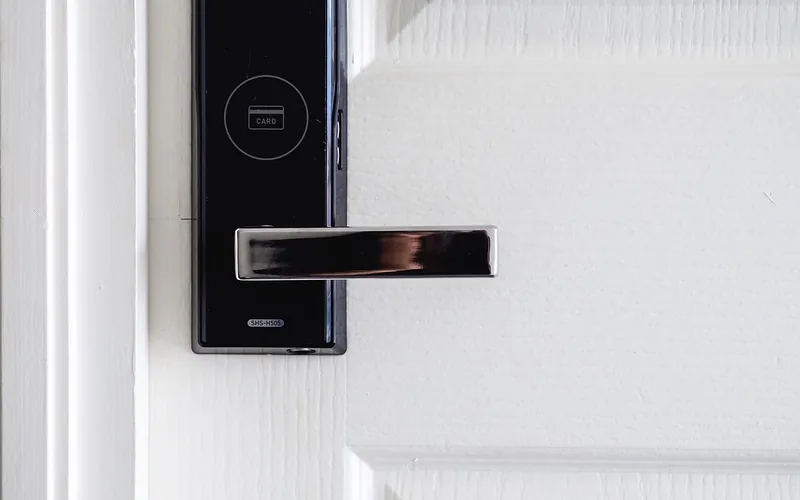
📊 Standard Schlage keypad locks (BE365, BE375, FE595, FE575) store up to 19 user codes, including 2 factory defaults – Schlage Sense models store up to 30. The 6-digit programming code is printed on a sticker on the back of the keypad assembly if you’ve lost it. Source: Schlage Residential Support
Preparation Before Changing The Code
First, find a screwdriver. You might need it to open the lock. Also, grab the user manual. It will guide you step-by-step. Make sure you have your new code ready. Write it down so you don’t forget. Having these tools will help you change the code easily.
The lock has a keypad where you enter codes. Inside, there are pins and springs. They work together to unlock the door. Knowing how these parts work is important. It makes changing the code easier. Read the manual to learn more about these parts. It will help a lot.
Accessing The Lock Programming Mode
First, find the Programming Code. This code is usually in the manual. It can also be on a sticker inside the lock. Open the lock to see it.
Now, type the Programming Code on the lock. The lock will blink three times. Then, it will make a beep sound. This means you are in the Programming Mode.
Follow each step carefully. Make sure not to hurry. If you make a mistake, start over again.
Does the Process Differ by Schlage Model?
Yes – Schlage sells three distinct lock families, and using the wrong sequence for yours is the most common way people get locked out mid-change. Check your lock’s model number (usually printed on the interior faceplate) before starting.
| Model Line | To Change a Code | Notes |
|---|---|---|
| BE365 / FE595 / FE575 (basic keypad) | Programming code -> Schlage button -> #1 -> new 4-digit code twice | 3 orange flashes and 3 beeps confirm programming mode |
| BE469 / Connect | Schlage button -> #3 -> old code -> Schlage button -> new code -> Schlage button to confirm | Changing code length wipes all existing codes |
| Encode / Encode Plus | Schlage Home app only if paired to WiFi | Pairing to the app deletes the physical programming code – manual keypad programming only works if never paired |
Best Schlage Lock Pick
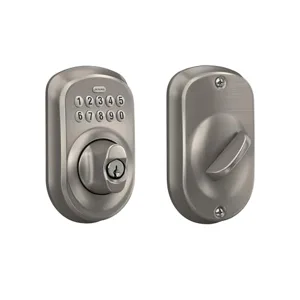
Schlage BE365 Plymouth Keypad Deadbolt, Satin Nickel
The standard basic-keypad Schlage deadbolt this guide’s core instructions are written for.
- Best for: Standard keypad deadbolts using the programming-code button sequence this guide covers
- Why we picked it: The exact BE365 model this guide’s basic-keypad instructions are written for
- Main drawback: No app or WiFi connectivity – manual keypad programming only
Compare more Schlage lock and accessory options
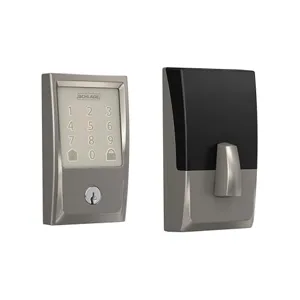 Option 1 Schlage Encode Smart WiFi Deadbolt, Camelot Trim
|
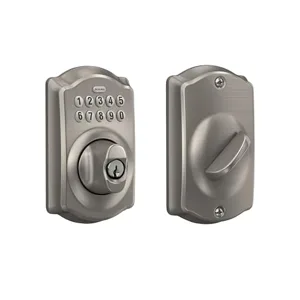 Option 2 Schlage Electronic Keypad Deadbolt, Camelot Trim
|
 Option 3 Energizer Ultimate Lithium AA Batteries (2-Pack)
|
As an Amazon Associate we earn from qualifying purchases.
Changing The User Code
Deleting a code is simple. First, find the Schlage button. Press it to start. Enter the current 6-digit programming code. Wait for the three orange flashes. Press the Schlage button again. Press the number 2 key. Enter the code you want to delete. Wait for the green light. A beep will sound, confirming the deletion.
Adding a new code is easy. Press the Schlage button. Enter the 6-digit programming code. Look for the three orange flashes. Press the Schlage button once more. Then, press the number 1 key. Enter a new 4-digit user code. Wait for the green light and sound. This confirms the new code is set.
Troubleshooting Common Issues
Changing the door code on a Schlage Lock can be simple. First, locate the programming code on the user manual. Enter this code, followed by the new code you wish to set. Confirm the changes by entering the new code once more.
Incorrect Code Entry
Entering the wrong code can lock you out. Check the code before trying again.
Always wait a few seconds between attempts. Too many wrong tries will lock the system.
Battery Problems
Weak batteries cause many issues. If the lock behaves oddly, check the batteries.
Change them if they are low. Use only new batteries for the best results.
Enhancing Security With Advanced Features
Adding multiple codes to a Schlage lock is easy. Each family member can have their own code. This makes sharing access simple and safe. Codes can be changed anytime. This boosts security. You can delete codes for people who don’t need access. Keep your home secure by managing codes wisely.
Sometimes, a guest needs access for a short time. Temporary codes are perfect for this. These codes can be set to expire. This ensures they don’t use the code later. You can give access to someone for a few hours or days. Managing temporary codes helps keep your home safe. Always delete them when no longer needed.
Maintaining Your Schlage Lock
Changing the door code on a Schlage lock boosts home security. Start by entering the programming code. Then, follow the instructions to add or delete user codes. Regular updates ensure only trusted individuals have access.
Regular Battery Checks
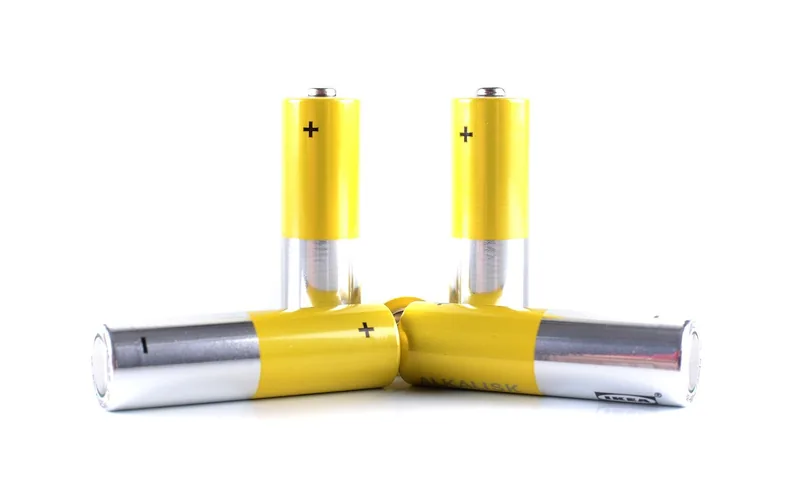
Checking your Schlage lock’s battery is very important. Batteries can wear out quickly. Weak batteries cause lock issues. Always keep extra batteries handy. Swap old batteries for fresh ones. This keeps your lock working smoothly.
Cleaning And Lubrication
Clean your lock regularly. Dust can affect lock performance. Use a soft cloth for cleaning. Avoid using water directly on the lock. Lubricate the lock once in a while. Use lock-friendly lubricants. Ensure smooth movement of parts. Regular care extends lock life.
When To Seek Professional Help
Sometimes lock issues are too hard to solve alone. Complex lock issues might need a skilled person. They know how to fix things safely. If your lock is not working right, it can be tricky. Experts can make sure everything is okay. Installation errors can also cause trouble. Wrong installation might need fixing. A professional can check if it’s installed right. This keeps the lock working well. It also keeps your door safe.
Frequently Asked Questions
How Do I Change The 4 Digit Code On My Schlage Lock?
To change your Schlage lock’s 4-digit code, press the “Schlage” button, enter the programming code, then press “1”. Enter new code twice.
How Do I Reset My Schlage Door Code?
To reset your Schlage door code, press the Schlage button, then enter your existing code. Next, press the programming button and enter a new code twice to confirm. Follow the manufacturer’s instructions for specific models.
How Do I Change My Keypad Lock Code?
Access your keypad settings, then select “Change Code. ” Enter the current code, followed by the new code. Confirm changes.
How To Change Schlage Be375 Code?
To change the Schlage BE375 code, enter the programming code, press the Schlage button, then “1. ” Enter a new user code and repeat for confirmation. Ensure the lock signals success with a green light and beep.
How Do I Change the Code on a Schlage Encode Lock?
Encode and Encode Plus locks manage codes through the Schlage Home app, not the keypad. Open the app, select the lock, go to Access Codes, and edit or add a code there – the change syncs to the lock over Wi-Fi within seconds.
Does Changing the Code Length Delete Existing Codes?
No. Switching between 4-digit and 6-digit code length on Connect and basic keypad models does not erase codes already stored – it only changes the length required for codes entered afterward.
Conclusion
Check your model number before starting – the basic keypad sequence (programming code, Schlage button, #1) doesn’t apply to Connect (#3 instead) or Encode locks paired to the app. Test the new code before walking away from the door, since a mistyped code can lock you out.
Sponsored / affiliate links. As an Amazon Associate I earn from qualifying purchases. I may earn additional commission from eligible campaigns.