How to Reset a Schlage Deadbolt: BE365, Connect and Encode
To reset a Schlage keypad deadbolt (BE365, FE595, BE469), disconnect the battery, hold the Schlage button, then reconnect within 10 seconds until it beeps — this wipes all codes to the factory defaults printed inside the battery cover. Encode locks work differently: a separate black reset button, not the Schlage logo, confirmed by a solid blue LED. This guide covers the keypad reset, Encode and Connect steps, rekeying a traditional deadbolt, and programming new codes.
Why You Might Need to Reset Your Schlage Deadbolt
There are plenty of reasons you might need to reset your Schlage deadbolt, one piece of the broader door hardware and locks category. A previous owner may have left behind a Schlage keypad deadbolt with an unknown code, or you’ve got a new tenant, a houseguest who needs temporary access, or you’re worried someone else knows your code. A reset wipes out all old codes and lets you start fresh.
Sometimes the lock itself acts up — unresponsive keypad, glitchy buttons. A factory reset restores the lock to its original settings, like giving it a clean slate. Whether you’re dealing with a forgotten code, a malfunction, or just want to update your security, resetting your Schlage deadbolt is a straightforward fix.
Understanding Your Schlage Deadbolt Model
Before the reset process, identify your lock. Schlage makes a variety of deadbolts, from traditional keyed models to smart locks with keypads and Wi-Fi. Knowing your model matters because the reset process varies slightly. The model number is on a white sticker inside the battery compartment — check there if you’re unsure.
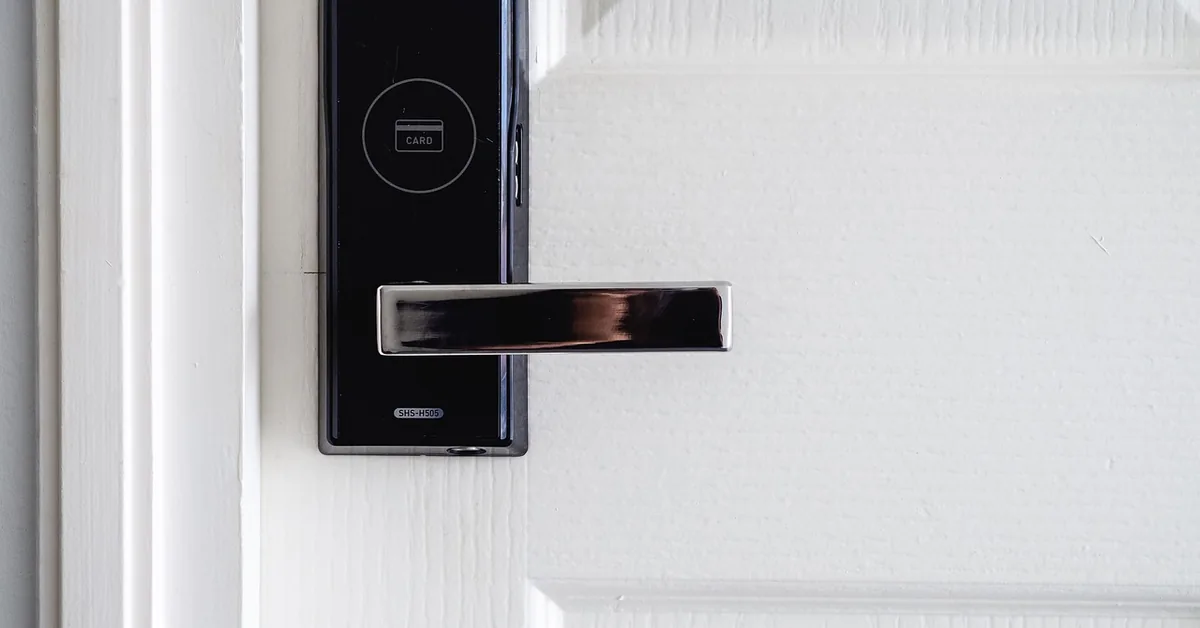
Common Schlage models include the BE365, FE575, FE595, BE468, BE469 (Schlage Connect), and BE489 (Schlage Encode). Keypad models have a “Schlage” button above the numbers, while traditional deadbolts rely on a key and thumbturn — if you’re unsure which type is installed on your door, see what a deadbolt is and how the types differ. Smart locks connect to an app or Wi-Fi, which adds a few extra steps covered below.
Tools You’ll Need to Reset Your Schlage Deadbolt
Resetting a Schlage deadbolt doesn’t require a toolbox full of gadgets. Here’s the full list:
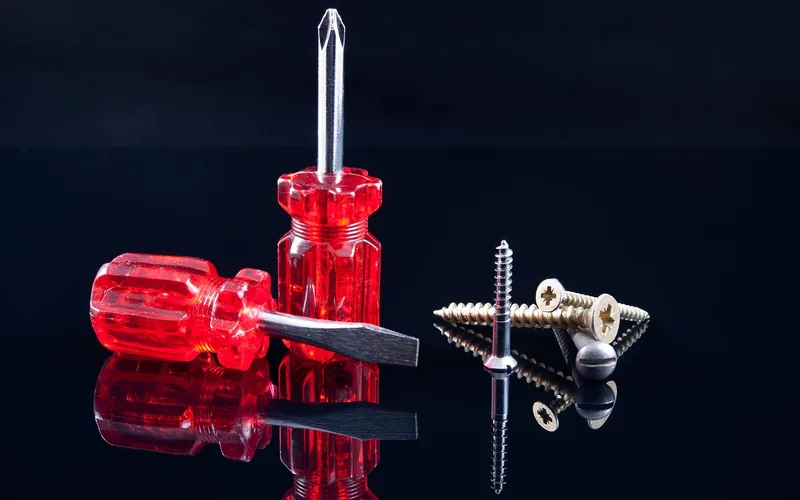
- A Phillips head screwdriver (size #2 works best)
- A 9-volt battery (for keypad models)
- A paperclip or small pin (for some smart lock models)
- The default codes (found on the lock’s sticker or user manual)
If you’ve lost your manual, don’t panic. The default codes are usually on a sticker inside the battery compartment or on the back of the lock’s interior assembly. If you’re resetting a traditional keyed deadbolt, you might not need any tools, but having a screwdriver handy is always a good idea.
Best 9-Volt Battery Pick for a Schlage Reset
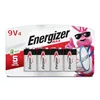
Energizer MAX 9V Batteries (4-Pack) – $9.98
The reset steps below require reconnecting a 9-volt battery within a 10-second window — a fresh, reliable battery avoids a failed attempt and a repeat trip to the toolbox.
- Best for: Keeping a spare on hand for the 10-second battery-swap reset window
- Why we picked it: Alkaline 9V cells with reliable long shelf life, sized right for keypad deadbolts
- Main drawback: Not rechargeable, so you will replace them again in 6-12 months
Compare more 9V battery options
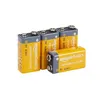 Option 1 Amazon Basics 9V Alkaline Batteries (4-Pack) – $9.79
|
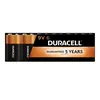 Option 2 Duracell Coppertop 9V Battery (6-Pack) – $25.37
|
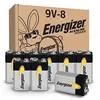 Option 3 Energizer Alkaline Power 9V Batteries (8-Pack) – $22.79
|
As an Amazon Associate we earn from qualifying purchases.
How to Reset a Schlage Keypad Deadbolt
This is the standard process for keypad-only models like the BE365, FE575, FE595, and BE468 — locks without Wi-Fi or an app. If you have a Connect (BE469) or Encode (BE489), skip to the sections below, since those use a different button and confirmation light.
- Open the Battery Compartment: Remove the battery cover on the inside of the lock with a Phillips screwdriver. Be gentle — you don’t want to strip the screws.
- Disconnect the Battery: Find the 9-volt battery and gently unclip it. This cuts power to the lock, which is necessary for a reset.
- Press the Schlage Button: On the keypad, find the “Schlage” button (a long, horizontal button above the numbers). Press and release it once.
- Reconnect the Battery: Within 10 seconds, snap the battery back onto the terminals. The Schlage button should light up green for a second. If you miss the 10-second window, repeat the process.
- Hold the Schlage Button: Press and hold the Schlage button until it turns green and beeps again — this can take up to 10 seconds. When it beeps, the lock has reset to its factory settings.
- Test the Default Codes: Your lock is back to its default programming and user codes — usually a 6-digit programming code and two 4-digit user codes, found on the sticker or manual. Test a default user code to confirm the reset worked.
Here’s a quick table summarizing the steps:
| Step | Action | Notes |
|---|---|---|
| 1 | Open battery compartment | Use a Phillips screwdriver |
| 2 | Disconnect battery | Unclip the 9-volt battery |
| 3 | Press Schlage button | Press and release once |
| 4 | Reconnect battery | Do this within 10 seconds |
| 5 | Hold Schlage button | Wait for green light and beep |
| 6 | Test default codes | Use codes from sticker or manual |
After the reset, your old codes are gone, and you’re ready to program new ones — covered further down.
Resetting a Schlage Connect (BE469, Wi-Fi/Z-Wave)
Schlage Connect uses the same Schlage-button method as the basic keypad models, but the confirmation sequence is different and it may need to be re-paired with your smart home hub afterward.
- Remove the Battery Cover: Slide the battery cover up and off the inside of the lock.
- Disconnect the Batteries: Unclip the battery pack to power down the lock.
- Press and Hold the Schlage Logo: While holding the logo on the front touchscreen, reconnect the batteries and keep holding.
- Confirm the Reset: The green check on the keypad flashes three times and the inside Schlage button flashes three times. Release the logo and test a default user code with the door open.
- Re-pair Z-Wave (if used): A factory reset does not clear Z-Wave enrollment, but if the lock stops responding to your hub, exclude and re-add it from your smart home app.
According to Schlage’s own residential support documentation, this process deletes all codes and restores factory settings, but will not automatically unenroll the lock from Z-Wave — source: Schlage Residential Support, Factory Default Reset a Schlage Connect.
Resetting a Schlage Encode (BE489, Wi-Fi)
Encode locks do not use the Schlage-logo button at all — they have a dedicated reset button, and the confirmation is a solid blue LED rather than a beep. Mixing up the Connect and Encode procedures is the single most common reason an Encode “won’t reset.”
- Remove the Battery Cover: Take off the battery cover on the inside of the lock.
- Find the Reset Button: Locate the small black circular reset button to the right of the thumbturn — not the Schlage logo.
- Hold the Reset Button: Press and hold it. The LED flashes red, then continue holding until the flashing stops and the LED turns solid blue — this can take up to 10 seconds.
- Confirm the Reset: Open the door slightly, press the house icon, and enter default User Code A or B from the Quick Start Guide or the label beside the reset button.
- Reconnect to Wi-Fi: Open the Schlage Home app, select your lock, and follow the prompts to re-pair it. Moving the lock closer to your router helps if pairing fails.
Per Schlage’s own support documentation, this factory default reset removes all codes and virtual keys, and they cannot be retrieved afterward — source: Schlage Residential Support, Factory Reset a Schlage Encode Lock. Keep the door open during this process. If the lock malfunctions mid-reset, you don’t want to get locked out, and it’s worth jotting down the default codes from the sticker before you start.
Resetting a Traditional Schlage Deadbolt (Non-Keypad)
If you’ve got a traditional Schlage deadbolt with no keypad, resetting isn’t about codes — it’s about rekeying the lock. This is useful if you’ve lost the key or want to change who has access.
- Remove the Deadbolt: Use a Phillips screwdriver to remove the screws on the inside of the lock. Take off the thumbturn and pull the deadbolt out of the door.
- Access the Cylinder: The key cylinder is the part where you insert the key. Remove it from the deadbolt assembly — on most Schlage models you’ll need to pry off a small cover plate to reveal the screws holding the cylinder.
- Rekey the Lock: With a Schlage rekeying kit (available at most hardware stores), follow the included instructions to change the pins inside the cylinder. This changes which key operates the lock. Without a kit, a locksmith can do this for you.
- Reinstall the Deadbolt: Once rekeyed, put the cylinder back in, reassemble the deadbolt, and screw it into the door. Test the new key several times to make sure it turns smoothly before you rely on it.
If you don’t have the original key, rekeying can be tricky since most kits assume you can turn the cylinder to set new pins. A locksmith can handle a keyless rekey in about 20 minutes for a similar cost to a new lock’s rekey kit.
Programming New Codes After a Reset
Once your keypad deadbolt is reset, add new codes to replace the factory defaults you just tested.
- Enter the Programming Mode: Press the Schlage button, then enter the 6-digit default programming code (from the sticker). Press the “#” key. The lock should beep twice.
- Add a User Code: Press “1” and then “#.” Enter a new 4-digit user code, then press “#” again. Re-enter the same code and press “#” to confirm. The lock beeps three times if it’s successful.
- Add More Codes: Repeat step 2 for additional codes — one per person who needs access, plus a temporary one if needed.
- Change the Programming Code (Optional): To change the 6-digit programming code, enter the current programming code, press “3” and “#,” then enter a new 6-digit code and press “#.” Re-enter it to confirm.
Make your codes easy to remember but not obvious — avoid “1234” or your street address. Write them down somewhere safe, like a password manager, so you don’t have to reset again.
Troubleshooting Common Reset Issues
Sometimes the reset doesn’t go as planned. Here are the most common issues and how to fix them:
- No Green Light or Beep: If the lock doesn’t respond, check the battery first. A dead 9-volt is the most common cause — swap in a fresh one and make sure the terminals are clean.
- Missed the 10-Second Window: If you don’t reconnect the battery fast enough, the reset won’t take. Start over and move quickly — have the battery in hand before you press the button.
- Lock Won’t Accept Default Codes: Double-check the sticker for the correct codes. If it’s still not working, try disconnecting the battery for a full minute before retrying, or try holding both outside buttons for 30 seconds as an alternate reset.
- Wi-Fi Issues (Encode or Connect): If the lock won’t pair with the app, move it closer to your router and restart the router. A factory reset does not fix Wi-Fi pairing problems on its own.
📊 Basic Schlage keypad models (non-Wi-Fi) typically run 12 months to 3 years on a single 9-volt battery under normal household use — far longer than many owners assume, which is why “dead battery” is often overlooked as the reset failure cause. Source: Schlage product specifications, cross-referenced via independent testing (EngineerFix, 2026)
“I had a dead battery once, and swapping it for a fresh 9-volt fixed a reset that wouldn’t take — it’s the first thing I check now before assuming the lock itself is broken.”
If you’re still stuck, Schlage’s website has model-specific manuals, and their customer support can walk you through a tricky reset.
Maintaining Your Schlage Deadbolt After a Reset
Once your deadbolt is reset and programmed, a little upkeep keeps it working smoothly. Here’s what to check:
- Check the Battery: For keypad models, replace the 9-volt battery roughly once a year, or sooner if the keypad starts responding slowly.
- Clean the Keypad: Dust and grime can make buttons sticky. Wipe with a damp cloth (no harsh chemicals) every few months.
- Lubricate the Bolt: If the bolt feels stiff, a small amount of lock lubricant (like graphite powder) helps. Apply about once a year.
- Test Regularly: Every few months, test your codes and make sure the bolt moves smoothly — a quick way to catch issues early.
Why Schlage Deadbolts Are Worth the Effort
Schlage stands out among lock brands for reliability and ease of use. Their deadbolts are sturdy, and the keypad models add convenience without sacrificing security. Resetting might seem daunting the first time, but it’s a small price to pay for peace of mind. Whether you’re securing your home, managing rentals, or just prefer keyless entry, a Schlage deadbolt is a solid investment.
Frequently Asked Questions
How do I find the default codes for my Schlage keypad deadbolt?
Look for a white sticker inside the battery compartment or on the back of the lock’s interior assembly. It lists the 6-digit programming code and two 4-digit user codes. Photograph it before you need it — the sticker fades over time.
What should I do if my Schlage deadbolt doesn’t reset?
First, check the battery and replace it if it’s low. Make sure you’re reconnecting the battery within 10 seconds of pressing the Schlage button. If it still doesn’t work, disconnect the battery for a full minute and start over. Schlage’s customer support can help with stubborn issues.
Can I reset a Schlage deadbolt without the original key?
Yes, for keypad models — the key and the electronic reset are independent, so you don’t need a key to reset the codes. For traditional non-keypad deadbolts, you’ll need to rekey the lock, which is difficult without the original key; a locksmith can do it without one.
How do I know if my Schlage lock is a smart lock?
Smart locks like the Schlage Encode or Connect have Wi-Fi or Z-Wave and work with an app. Check the model number (BE468, BE469, or BE489) on the sticker inside the battery compartment. Traditional deadbolts only use a key and thumbturn, with no app connection.
How often should I reset my Schlage deadbolt?
You don’t need to reset regularly — only when changing codes, moving into a new home, or troubleshooting a malfunction. Resetting more often than necessary just means reprogramming codes from scratch every time.
Is resetting a Schlage BE469 (Connect) different from a basic keypad model?
The button-and-battery method is the same, but the confirmation differs: the keypad flashes green three times and the inside Schlage button flashes three times, instead of the single beep on basic keypad models. A Connect reset may also require re-pairing with your Z-Wave hub afterward.
I lost my Schlage keypad deadbolt key. Can I still get in?
Yes, if you know a working keypad code — keypad entry works independently of the key cylinder. If you don’t have a working code either, a locksmith can bypass the cylinder, or you can perform a factory reset if you’re able to reach the battery compartment from inside the door.
Conclusion: Take Control of Your Home Security
Whether you’re wiping out old codes, fixing a glitch, or rekeying a traditional lock, you now have the exact steps for your Schlage model — keypad, Connect, or Encode. Keep a spare 9-volt battery and a photo of your default codes on hand so the next reset takes five minutes instead of an afternoon. Take your time, follow the steps for your specific model, and reach out to Schlage’s support if you hit a snag.
Sponsored / affiliate links. As an Amazon Associate I earn from qualifying purchases. I may earn additional commission from eligible campaigns.