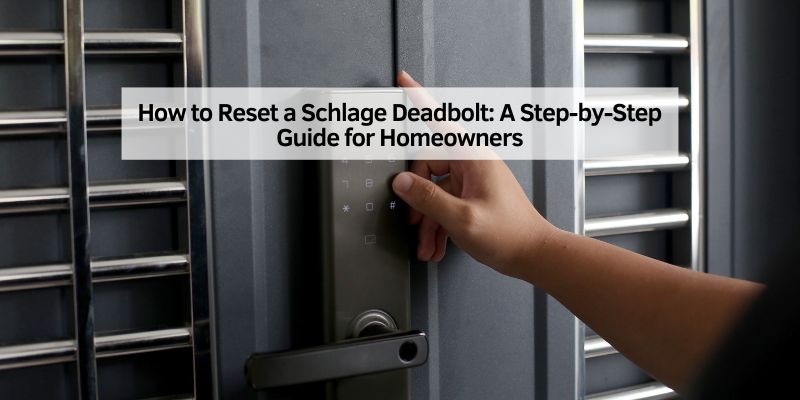
How to Reset a Schlage Deadbolt: A Step-by-Step Guide for Homeowners
Hey there, friend! If you’re reading this, you’re probably staring at your Schlage deadbolt, wondering how to reset it and get things back in order. Maybe you’ve forgotten the code, moved into a new home, or just want to start fresh with your smart lock. I’ve been there, fumbling with my own Schlage lock, trying to figure out the reset process without pulling my hair out. Don’t worry—I’ve got you covered. In this guide, I’ll walk you through everything you need to know about resetting your Schlage deadbolt, whether it’s a keypad model or a traditional one.
I’ll break it down into simple steps, share some tips from my own experience, and make sure you feel confident tackling this task. Let’s dive in and get that lock reset so you can feel secure in your home again!
Why You Might Need to Reset Your Schlage Deadbolt
Let’s start with the “why.” There are plenty of reasons you might need to reset your Schlage deadbolt. When I moved into my current home, the previous owner left behind a Schlage keypad deadbolt, but I had no idea what the codes were. That’s a common scenario. Maybe you’ve got a new tenant, a houseguest who needs temporary access, or you’re just worried someone else knows your code. A reset wipes out all the old codes and lets you start fresh.
Sometimes, the lock itself acts up. I’ve had moments where my Schlage deadbolt wouldn’t respond to the keypad, or the buttons felt glitchy. A factory reset can often fix those issues by restoring the lock to its original settings. It’s like giving your lock a clean slate. Whether you’re dealing with a forgotten code, a malfunction, or just want to update your security, resetting your Schlage deadbolt is a straightforward fix.
Understanding Your Schlage Deadbolt Model
Before we get to the reset process, let’s talk about your lock. Schlage makes a variety of deadbolts, from traditional keyed models to fancy smart locks with keypads and Wi-Fi. Knowing your model is key because the reset process can vary slightly. When I first tried resetting my Schlage BE365 keypad deadbolt, I was clueless about the model number. I found it on a white sticker inside the battery compartment—check there if you’re unsure.
Common Schlage models include the BE365, FE575, FE595, BE468, BE469 (Schlage Connect), and BE489 (Schlage Encode). Keypad models often have a “Schlage” button above the numbers, while traditional deadbolts rely on a key and thumbturn. If you’ve got a smart lock, it might connect to an app or Wi-Fi, which adds a few extra steps. Don’t worry if this sounds overwhelming—I’ll guide you through each step, no matter your model.
Tools You’ll Need to Reset Your Schlage Deadbolt
Good news: resetting a Schlage deadbolt doesn’t require a toolbox full of gadgets. Here’s what I used when I reset mine:
- A Phillips head screwdriver (size #2 works best)
- A 9-volt battery (for keypad models)
- A paperclip or small pin (for some smart lock models)
- The default codes (found on the lock’s sticker or user manual)
If you’ve lost your manual, don’t panic. The default codes are usually on a sticker inside the battery compartment or on the back of the lock’s interior assembly. I keep a photo of mine on my phone for quick reference. If you’re resetting a traditional keyed deadbolt, you might not need any tools, but having a screwdriver handy is always a good idea.
How to Reset a Schlage Keypad Deadbolt
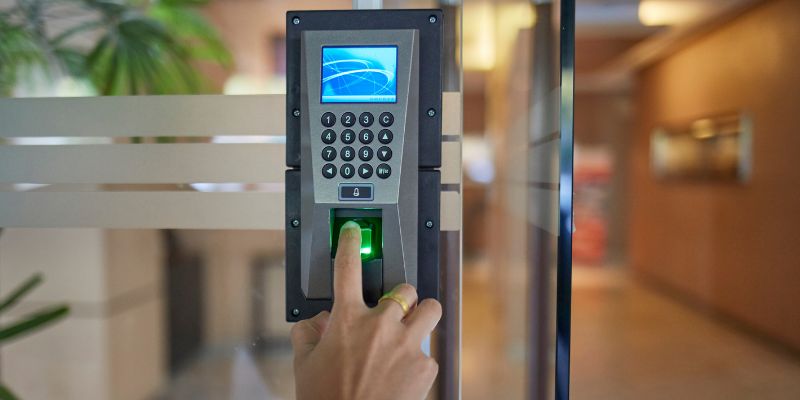
Let’s get to the good stuff—resetting your keypad deadbolt. This is the process I followed for my Schlage BE365, and it works for most keypad models like the FE575, FE595, BE468, BE469, and BE489. If you’ve got a different model, the steps are usually similar, but check your manual for specifics. Here’s how I did it:
- Open the Battery Compartment: Start by removing the battery cover on the inside of the lock. For my BE365, I used a Phillips screwdriver to take off the cover. Be gentle—you don’t want to strip the screws.
- Disconnect the Battery: Find the 9-volt battery and gently unclip it. This cuts power to the lock, which is necessary for a reset.
- Press the Schlage Button: On the keypad, find the “Schlage” button (it’s usually a long, horizontal button above the numbers). Press and release it once. You might hear a beep or see a light, even with the battery disconnected.
- Reconnect the Battery: Within 10 seconds, snap the battery back onto the terminals. The Schlage button should light up green for a second. If you miss the 10-second window, just repeat the process.
- Hold the Schlage Button: Now, press and hold the Schlage button until it turns green and beeps again. This can take up to 10 seconds. When it beeps, the lock has reset to its factory settings.
- Test the Default Codes: Your lock is now back to its default programming and user codes. These are usually a 6-digit programming code and two 4-digit user codes, found on the sticker or manual. Test one of the default user codes to make sure the reset worked. For example, I entered one of my default codes, and the lock clicked open smoothly.
Here’s a quick table summarizing the steps:
| Step | Action | Notes |
|---|---|---|
| 1 | Open battery compartment | Use a Phillips screwdriver |
| 2 | Disconnect battery | Unclip the 9-volt battery |
| 3 | Press Schlage button | Press and release once |
| 4 | Reconnect battery | Do this within 10 seconds |
| 5 | Hold Schlage button | Wait for green light and beep |
| 6 | Test default codes | Use codes from sticker or manual |
After the reset, your old codes are gone, and you’re ready to program new ones. I’ll cover that in a bit.
Resetting a Schlage Smart Lock with Wi-Fi (Encode or Connect)
If you’ve got a Schlage Encode (BE489) or Connect (BE468/BE469), the process is a bit different because these locks connect to Wi-Fi or smart home systems. When I reset my Schlage Encode, I had to make sure it unpaired from my phone app too. Here’s what I did:
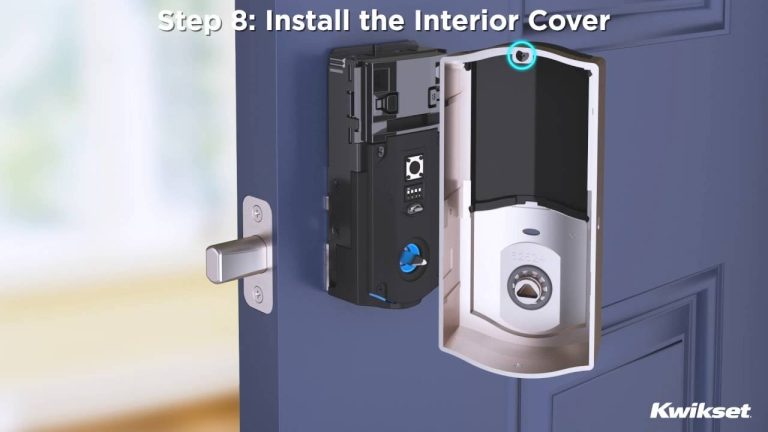
- Remove the Battery Cover: Like with the keypad model, use a screwdriver to open the battery compartment on the inside of the lock.
- Disconnect the Battery: Unclip the 9-volt battery to power down the lock.
- Press and Hold the Schlage Button: While holding the Schlage button, reconnect the battery. Keep holding until the keypad flashes a green checkmark three times (this took about 5 seconds for me).
- Confirm the Reset: Release the button and test the lock with one of the default user codes. The lock should run a quick setup routine, and the bolt will move to confirm the reset.
- Reconnect to Wi-Fi (if needed): If you’re using the Schlage Home app, you’ll need to re-pair the lock. Open the app, select your lock, and follow the prompts to connect it to your Wi-Fi. I had to move my lock closer to my router to get a strong signal.
One thing I learned the hard way: keep the door open during this process. If the lock malfunctions, you don’t want to get locked out. Also, jot down the default codes before you start—they’re on the white sticker inside the lock.
Resetting a Traditional Schlage Deadbolt (Non-Keypad)
If you’ve got a traditional Schlage deadbolt with no keypad, resetting isn’t about codes—it’s about rekeying the lock. This is useful if you’ve lost the key or want to change who has access. I had to do this when I lent a key to a neighbor and never got it back. Here’s how I handled it:
- Remove the Deadbolt: Use a Phillips screwdriver to remove the screws on the inside of the lock. Take off the thumbturn and pull the deadbolt out of the door.
- Access the Cylinder: The key cylinder is the part where you insert the key. You’ll need to remove it from the deadbolt assembly. For my Schlage, I had to pry off a cover plate to reveal the screws holding the cylinder.
- Rekey the Lock: If you have a Schlage rekeying kit (I got mine at a hardware store), follow the instructions to change the pins inside the cylinder. This changes the key that works with the lock. If you don’t have a kit, a locksmith can do this for you.
- Reinstall the Deadbolt: Once rekeyed, put the cylinder back in, reassemble the deadbolt, and screw it into the door. Test the new key to make sure it works smoothly.
If you don’t have the original key, rekeying can be tricky. I ended up calling a locksmith for one of my locks because I didn’t have the key, and they handled it in about 20 minutes.
Programming New Codes After a Reset
Once your keypad deadbolt is reset, you’ll want to add new codes. This part is fun—it’s like giving your lock a new personality. Here’s how I programmed my Schlage BE365:
- Enter the Programming Mode: Press the Schlage button, then enter the 6-digit default programming code (from the sticker). Press the “#” key. The lock should beep twice.
- Add a User Code: Press “1” and then “#.” Enter a new 4-digit user code, then press “#” again. Re-enter the same code and press “#” to confirm. The lock beeps three times if it’s successful.
- Add More Codes: Repeat step 2 for additional codes. I set up one for myself, one for my spouse, and a temporary one for my dog walker.
- Change the Programming Code (Optional): To change the 6-digit programming code, enter the current programming code, press “3” and “#,” then enter a new 6-digit code and press “#.” Re-enter it to confirm.
I made my codes easy to remember but not obvious (no “1234” here!). Write them down somewhere safe, like a password manager, so you don’t have to reset again.
Troubleshooting Common Reset Issues
Sometimes, things don’t go as planned. When I first tried resetting my Schlage Encode, the keypad didn’t light up, and I panicked. Here are some issues I’ve run into and how I fixed them:
- No Green Light or Beep: If the lock doesn’t respond, check the battery. I had a dead one once, and swapping it for a fresh 9-volt fixed it. Make sure the battery terminals are clean too.
- Missed the 10-Second Window: If you don’t reconnect the battery fast enough, the reset won’t work. Just start over and move quickly.
- Lock Won’t Accept Default Codes: Double-check the sticker for the correct codes. If it’s still not working, the lock might need a new battery or a deeper reset. Try disconnecting the battery for a full minute before retrying.
- Wi-Fi Issues (Smart Locks): If your Schlage Encode or Connect won’t pair with the app, move it closer to your router. I also restarted my router, which helped.
If you’re still stuck, Schlage’s website has model-specific manuals, and their customer support is super helpful. I called them once, and they walked me through a tricky reset in minutes.
Maintaining Your Schlage Deadbolt After a Reset
Once your deadbolt is reset and programmed, a little TLC goes a long way. I learned this after my lock started acting sluggish. Here’s what I do to keep mine in top shape:
- Check the Battery: For keypad models, replace the 9-volt battery every 6-12 months. I mark my calendar to avoid surprises.
- Clean the Keypad: Dust and grime can make the buttons sticky. I wipe mine with a damp cloth (no harsh chemicals) every few months.
- Lubricate the Bolt: If the bolt feels stiff, a tiny bit of lock lubricant (like graphite powder) works wonders. I apply it once a year.
- Test Regularly: Every few months, I test my codes and make sure the bolt moves smoothly. It’s a quick way to catch issues early.
Why Schlage Deadbolts Are Worth the Effort
I’ve tried a few lock brands over the years, but Schlage stands out for its reliability and ease of use. Their deadbolts are sturdy, and the keypad models add convenience without sacrificing security. Resetting might seem daunting at first (I was nervous too!), but it’s a small price to pay for peace of mind. Whether you’re securing your home, managing rentals, or just love the keyless entry, a Schlage deadbolt is a solid investment.
Conclusion: Take Control of Your Home Security
There you go, friend—you’re now a pro at resetting your Schlage deadbolt! Whether you’re wiping out old codes, fixing a glitch, or rekeying a traditional lock, you’ve got the steps to make it happen. I remember how satisfying it felt when I reset my lock and programmed new codes that only my family knew. It’s like giving your home a fresh layer of security. Take your time, follow the steps, and don’t hesitate to reach out to Schlage’s support if you hit a snag. Your home is your sanctuary, and a properly reset Schlage deadbolt keeps it that way. Now, go grab that screwdriver and get to work—you’ve got this!
FAQs
How do I find the default codes for my Schlage keypad deadbolt?
Look for a white sticker inside the battery compartment or on the back of the lock’s interior assembly. It lists the 6-digit programming code and two 4-digit user codes. I keep a photo of mine on my phone for easy access.
What should I do if my Schlage deadbolt doesn’t reset?
First, check the battery—replace it if it’s low. Make sure you’re reconnecting the battery within 10 seconds of pressing the Schlage button. If it still doesn’t work, try disconnecting the battery for a minute and start over. Schlage’s customer support can help with stubborn issues.
Can I reset a Schlage deadbolt without the original key?
For keypad models, you don’t need a key—just follow the reset steps. For traditional deadbolts, you’ll need to rekey the lock, which is tough without the key. I had to call a locksmith when I lost mine, and they rekeyed it quickly.
How do I know if my Schlage lock is a smart lock?
Smart locks like the Schlage Encode or Connect have Wi-Fi or Bluetooth and work with an app. Check for a model number (like BE468, BE469, or BE489) on the sticker inside the battery compartment. Traditional deadbolts only use a key and thumbturn.
How often should I reset my Schlage deadbolt?
You don’t need to reset regularly unless you’re changing codes, moving to a new home, or troubleshooting issues. I reset mine when I moved in and again when I had a tenant leave, just to be safe.