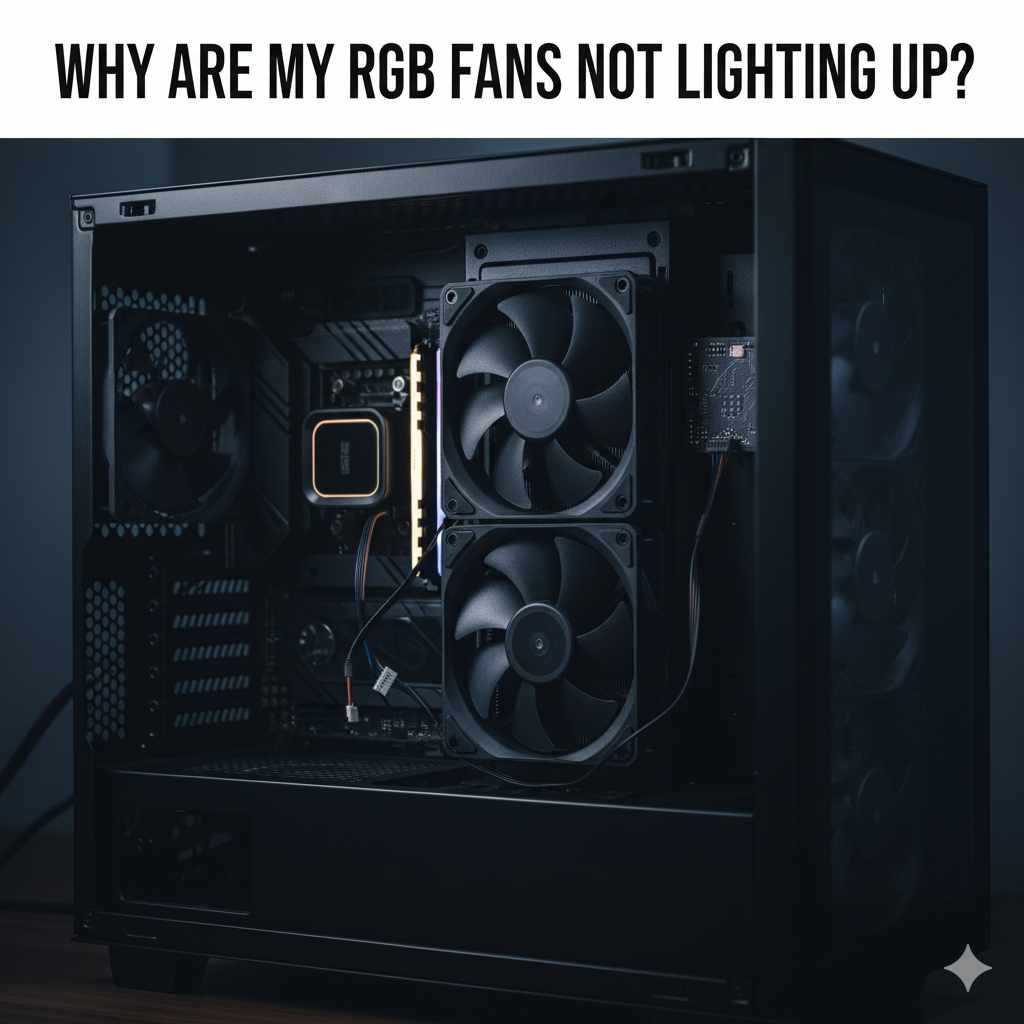
Why Are My RGB Fans Not Lighting Up? (12V vs 5V Fix)
RGB fans usually stay dark because of a loose connector, a fan plugged into the wrong header type, or RGB control software that isn’t running — not a dead fan. A 4-pin 12V RGB connector will never light up on a 3-pin 5V ARGB header, or the reverse, so header type is the first thing to confirm. This guide covers cable checks, header types, software fixes, and the specific glitches — stuck colors, 0.00V headers, fans that spin with no light — that the basic checklist misses.
Quick Answer
Check that the RGB cable (not just the fan power cable) is fully seated in a matching header — 4-pin 12V RGB or 3-pin 5V ARGB, never mixed — then confirm your RGB software (Aura Sync, Mystic Light, RGB Fusion, SignalRGB, or OpenRGB) actually detects the fan. If the fan spins normally but stays dark, it’s almost always the RGB data cable or the software, not the fan itself.
Troubleshooting Your RGB Fans: A Step-by-Step Guide
When RGB fans go dark, it’s rarely a defective fan. Work through these checks in order, starting with the simplest and most common cause.
Step 1: The Essential Cable Check — Are They All Connected?
This is by far the most common reason for unlit RGB fans — it’s easy to miss a cable when a build has a dozen of them.
Power Cables vs. RGB Cables
It’s important to distinguish between the fan’s power cable and its RGB cable.
- Fan Power Cable: Usually a 3-pin or 4-pin connector that plugs into your motherboard’s fan headers (marked SYS_FAN, CHA_FAN, etc.) or a fan controller. This cable is what makes the fan spin.
- RGB Cable: Carries the lighting data and power to the LEDs. It’s typically a 4-pin connector (12V RGB) or a 3-pin connector (5V addressable RGB, or ARGB).
Where to Look for Loose Connections
Open your PC case (make sure it’s powered off and unplugged from the wall first). Using a flashlight, carefully inspect:
- Fan to Controller/Motherboard: Confirm the RGB cable from each fan is firmly seated in its designated port. Give it a gentle wiggle to check it’s snug.
- Controller to Motherboard: If using a separate RGB controller, check the cable connecting it to the motherboard — often a USB header or a dedicated RGB header.
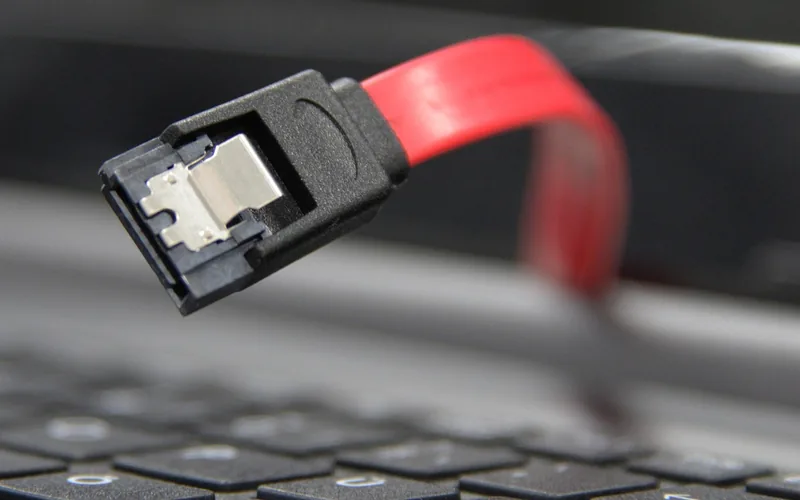
- Power Supply Unit (PSU) Connections: Some RGB controllers or hubs need a SATA power connection direct from the PSU. Confirm it’s fully plugged in.
Step 2: Understanding RGB Headers on Your Motherboard
Knowing where to plug in RGB cables is crucial — the wrong header simply won’t work.
| Header Type | Voltage / Pins | Controls | Common Label |
|---|---|---|---|
| Standard RGB | 12V, 4-pin | Whole strip/fan as one color | RGB, RGB_LED1 |
| Addressable RGB (ARGB) | 5V, 3-pin | Individual LED control | ARGB, D_RAINBOW, JRGB |
Never plug a 4-pin RGB connector into a 3-pin ARGB header, or the reverse. They are not compatible and forcing the connection can damage your motherboard or fan. Always check the labels on your motherboard and the connector shape before plugging in — ARGB connectors are keyed differently and one pin position is usually blocked off.
You can find header diagrams in your motherboard’s printed manual, or search your exact motherboard model on the manufacturer’s support page for a digital copy.
RGB Fans Spinning But No Light vs. Light But Fan Not Spinning
These are two different problems with two different causes, and mixing them up wastes troubleshooting time. Here’s how to tell them apart.
| Symptom | Likely Cause | What to Check First |
|---|---|---|
| Fan spins, no light at all | RGB data cable loose or in the wrong header; RGB software not running | RGB cable seating, header type match, software detection |
| Light is on, fan not spinning | Fan power cable (not RGB cable) is disconnected, or PWM speed set to 0% | 3/4-pin fan power header, fan curve in BIOS |
| Fan spins and lights, but stuck on one color | Software not controlling the header, or header running in “default” mode | RGB software profile, BIOS RGB default setting |
Fan power and RGB lighting run through separate cables and, on most fans, separate headers — so it is entirely normal for one to work while the other fails. A fan that spins with no light almost always points to the RGB cable or software; a fan that lights up but doesn’t spin points to the power cable or a fan curve set too low, not the RGB system at all.
My RGB Software Won’t Detect My Fans
If cables and headers check out but the fan still won’t light, the control software is the next place to look — this covers both motherboard-branded apps and third-party tools like SignalRGB and OpenRGB.
- Confirm with vendor software first: Open your motherboard’s own app (Aura Sync, Mystic Light, RGB Fusion, Polychrome Sync). If it can’t detect the fan either, the problem is hardware, not the third-party tool.
- Header type mismatch: SignalRGB and OpenRGB both report missed detections most often when an ARGB device sits on a standard RGB header or vice versa — recheck Step 2’s header table.
- USB enumeration conflicts: If you’re using a USB-connected RGB controller (common with fan hubs), a Windows USB conflict can hide the device from the software entirely. Unplug the controller, wait 10 seconds, and reconnect it before relaunching the app.
- Close competing RGB apps: Only one RGB control program should run at a time. Having Aura Sync and SignalRGB both open simultaneously is a common cause of fans not being recognized correctly.
- Check for a motherboard BIOS update: Manufacturers periodically release BIOS updates that specifically improve RGB header detection.
📊 SignalRGB’s own troubleshooting documentation confirms header-type mismatch and USB enumeration conflicts are the two most common causes of “device not detected” reports — not a faulty fan. Source: SignalRGB Documentation, 2026
BIOS Shows the RGB Header at 0.00V
Some motherboard BIOS hardware monitors display a live voltage reading for the RGB/ARGB header. A reading of 0.00V means the header itself is not receiving power, which is a more specific signal than “the light isn’t on.”
- Confirm RGB is enabled in BIOS: Look under Advanced, Peripherals, or a dedicated “RGB Lighting”/”Aura” tab and make sure it’s not set to disabled.
- Toggle it off, save, reboot, then toggle back on: This clears a stuck state on some boards without a full CMOS reset.
- Clear CMOS if toggling doesn’t help: Power down, unplug the PSU, and use the motherboard’s CMOS clear button or jumper for about 15 seconds.
- Treat a persistent 0.00V reading as a hardware flag: If the header still shows 0.00V after a CMOS clear and the BIOS setting is confirmed on, the header itself has likely failed and a USB or SATA-powered external hub is the practical workaround.
RGB Fans Stuck on One Color or Randomly Changing
A fan that lights up but won’t respond to color or effect changes is a software-control problem, not a wiring problem — the header is clearly getting power and data, just not the commands you’re sending.
Check whether the BIOS’s own default RGB behavior (often called “Aura On” or a similar default effect) is overriding your software profile — this happens most often right after a Windows update or driver reinstall resets the control handoff back to the motherboard’s own firmware default. Reopening your RGB software and re-applying a profile usually reclaims control; if it doesn’t, disable the BIOS default lighting behavior first, then reapply the software profile.
Step 3: Software Settings — The Brains Behind the Lights
Even with everything plugged in correctly, RGB fans stay dark if the controlling software isn’t set up right.
Motherboard Manufacturer Software
Most motherboard manufacturers provide their own RGB software. Examples include ASUS Aura Sync, MSI Mystic Light, Gigabyte RGB Fusion, and ASRock Polychrome SYNC. If your fans connect to motherboard RGB headers, open the relevant app and check:
- Device Detection: Does the software detect your RGB components? If not, it may point to a connection issue or the software not running correctly.
- Lighting Profiles: Confirm a profile is enabled and not set to “off” or “disabled.”
- Syncing: If you have multiple RGB devices, confirm they’re set to sync or individually configured as intended.
Third-Party RGB Controllers and Software
If your fans came with a separate RGB controller or hub, you may need the fan manufacturer’s own software (Corsair iCUE, NZXT CAM, Thermaltake TT RGB PLUS) or a universal tool like SignalRGB or OpenRGB. These programs often take over lighting control entirely, even when fans are plugged into motherboard headers — check the same detection and profile settings inside them.
BIOS/UEFI Settings
In rare cases, RGB lighting control is managed or disabled directly in the motherboard’s BIOS/UEFI. To access it:
- Restart your computer.
- As it boots, repeatedly press the BIOS/UEFI key (often DEL, F2, F10, or F12 — check your motherboard manual).
- Navigate to “Onboard Devices,” “Peripherals,” “Advanced Settings,” or a dedicated RGB tab.
- Confirm RGB lighting control is enabled.
- Save changes and exit.
Step 4: Driver and Software Updates
Outdated drivers or RGB software can cause lighting glitches even when everything else is correct. Update your motherboard’s chipset and RGB utility drivers from the manufacturer’s site, check for updates inside your RGB software itself, and keep Windows current — OS updates sometimes change how hardware and control software interact.
Step 5: Checking Fan Hubs and Daisy-Chaining
Many builds use a fan hub to manage several fans from one point, which simplifies wiring but adds another point of failure. If your fans connect to a hub, confirm the hub is correctly connected to the motherboard (usually a USB header for control, sometimes a separate RGB header), that it’s receiving power from a SATA connector or powered header, and that each fan’s RGB cable is seated in the correct labeled port.
If fans are daisy-chained (one fan’s RGB cable feeding into the next), confirm the first fan is properly connected to the motherboard/controller and that the total LED count in the chain doesn’t exceed the header’s limit — a 3-pin 5V ARGB header commonly supports around 60 LEDs, though this varies by board. Exceeding it can cause the whole chain to stop lighting rather than just dim.
Best ARGB Fan Hub Pick
ASUS TUF Gaming ARGB PWM Fan Hub – $31.99
Connects up to six case fans to one PWM and one RGB header, which sidesteps the exact daisy-chain LED-limit and hub-power issue covered in Step 5 above.
- Best for: ASUS/Aura Sync builds with 4+ case fans
- Why we picked it: Native Aura Sync support avoids the third-party software detection issues covered above
- Main drawback: Costs more than a generic hub and works best paired with an ASUS board
Compare more fan hub options
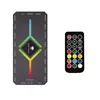 Option 1 ShakingTank 9-Port Fan Hub – $11.89
|
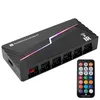 Option 2 Thermalright Fan HUB X12 – $11.59
|
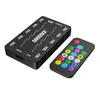 Option 3 DARKROCK 20-Port Hub – $13.99
|
As an Amazon Associate we earn from qualifying purchases.
Step 6: Testing Individual Components — Isolating the Problem
If the above steps haven’t fixed it, isolate the faulty part directly. Disconnect all but one RGB fan and try to get that single fan to light up; if it works, reconnect the next fan and repeat. Try the problematic fan in a different header to see if the issue follows the fan or stays with the header. If possible, plug a known-working RGB component into the same header and cable — if it lights up, the original fan or its cable is the problem; if it doesn’t, the header or control software is.
Step 7: Checking for Physical Damage
Less common, but physical damage to a fan, cable, or connector can prevent RGB lighting entirely. Look closely at the pins inside the RGB connectors on both the fan and the motherboard/controller. If you see bent pins on the motherboard header, do not try to force them back yourself unless experienced — it’s easy to damage the motherboard. A gently bent pin on a fan connector can sometimes be carefully straightened with tweezers. Replace any cable with visible cuts, kinks, or exposed wire.
Step 8: The Power Cycle Method
A full power cycle resolves more temporary RGB glitches than most people expect, because it clears residual charge that a normal restart doesn’t touch.
- Shut down your computer completely.
- Turn off the power supply switch at the back of your PSU.
- Unplug the power cord from the wall outlet.
- Press and hold the power button on your PC case for 15–20 seconds to discharge residual power.
- Plug everything back in and turn on the PSU switch.
- Boot up and check whether the RGB lights now work.
Understanding Different RGB Technologies
The two main RGB systems for PC fans are standard 4-pin 12V RGB and 3-pin 5V addressable RGB (ARGB).
| Feature | Standard 4-Pin RGB (12V) | Addressable RGB (ARGB) (5V) |
|---|---|---|
| Voltage | 12 Volts | 5 Volts |
| Connector Type | 4-pin (often labeled 12V, R, G, B) | 3-pin (often labeled 5V, D, G) |
| Lighting Control | All LEDs the same color at once; basic effects | Individual LED control; rainbows, animations, patterns |
| Compatibility | Requires a 4-pin 12V RGB header | Requires a 3-pin 5V ARGB header |
| Potential Issues | Color inaccuracies if voltage fluctuates | Overloading the header with too many LEDs can cause failures |
Match ARGB fans to ARGB headers and standard RGB fans to standard RGB headers. Mixing them causes no lights, wrong colors, or damaged components. When unsure, check your motherboard manual or the documentation that came with your fans.
On one of our own test builds, two identical fans sat on identical-looking headers — one lit up instantly, the other stayed dark. The difference turned out to be the header type: one was wired to the board’s ARGB header, the other to the standard RGB header, and the fans themselves were ARGB-only. Swapping the header fixed it in under a minute, with zero software involved.
When to Seek Further Help
If you’ve worked through every step above and the RGB fans still won’t light, it’s possible the fan, its RGB controller, or the motherboard’s RGB circuitry has actually failed. At this point, contacting the fan manufacturer or motherboard maker directly is worthwhile — they can run more specific diagnostics or start a warranty replacement. For deeper hardware-level troubleshooting and component reviews, TechPowerUp is a useful independent resource. If you’re troubleshooting RGB as part of a wider gaming PC build, our guide on getting games running well on PC covers related setup basics.
Frequently Asked Questions
Can I plug my RGB fans directly into the power supply?
No. RGB lighting needs data signals and voltage control from a motherboard header or an RGB controller, not just raw power. The PSU can power a fan controller or hub through a SATA connector, but the RGB signal itself still has to route through the motherboard or controller.
My RGB fans are spinning, but not lighting up. What does this mean?
This almost always means the fan’s power connection is correct, but the RGB connection or software control is the issue. Recheck that the RGB cable (not the power cable) is in the matching header type, and confirm your RGB software is running with a profile enabled.
I have both 4-pin RGB and 3-pin ARGB fans. Can I use them on the same motherboard?
Yes, as long as your motherboard has both header types. Plug 4-pin RGB fans into 4-pin RGB headers and 3-pin ARGB fans into 3-pin ARGB headers — never force a connector into the wrong header. You may need separate software for each type if they’re from different ecosystems.
How many RGB fans can I connect to a single motherboard header?
For standard 4-pin 12V RGB, several fans or strips can usually daisy-chain or splitter-connect as long as total power draw stays under the header’s limit (often around 2A/24W). For 3-pin 5V ARGB, the limit is based on LED count — commonly around 60 LEDs per header, though this varies by board. Check your motherboard manual for the exact limit.
I installed new RGB fans, and now none of my lights work. What happened?
This can indicate a short circuit or a power/data conflict. Check that no wires are pinched or exposed, and re-verify every power (SATA or Molex) and data (RGB header) connection you touched during install. A faulty new component can occasionally draw too much power and disable the header entirely.
Is it safe to mix RGB fans from different brands?
Generally yes, if they use the same RGB technology (all 12V 4-pin RGB, or all 5V 3-pin ARGB) and connect to compatible headers. Controlling them all in one software suite can be harder, though — you may need each brand’s own app, or motherboard software that explicitly supports multiple ecosystems.
What does a 0.00V reading on my motherboard’s RGB header mean?
It means the header itself isn’t receiving power, not just that a light is off. Confirm RGB is enabled in BIOS, toggle it off and back on, then clear CMOS if the reading persists. A 0.00V reading that survives a CMOS clear usually points to a failed header rather than a software or cable issue.
Conclusion
Most dark RGB fans come down to three things: a loose or mismatched RGB cable, control software that isn’t detecting the device, or a BIOS setting overriding your profile. Work through the cable and header checks first, confirm your software actually sees the fan, and save a fan hub or replacement only for a header that stays at 0.00V after a CMOS clear. Methodical, step-by-step troubleshooting fixes the overwhelming majority of cases without buying anything new.
Sponsored / affiliate links. As an Amazon Associate I earn from qualifying purchases. I may earn additional commission from eligible campaigns.