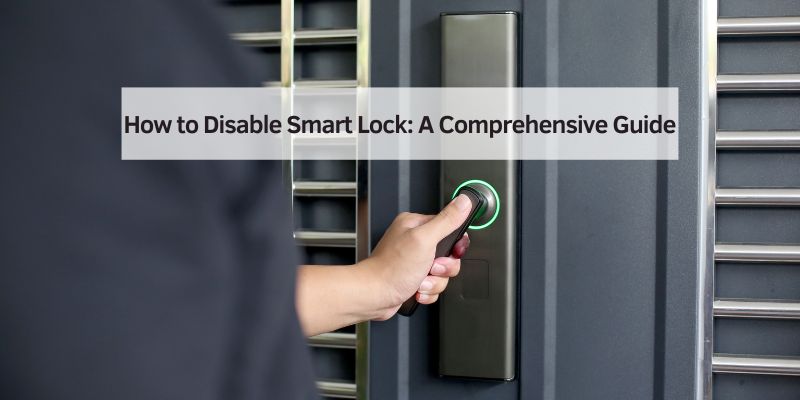
How to Disable Smart Lock: A Comprehensive Guide
Hey there! So, you’ve got a smart lock on your door, and maybe it’s acting up, or you just want to take a break from the high-tech stuff. I totally get it—sometimes, you just want things to be simple, right? Smart locks are awesome for convenience, but there are times when disabling them makes sense, whether it’s for troubleshooting, security concerns, or just wanting to go old-school with a key. I’ve been down this road myself, tweaking and testing my own smart lock to figure out the best ways to disable it when needed. In this guide, I’m going to walk you through everything you need to know about disabling a smart lock, step by step, in a way that’s easy to follow. Whether you’re a tech newbie or a seasoned DIYer, I’ve got you covered with practical tips and clear instructions. Let’s dive in!
Understanding What a Smart Lock Is
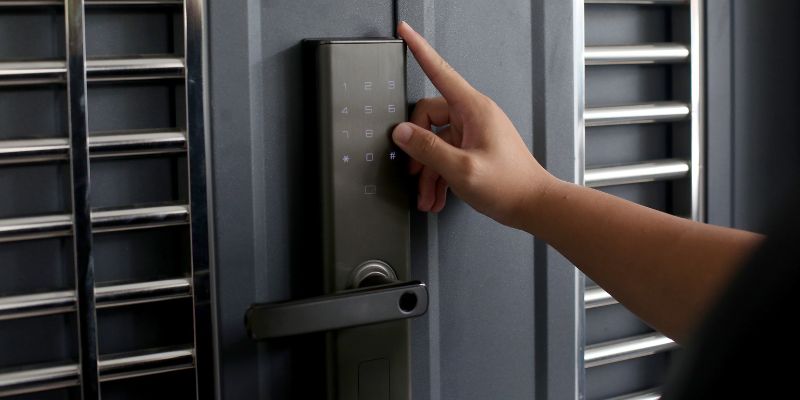
Before we jump into disabling your smart lock, let’s talk about what it actually is. A smart lock is a high-tech version of a traditional lock. It uses Wi-Fi, Bluetooth, or other wireless tech to let you lock or unlock your door remotely. You can control it with your phone, a keypad, or even your voice if it’s hooked up to a smart home system like Alexa or Google Home. Pretty cool, right? I remember when I first got mine—it felt like living in the future!
But here’s the thing: smart locks can sometimes be a bit finicky. Maybe the app isn’t responding, or you’re worried about someone hacking into it. That’s when disabling it comes in handy. Disabling a smart lock doesn’t mean you’re throwing it out—it just means turning off its “smart” features temporarily or switching to manual mode. You can still use a physical key or a manual override in most cases. Let’s explore why you might want to do this.
Why You Might Want to Disable Your Smart Lock
There are plenty of reasons you might want to disable your smart lock. For me, it started when my lock kept sending me random notifications at 2 a.m.—not fun! Here are some common reasons you might be thinking about this:
- Troubleshooting Issues: If your lock isn’t connecting to your phone or the app is glitchy, disabling the smart features can help you figure out what’s wrong.
- Battery Concerns: Smart locks run on batteries, and if they’re running low, you might want to disable the smart functions to save power.
- Security Worries: Worried about hackers? Turning off the smart features can give you peace of mind.
- Going Back to Basics: Sometimes, you just want the simplicity of a physical key, especially if you’re lending your home to someone who isn’t tech-savvy.
- Temporary Disuse: If you’re going on vacation or leaving your home empty, you might want to disable the smart features to avoid any surprises.
Whatever your reason, disabling a smart lock is usually straightforward. Let’s look at the different ways you can do it, depending on your lock’s brand and model.
Different Types of Smart Locks and Their Disable Methods
Not all smart locks are the same, and how you disable them depends on the brand and model. I’ve tinkered with a few popular ones, like August, Schlage, and Kwikset, and each has its quirks. Here’s a breakdown of the main types and how their disable methods might differ:
| Brand | Type | Disable Method Overview |
|---|---|---|
| August | Wi-Fi/Bluetooth | Turn off via app or remove batteries |
| Schlage | Z-Wave/Wi-Fi/Bluetooth | Disconnect from hub or app, or use manual override |
| Kwikset | Z-Wave/Bluetooth | Disable via app or remove connectivity module |
| Yale | Wi-Fi/Z-Wave/Bluetooth | Turn off smart features in app or disconnect module |
| Generic Brands | Bluetooth or Keypad | Reset to factory settings or remove batteries |
Each brand has its own app or system, so the exact steps vary. Don’t worry—I’ll walk you through the general process and highlight specific tips for popular brands. Let’s start with the most common method: using the app.
Disabling Smart Lock Through the App
Most smart locks come with a mobile app, and that’s usually the easiest way to disable the smart features. When I first wanted to disable my August lock, I went straight to the app, and it was a breeze. Here’s how it typically works:
- Open the App: Download or open the app for your smart lock. For example, August has its own app, while Schlage uses the Schlage Home app.
- Log In: Make sure you’re logged into your account. If you’ve forgotten your password, you might need to reset it first.
- Find the Settings Menu: Look for a “Settings” or “Device” tab. This is where you’ll find options to manage your lock.
- Disable Smart Features: Look for an option like “Disable Smart Lock,” “Turn Off Connectivity,” or “Disconnect from Wi-Fi/Bluetooth.” For my August lock, I found a toggle to turn off Wi-Fi.
- Save Changes: Confirm your changes. Some apps might ask you to restart the lock or your phone.
If your lock is connected to a smart home hub like Amazon Alexa or Google Home, you’ll need to unlink it from there too. For example, I had to go into my Alexa app and remove my Schlage lock from the “Devices” section. It took about two minutes.
If the app isn’t working or you don’t have access to it, don’t panic. There are other ways to disable your smart lock.
Using the Manual Override
Most smart locks come with a manual override, which is just a fancy way of saying you can use a physical key or a knob to lock and unlock the door. This was a lifesaver for me when my lock’s app crashed during a storm. Here’s how to use the manual override:
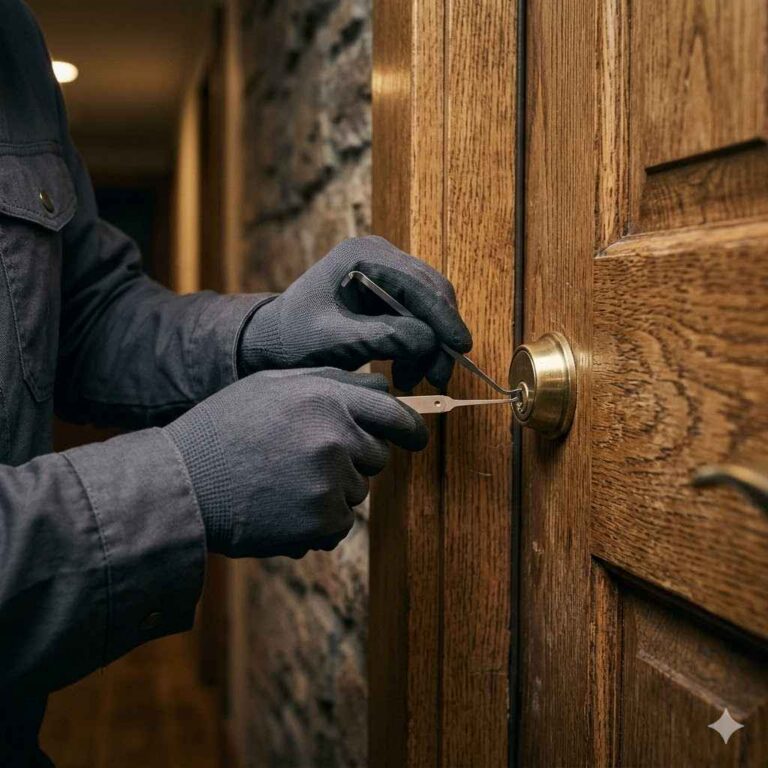
- Locate the Keyhole: Check your lock for a keyhole. It’s usually hidden under a cover for aesthetic reasons. On my Kwikset lock, I had to pop off a small plastic cap to find it.
- Use the Physical Key: Insert the key and turn it to lock or unlock the door. This bypasses all the smart features.
- Check for a Thumb Turn: On the inside of the door, there’s often a thumb turn or knob. You can use this to manually lock or unlock without relying on the app or electronics.
Using the manual override doesn’t technically “disable” the smart features, but it lets you use the lock like a traditional one. If you want to fully disable the smart functions, you might need to go a step further.
Removing the Batteries
One of the simplest ways to disable a smart lock is to remove its batteries. I did this once when my lock kept beeping randomly, and it worked like a charm. Here’s how to do it:
- Locate the Battery Compartment: This is usually on the interior side of the lock. For my Yale lock, I had to unscrew a small panel to access it.
- Remove the Batteries: Take out the batteries (usually AA or a battery pack). Be gentle to avoid damaging anything.
- Test the Lock: Without power, the smart features won’t work. You can still use the manual key or thumb turn.
Keep in mind that removing the batteries means your lock won’t respond to the app or any remote commands. If you want to use the smart features again, just pop the batteries back in and reconnect via the app.
Disconnecting from Wi-Fi or Bluetooth
If you want to keep the lock powered but disable its connectivity, you can disconnect it from Wi-Fi or Bluetooth. This is a great option if you’re worried about security but still want the lock to function. Here’s what I did with my Schlage lock:
- Turn Off Wi-Fi/Bluetooth in the App: Go to the app’s settings and look for a “Disconnect” or “Forget Network” option.
- Reset Network Settings: Some locks, like Kwikset, have a small button on the lock itself to reset Wi-Fi or Bluetooth. Check your manual for details.
- Unlink from Smart Home Systems: If your lock is connected to a hub like Z-Wave or a smart assistant, go to that app and remove the lock.
This method keeps the lock powered but cuts off its ability to communicate remotely. It’s like putting your lock in “airplane mode.”
Resetting to Factory Settings
If you want to completely wipe the smart lock’s settings, you can reset it to factory settings. This is a bit more drastic, but it’s what I did when I was moving and wanted to start fresh. Here’s how it works:
- Check the Manual: Every lock is different, so look up the reset process for your model. For my August lock, I had to press a specific button for 10 seconds.
- Perform the Reset: This usually involves pressing a button or entering a code on the keypad. Some locks require you to remove and reinsert the batteries.
- Re-Pair if Needed: After resetting, the lock will act Occupation: lose its smart features and acts like a regular lock.
Be careful with this method, as it erases all user codes and app connections. You’ll need to set up the lock again if you want to use the smart features later.
Troubleshooting Common Issues When Disabling
Sometimes, things don’t go as planned. Here are some issues_you might run into and how to fix them:
- App Won’t Disconnect: If the app isn’t letting you disable the lock, try restarting your phone or updating the app. You can also try removing the batteries as a backup.
- Lock Still Responds Remotely: Double-check that you’ve unlinked it from all smart home systems. I missed this once with my Google Home, and it was still sending commands!
- No Manual Key: If your lock doesn’t have a physical key, you’ll need to rely on the app or a factory reset. Check with the manufacturer if you’re unsure.
If all else fails, contact the lock’s customer support. Most brands have great helplines or online guides.
Tips for Maintaining Your Smart Lock
Even if you disable the smart features, you’ll want to keep your lock in good shape. Here are some tips I’ve learned:
- Check Batteries Regularly: Swap them out every 6–12 months to avoid issues.
- Clean the Lock: Dust and dirt can mess with the mechanics. Use a soft cloth to clean it.
- Update Firmware: If you re-enable the smart features, check for firmware updates in the app to keep things secure.
These little steps can save you a lot of headaches down the road.
When to Re-Enable Your Smart Lock
Once you’re ready to go back to smart mode, re-enabling is usually easy. Pop the batteries back in, reconnect via the app, and follow the setup instructions. I found it helpful to test the lock a few times to make sure everything’s working smoothly.
Conclusion
Disabling your smart lock doesn’t have to be a hassle. Whether you’re using the app, pulling the batteries, or going full manual mode, you’ve got options to make your lock work the way you want. I’ve been there, fumbling with my own lock when it started acting up, and these steps helped me take control. By following this guide, you can troubleshoot issues, boost security, or just enjoy the simplicity of a traditional lock for a while. Whatever your reason, you’re now equipped to handle your smart lock like a pro. Got more questions? Check out the FAQs below for quick answers!
FAQs
Why is my smart lock still responding to the app after I disabled it?
If your lock is still responding, you might not have fully disconnected it. Check the app to ensure Wi-Fi or Bluetooth is turned off. Also, make sure it’s unlinked from any smart home systems like Alexa or Google Home. If that doesn’t work, try a factory reset.
Can I disable my smart lock without the app?
Yes! You can remove the batteries to cut power to the smart features or use the manual key or thumb turn. Check your lock’s manual for specific instructions.
Will disabling my smart lock erase my access codes?
Disabling via the app or removing batteries usually won’t erase codes. However, a factory reset will wipe all codes and settings, so you’ll need to reprogram them.
Is it safe to disable my smart lock?
Absolutely, as long as you have a manual key or thumb turn to lock and unlock the door. Disabling smart features can even improve security by cutting off remote access.
How do I know if my smart lock is disabled?
Test it! Try locking or unlocking via the app or a smart home system. If it doesn’t respond, and you can only use a key or thumb turn, it’s disabled.