How to Reset Code on Kwikset Door Lock
Figuring out How to Reset Code on Kwikset Door Lock can sometimes feel a bit tricky, especially if you’re not used to dealing with smart home gadgets. Many people find themselves unsure about the exact steps, worried about making a mistake, or even accidentally locking themselves out. But don’t worry!
We’re here to make it super simple. This guide will walk you through each step clearly so you can easily reset your Kwikset door lock code and get back to peace of mind. Let’s get started with what you need to know.
Resetting Your Kwikset Door Lock Code Explained
This section is all about getting your Kwikset door lock back to a fresh start. We will cover why you might need to change the code and what basic things you should have ready before you begin. It’s important to do this right so your lock works perfectly afterward.
We’ll explain everything in simple terms, making it easy for anyone to follow along.
Why You Might Need to Reset Your Kwikset Lock Code
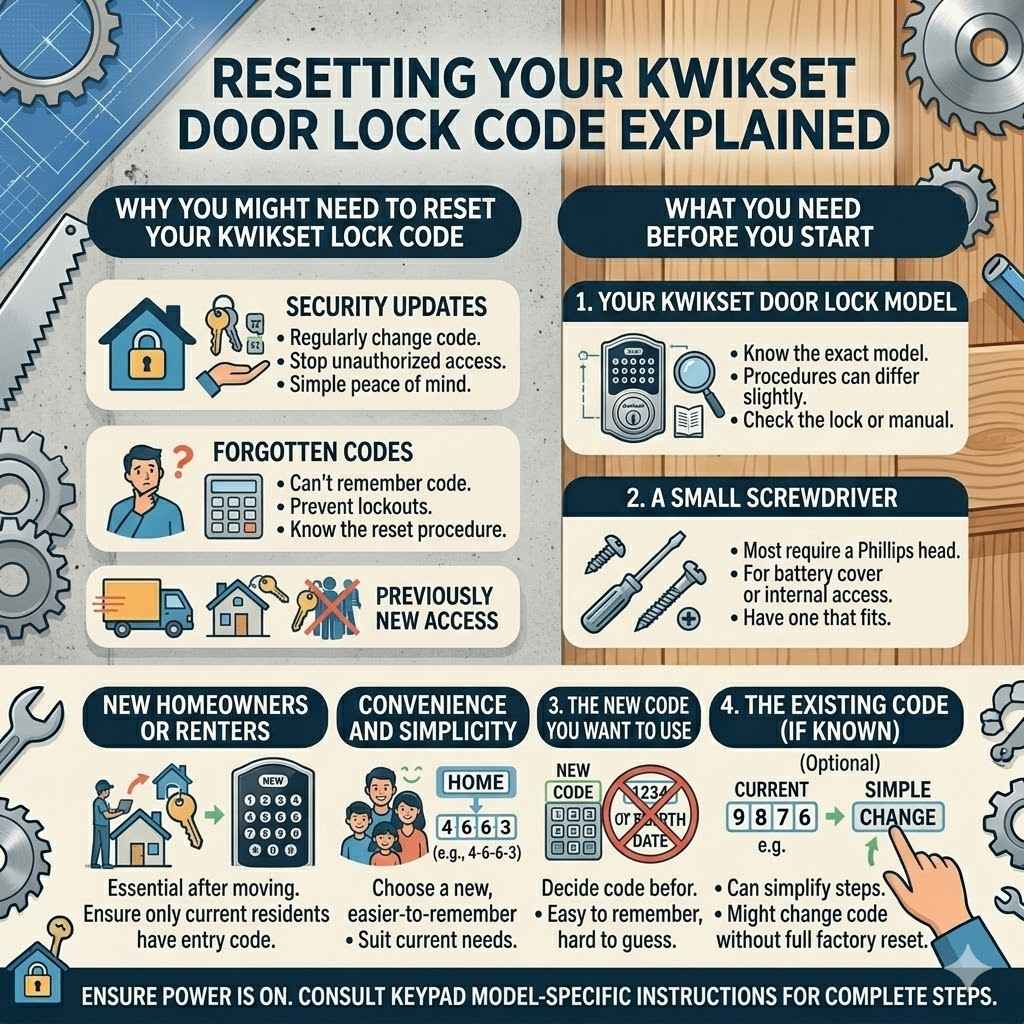
There are many reasons why you might want to reset the code on your Kwikset door lock. The most common reason is for security. If you’ve had guests or service people who no longer need access, changing the code is a smart move.
You might also want to reset it if you forget the current code, which can happen to anyone. Sometimes, people reset it just to have a new, easy-to-remember code. This process is straightforward, but it’s good to know the common triggers.
- Security Updates: Keeping your home safe is important. Regularly changing your lock code, especially after people have had access, adds an extra layer of security. This prevents anyone from using old codes to enter your home without permission. It’s a simple way to maintain peace of mind about who can come and go.
- Forgotten Codes: We all forget things sometimes, and lock codes are no exception. If you can’t recall the current code, resetting it is the best solution. Trying to guess it can lead to lockouts, so knowing the reset procedure is very helpful in these situations.
- New Homeowners or Renters: When you move into a new place or rent it out, resetting the lock codes is essential. You don’t want previous occupants to have access to your home. A quick reset ensures only you and authorized individuals have the entry code.
- Convenience and Simplicity: Sometimes you just want a code that is easier to remember or better suits your current needs. A reset allows you to choose a new code that is convenient for you and your family.
What You Need Before You Start
Before you begin the process of resetting your Kwikset door lock code, it’s important to gather a few things. This will make the whole experience much smoother. Having these items ready will prevent interruptions and ensure you can complete the steps without any frustration.
- Your Kwikset Door Lock Model: Knowing the exact model of your Kwikset lock is key. Different models might have slightly different procedures. You can usually find this information on the lock itself or in the original manual.
- A Small Screwdriver: Most Kwikset locks require a Phillips head screwdriver to remove the battery cover or access internal components. Make sure you have one that fits the screws on your lock.
- The New Code You Want to Use: Decide on your new code beforehand. It’s best to choose a code that is easy for you to remember but difficult for others to guess. Avoid simple sequences like 1234 or birth dates.
- The Existing Code (if known): While not always necessary for a full reset, knowing the existing code can sometimes simplify certain steps or allow you to change the code without a full factory reset.
- A Pen and Paper (optional): It can be helpful to write down your new code to ensure you have it correct. You might also want to jot down the steps as you go.
Step-by-Step Guide: How to Reset Code on Kwikset Door Lock
Now, let’s get into the actual process of resetting your Kwikset door lock code. This guide breaks down the steps clearly, assuming you have your basic tools and new code ready. We will cover common scenarios and provide detailed instructions.
Following these steps carefully will ensure your lock is set up with its new code successfully.
Locating and Opening the Battery Compartment
The first physical step in resetting your Kwikset door lock code involves accessing the battery compartment. This is usually located on the interior side of the door. You’ll need your screwdriver for this.
Most Kwikset locks have a battery cover that needs to be removed. This cover is typically held in place by one or two small screws. Gently unscrew these using your Phillips head screwdriver.
Be careful not to over-tighten or strip the screws. Once the screws are out, carefully remove the battery cover. You should then see the batteries, usually AA or 9-volt, depending on your model.
It’s a good idea to note the orientation of the batteries before you remove them. This will help you put them back in correctly later. Some people take a quick photo with their phone for reference.
Removing and Reinserting Batteries
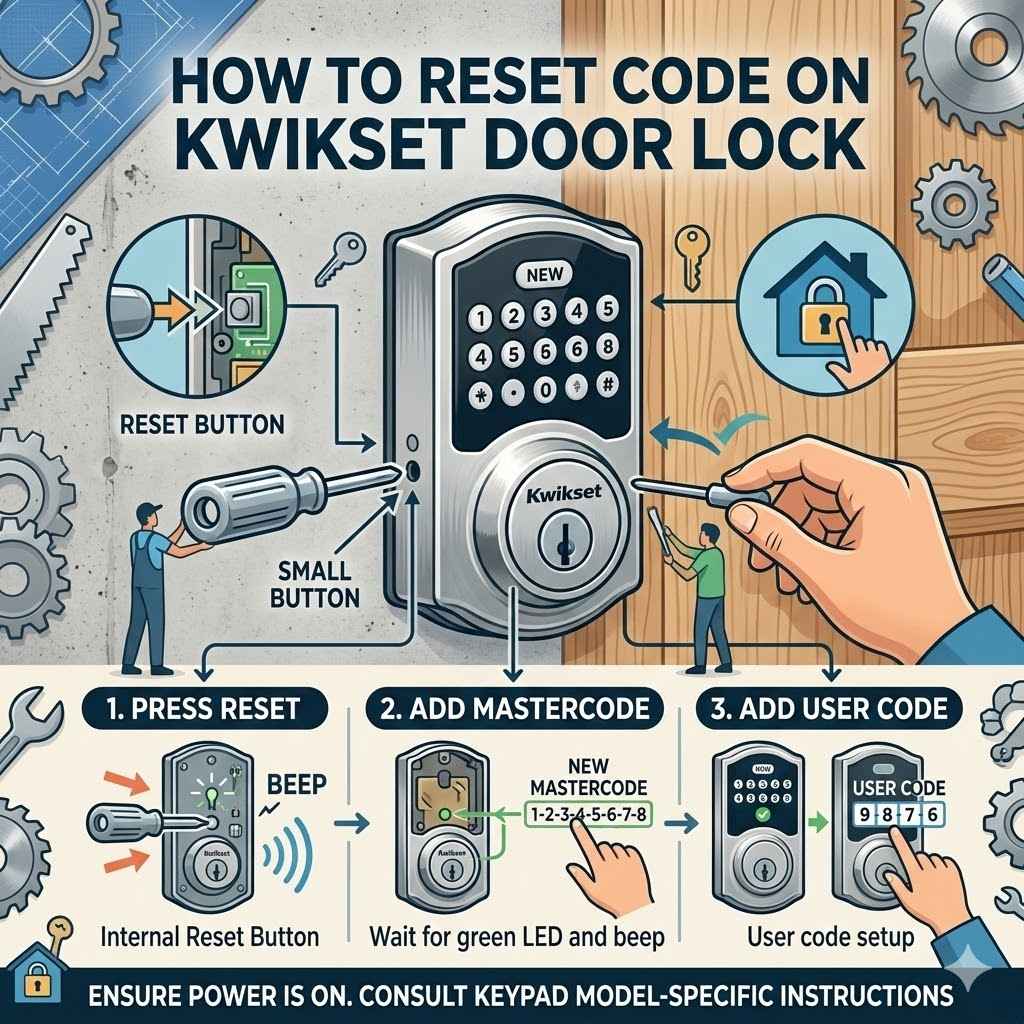
Once the battery compartment is open, the next step for resetting your Kwikset door lock code is to remove and then reinsert the batteries. This action often triggers a reset of the lock’s memory.
Carefully take out all the batteries from the compartment. It’s important to remove all of them to ensure a complete power cycle. Do not leave any batteries in place.
After all batteries are removed, wait for about 10 to 30 seconds. This short pause allows the lock’s internal electronics to fully discharge any residual power, effectively clearing its temporary memory.
After the pause, carefully reinsert the batteries. Make sure to place them in the correct orientation as noted before. You should hear a beep or see a light flash, indicating that the lock is powering up again.
This signifies that the lock has gone through its initialization sequence, preparing it for new programming.
Using the “Reset” Button or Program Button
With the batteries back in, the next crucial step in learning How to Reset Code on Kwikset Door Lock involves locating a specific button. This button is often labeled “Program,” “Reset,” or might be a small button on the interior assembly.
On many Kwikset models, there is a “Program” button. Pressing this button typically initiates the programming mode. The exact location can vary, but it’s usually found on the interior side of the lock, often near the battery pack.
Some older models might have a distinct “Reset” button, which serves a similar purpose.
You may need to press and hold this button for a few seconds. The lock’s LED lights or audible beeps will usually indicate when it has entered programming mode. This is your signal that the lock is ready to accept new code settings.
Entering Your New User Code
Once your Kwikset lock is in programming mode, it’s time to enter your new user code. This is the code you will use to lock and unlock your door from now on.
Follow the prompts from your lock. Typically, you will need to press the “Program” button, then enter your desired new code. The new code usually needs to be between four and eight digits long, depending on your Kwikset model.
After entering the new code, you will often need to press the “Lock” or “Unlock” button and then enter the new code again to confirm it.
The lock will usually provide an audible beep or a visual cue (like a flashing light) to confirm that the new code has been successfully programmed. If you make a mistake, the lock will typically not confirm, and you will need to repeat the process.
Testing Your New Code
The final and most important step after learning How to Reset Code on Kwikset Door Lock is to thoroughly test your new code. This ensures everything is working as it should before you rely on it.
Go to the outside of your door. Enter your newly programmed code. If the code is correct and has been accepted by the lock, you should hear it click and be able to turn the knob or handle to open the door.
After successfully opening the door with the new code, try locking it again using the same code. Then, attempt to unlock it one more time to confirm its functionality. If the code works consistently for both locking and unlocking, you have successfully reset your Kwikset door lock code.
If it doesn’t work, you will need to go back through the programming steps.
Troubleshooting Common Kwikset Lock Code Issues
Sometimes, even with clear instructions, you might run into a snag when trying to reset your Kwikset door lock code. This section is designed to help you solve those common problems. We’ll look at why your lock might not be responding and what you can do to fix it.
Lock Not Responding to Commands
If your Kwikset lock isn’t responding when you try to enter a code or press buttons, there are a few likely culprits. First, double-check that the batteries are new and inserted correctly. Weak or dead batteries are the most frequent cause of unresponsiveness.
Ensure the battery contacts are clean and making good contact with the battery terminals.
Another common issue is that the lock is not actually in programming mode. You might have missed a step in activating it, or the button might be faulty. Try removing the batteries again, waiting a full minute this time, and then reinserting them.
Then, try pressing and holding the program button for a full 10 seconds to ensure it enters the correct mode.
Physical obstruction can also cause issues. Ensure that the door is not warped or misaligned, which could prevent the deadbolt from extending or retracting properly. A misaligned bolt can sometimes confuse the lock’s mechanism.
Incorrect Code Entry and Lockout
If you enter the wrong code multiple times, many Kwikset locks will go into a temporary lockout mode for safety. This prevents someone from trying to brute-force their way into your home. The lock might beep rapidly or flash a red light to indicate this lockout.
Typically, the lockout lasts for a few minutes, often around 3 to 5 minutes. During this time, the lock will not accept any keypad input. The best course of action is to simply wait patiently for the lockout period to end.
Once it’s over, try entering your code again very carefully, ensuring each digit is pressed clearly.
If you suspect you’ve forgotten the code entirely or the lockout is not resolving, you may need to perform a full factory reset. This involves removing the batteries and pressing and holding the program button while reinserting them, as described earlier. This will clear all existing codes, including the master code, and reset it to its default settings.
Firmware or Software Glitches
Like any electronic device, Kwikset locks can sometimes experience minor software glitches. These can manifest in unexpected ways, such as the lock not recognizing valid codes or the keypad freezing.
The simplest way to resolve a software glitch is often a power cycle, which is essentially what happens when you remove and reinsert the batteries. This reboots the lock’s internal system and can clear temporary errors. Ensure you leave the batteries out for at least 30 seconds to allow for a full reset.
If the issue persists after a power cycle, consult your Kwikset manual or the Kwikset website. Some models may have specific reset procedures or firmware update options that can be performed. For persistent issues, contacting Kwikset customer support might be necessary.
They can provide model-specific advice and guide you through advanced troubleshooting steps.
Resetting the Master Code
The master code is a special code on your Kwikset lock that allows you to program user codes. If you’ve lost or forgotten your master code, you’ll need to reset it. The process for resetting the master code is often integrated into the general reset procedure.
Typically, after a full factory reset (removing batteries, waiting, then reinserting while holding the program button), the lock reverts to its default master code. This default code is often printed in the lock’s manual or sometimes on a sticker inside the battery compartment.
Once you have reinserted the batteries after a reset, you will usually be prompted to create a new master code first. You will need to press the program button, then enter a new master code, and confirm it. It’s highly recommended to choose a unique and secure master code that you will remember.
Advanced Kwikset Lock Code Management
Once you have mastered the basics of How to Reset Code on Kwikset Door Lock, you might be interested in more advanced features. Kwikset locks offer ways to manage multiple user codes, set temporary access, and even integrate with smart home systems. Exploring these features can greatly enhance your home security and convenience.
Creating and Managing Multiple User Codes
Many Kwikset smart locks allow you to program several different user codes. This is incredibly useful for family members, friends, or service providers. You can assign a unique code to each person, making it easy to track who is entering your home and when.
To add a new user code, you will typically need to enter programming mode using your master code. Then, you’ll select an empty user code slot and enter the new code you want to assign. The lock will confirm if the code has been successfully added.
It’s wise to keep a secure record of all assigned codes and who they belong to.
You can also delete user codes when they are no longer needed. This is done through the programming menu, usually by selecting the user code slot you wish to clear and confirming the deletion. Regularly reviewing and deleting old codes is a good security practice.
Setting Temporary or Schedule-Based Access
Some of the more advanced Kwikset models, especially smart locks that connect to an app, allow for temporary or schedule-based access. This means you can grant someone access only for a specific period. For instance, you could give a house sitter a code that only works during their stay.
With app-controlled Kwikset locks, you can often set start and end dates and times for user codes. This is perfect for contractors, cleaners, or guests. The code automatically becomes inactive outside of the specified timeframe, adding a significant layer of security and convenience.
You won’t have to remember to delete codes after they are no longer needed.
This feature eliminates the need to be home to let people in or to share your primary code. It provides granular control over who can access your home and when, making your security system more dynamic and responsive to your needs.
Integrating with Smart Home Systems
For Kwikset smart locks, integration with popular smart home systems like Amazon Alexa, Google Assistant, or Apple HomeKit opens up a world of possibilities. This allows for voice control, automation, and remote access.
Once your Kwikset smart lock is connected to your Wi-Fi network and linked to your smart home hub or app, you can control it using voice commands. For example, you might say, “Alexa, lock the front door” or “Hey Google, is the back door locked?” The lock can also be integrated into routines, such as having it lock automatically when you leave home or unlock when you arrive.
Remote access means you can lock or unlock your door from anywhere in the world using your smartphone. If a family member forgets their key, you can unlock the door for them remotely. This level of control and connectivity significantly enhances home security and convenience, making your Kwikset lock a powerful part of your smart home ecosystem.
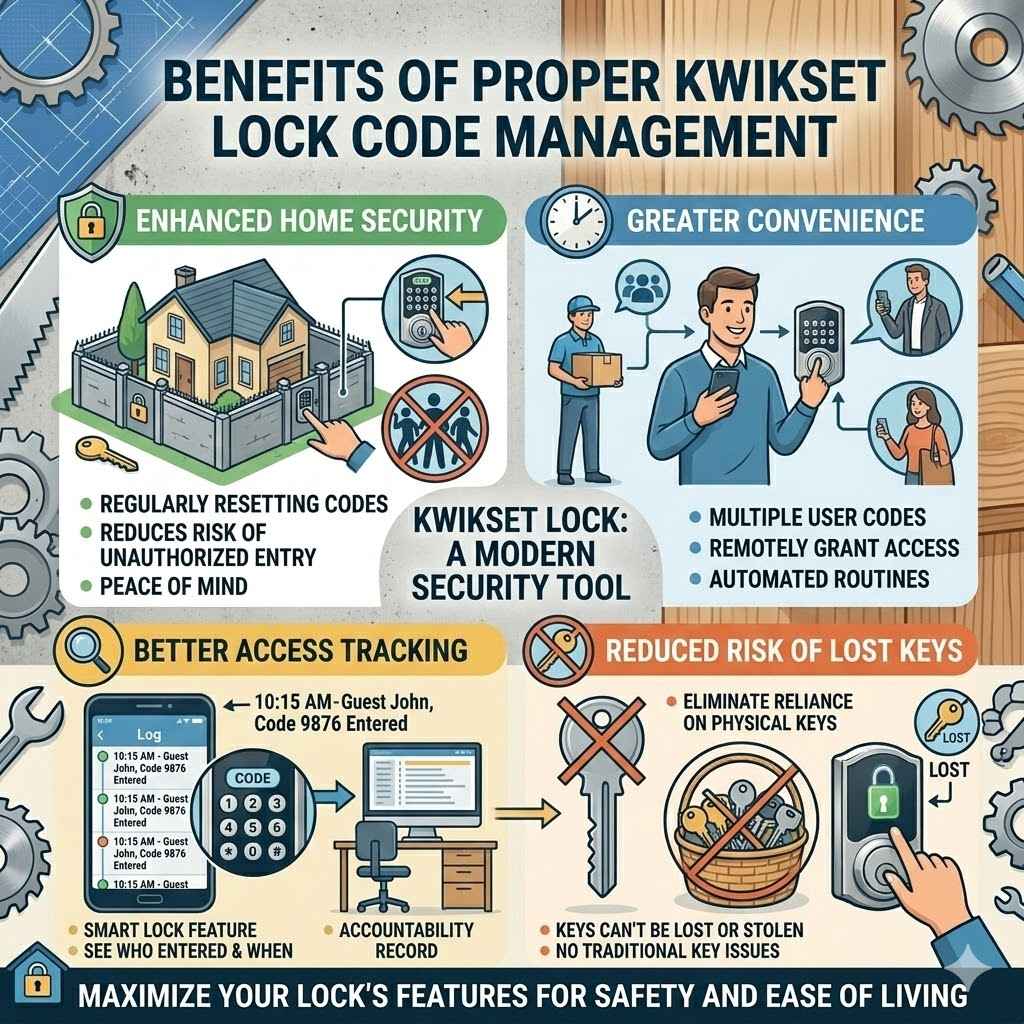
Benefits of Proper Kwikset Lock Code Management
Understanding and implementing proper code management for your Kwikset door lock brings significant advantages. It goes beyond simply having a working lock; it’s about maximizing security and convenience.
- Enhanced Home Security: The primary benefit is improved security. By regularly resetting codes and managing who has access, you significantly reduce the risk of unauthorized entry. This peace of mind is invaluable for any homeowner or renter.
- Greater Convenience: With multiple user codes and smart features, managing access becomes much easier. You can grant access without being present, and your smart lock can automate locking and unlocking, simplifying your daily routines.
- Better Access Tracking: For smart locks, the ability to see who entered and when provides an extra layer of accountability and security. If an issue arises, you have a record of access events.
- Reduced Risk of Lost Keys: Smart locks eliminate the reliance on physical keys, which can be lost or stolen. This makes traditional key management issues a thing of the past.
The Kwikset lock is a modern security tool. Taking the time to learn How to Reset Code on Kwikset Door Lock and managing its codes properly ensures you are making the most of its features for your safety and ease of living.
Frequently Asked Questions
Question: How do I reset my Kwikset lock if I lost the master code
Answer: If you’ve lost your Kwikset master code, you’ll typically need to perform a full factory reset. This usually involves removing all batteries, waiting about 30 seconds, and then reinserting them while pressing and holding the program button. After this, the lock will revert to its default master code, which you can then find in your manual.
You’ll then be prompted to set a new master code.
Question: Can I reset my Kwikset lock without removing the batteries
Answer: In most cases, no. Resetting a Kwikset lock usually requires a power cycle, which is achieved by removing and reinserting the batteries. This process helps clear the lock’s memory and prepares it for new programming.
Some advanced smart lock models might offer a reset option through their companion app, but a physical reset with batteries is the standard method.
Question: How many user codes can I program on a Kwikset lock
Answer: The number of user codes you can program varies significantly by Kwikset model. Basic electronic locks might allow for 4-6 codes, while more advanced smart locks can support 30 or even up to 50 unique user codes. Always check your specific Kwikset model’s manual for exact limits.
Question: My Kwikset lock is beeping and won’t accept my code after trying a few times. What should I do
Answer: This usually means the lock has entered a lockout mode due to too many incorrect code entries. Wait for about 3-5 minutes, and the lock should reset itself. Then, try entering your code very carefully again.
If the problem persists, you may need to perform a full factory reset.
Question: How do I know if I have successfully reset my Kwikset lock code
Answer: You’ll know you’ve successfully reset your Kwikset lock code when you can enter the new code from the outside and the lock disengages, allowing you to open the door. After opening, test it again by locking and then unlocking the door with the new code to ensure it functions correctly.
Conclusion
Learning How to Reset Code on Kwikset Door Lock is an essential skill for maintaining your home’s security and convenience. By following these straightforward steps, you can easily update your lock codes. This empowers you to keep your home safe and manage access effectively for everyone.