How to Reset an Electronic Deadbolt (3 Brands + Default Codes)
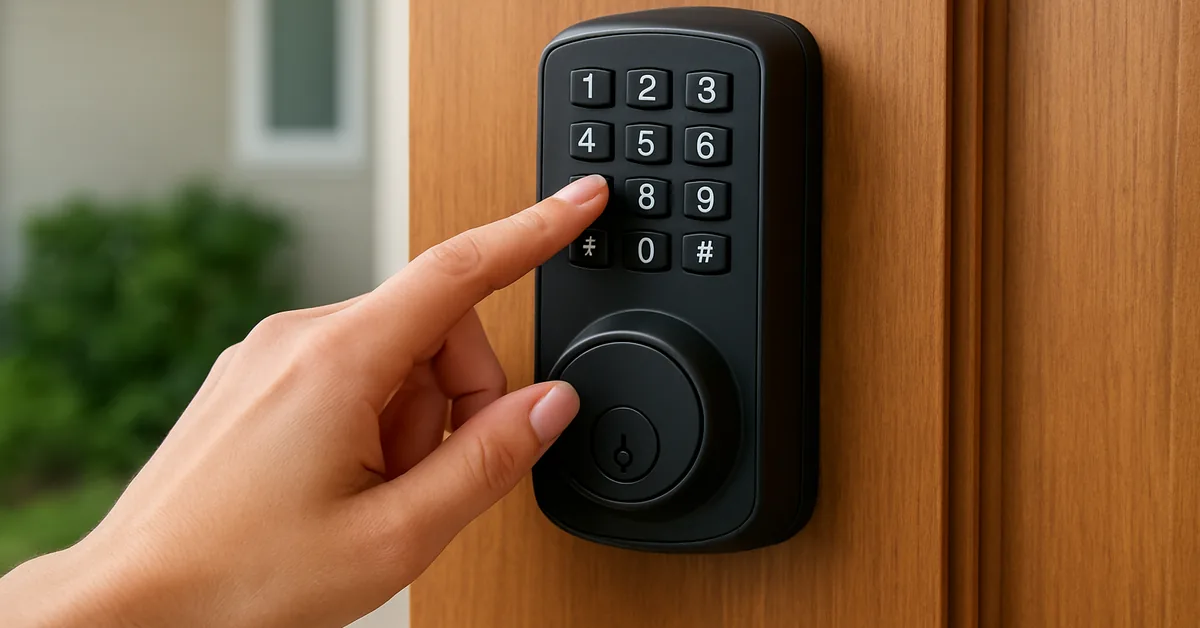
An electronic deadbolt resets by holding its Program (or brand-specific) button while reinserting the battery pack for about 30 seconds — but Kwikset, Schlage, and Honeywell each use a different button sequence and default code. Using the wrong sequence just triggers repeat beeping instead of a reset. This guide covers exact reset steps for all three brands, default codes after a reset, and fixes for a lock that won’t respond.
Quick Answer
To reset most electronic deadbolts: remove the battery cover, then hold the Program button (Kwikset), the Schlage button (Schlage), or enter the programming code (Honeywell) while reinserting the battery pack, and wait for a beep plus LED flash. This wipes all user codes — Kwikset’s factory default becomes Mastercode 0-0-0-0 and User Code 1-2-3-4.
Why You Might Need to Reset Your Electronic Deadbolt
Let’s start with the basics. Why would you need to reset your electronic deadbolt in the first place? I’ve had my fair share of moments where I realized a reset was the only way to fix a problem or secure my home. Here are the most common reasons:
- Forgotten Codes: Maybe you’ve forgotten the user codes, or someone else set them up and didn’t share them. This happened to me when I bought a house with a pre-installed lock, and the previous owner left no record of the codes.
- Moving to a New Home: If you’re moving into a new place, resetting the lock ensures old codes from previous owners or tenants are wiped out. Safety first!
- Malfunctioning Lock: Sometimes, the lock starts acting glitchy—maybe it’s not responding to codes or it’s beeping like crazy. A reset can clear software bugs.
- Security Concerns: If you suspect someone unauthorized knows your code, a reset is a quick way to revoke access.
- Changing Codes Regularly: For extra security, I like to reset and reprogram my lock every few months. It’s like changing the batteries in your smoke detector—better safe than sorry.
Resetting your deadbolt usually means performing a factory reset, which wipes all user codes and restores the lock to its default settings. It’s like giving your lock a clean slate. But before you jump in, let’s talk about what you’ll need to get started.
Tools and Preparation for Resetting Your Electronic Deadbolt
Before you start pressing buttons or unscrewing anything, let’s make sure you’re ready. I learned the hard way that a little prep goes a long way — for more on keeping locks and hinges in shape between resets, see our door hardware and locks guides. Here’s what you’ll need:
- Your Lock’s Manual: Every lock is a bit different, so the manual is your best friend. If you’ve lost it (like I did once), check the manufacturer’s website for a digital version.
- A Screwdriver: Most electronic deadbolts have a battery cover or backplate that requires a Phillips or flathead screwdriver to remove.
- Fresh Batteries: Low batteries can cause all sorts of issues, so have a set of high-quality AA alkaline or lithium batteries ready. I always keep extras in my toolbox.
- A Quiet Space: You’ll need to listen for beeps or watch for LED flashes during the reset process, so find a calm moment without distractions.
- Patience: If you’re new to this, it might take a couple of tries. Don’t rush—it’s better to get it right than to lock yourself out!
Once you’ve got everything ready, you’re set to reset your lock. Let’s look at how to do this for some of the most popular brands. I’ll walk you through the steps for Kwikset, Schlage, and Honeywell, since those are the ones I’ve worked with most.
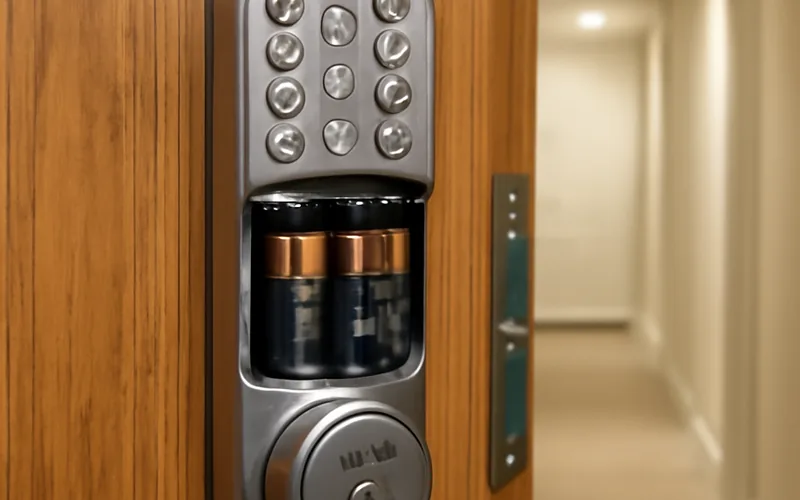
📊 After a factory reset, Kwikset SmartCode and Powerbolt locks default to Mastercode 0-0-0-0 and User Code 1-2-3-4. — Source: Kwikset Official Support, 2026
Best Fix For A Deadbolt That Won’t Reset
Energizer Ultimate Lithium AA Batteries (2-Pack) – $7.55
This guide’s troubleshooting section traces most failed resets to weak batteries — these are the high-drain lithium cells that keep a keypad reading codes correctly in cold weather, unlike standard alkaline AAs.
- Best for: fixing a lock that beeps or won’t reset due to low power
- Why we picked it: rated for -40°F to 140°F, so it won’t die mid-reset in a cold entryway
- Main drawback: costs more per battery than standard alkaline
Compare replacement lock options
 Option 1 Kwikset SmartCode 270 Touchpad Electronic Deadbolt – $98.00
|
 Option 2 Schlage Encode Smart WiFi Deadbolt (Camelot, Satin Nickel) – $221.39
|
 Option 3 Kwikset Powerbolt 250 10-Button Keypad Deadbolt (Matte Black) – $68.97
|
As an Amazon Associate we earn from qualifying purchases.
How to Reset a Kwikset Electronic Deadbolt
Kwikset locks are super common, and I’ve got a Kwikset SmartCode on my front door. Here’s how I reset it when I need to start fresh. The process is similar for models like the Kwikset 888, 913, 914, or Powerbolt.
- Open the Door: Make sure the door is open and unlocked. You don’t want to get stuck outside if something goes wrong.
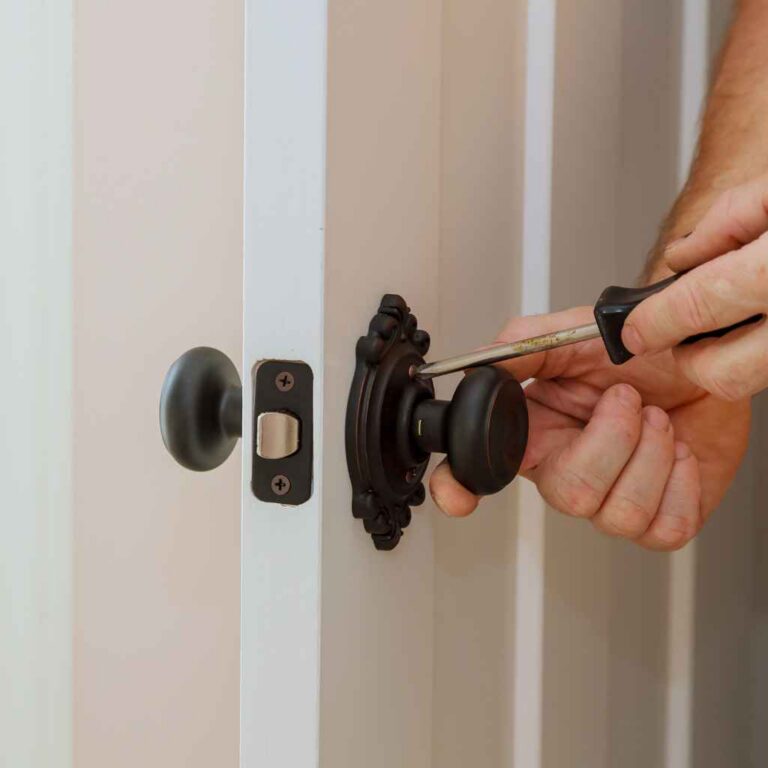
- Remove the Battery Cover: On the interior side of the lock, find the battery cover. It’s usually held in place by a couple of screws. Use your screwdriver to take it off.
- Take Out the Battery Pack: Gently remove the battery pack. Be careful not to yank any wires.
- Press and Hold the Program Button: While reinserting the battery pack, hold down the Program button (it’s usually on the interior panel). Keep holding it for about 30 seconds until you hear a beep and see the status LED flash red.
- Press the Program Button Again: Release the button, then press it one more time. You should hear a beep and see the LED flash green. This means the reset is complete.
- Test the Lock: Try using an old user code to confirm it no longer works. If the lock doesn’t respond, you’ve successfully reset it.
- Reprogram the Lock: After the reset, you’ll need to set up new user codes. Check your manual for instructions, but it usually involves pressing the Program button, entering a new code, and confirming it.
I’ve found that Kwikset locks are pretty forgiving, but if the LED doesn’t flash green or you hear multiple beeps, double-check that you’re holding the Program button long enough. If it still doesn’t work, try fresh batteries or consult the manual for model-specific quirks, or see our full Kwikset code reset walkthrough for extra model-by-model detail.
How to Reset a Schlage Electronic Deadbolt
Schlage locks, like the BE365 or BE469, are another popular choice. I helped my neighbor reset her Schlage Connect last summer, and it was straightforward once we got the hang of it. Here’s how to do it:
- Open the Door: As with Kwikset, keep the door open and unlocked.
- Remove the Battery Cover: Use a screwdriver to take off the battery cover on the interior side. Some models have a couple of screws to remove.
- Disconnect the Battery: Gently unplug the battery connector. Don’t pull too hard on the wires.
- Press the Schlage Button: On the front keypad, press and release the Schlage button (it’s usually the logo or a dedicated button).
- Reconnect the Battery: While holding the Schlage button, reconnect the battery. Keep holding until you see the button light up green and hear a beep.
- Confirm the Reset: Enter one of the default user codes (found on a white sticker inside the lock or in the manual). If it doesn’t work, the reset was successful.
- Set Up New Codes: Follow your manual to program new codes. You’ll usually need the default programming code from the sticker.
One thing I noticed with Schlage locks is that the reset process can vary slightly by model. For example, the Schlage Encode (BE489) might require you to press the Schlage button a few extra times. If you’re unsure, check the white sticker on the lock for the model number and default codes, or follow our dedicated Schlage keypad reprogramming guide step by step.
How to Reset a Honeywell Electronic Deadbolt
Honeywell deadbolts, like the DDBKP model, are less common but still reliable. I worked on one at a friend’s rental property, and the reset process was a bit different. Here’s what to do:
- Ensure the Door is Open: You know the drill—keep the door unlocked and open.
- Remove the Battery Cover: Use a screwdriver to take off the interior cover and access the battery compartment.
- Replace Batteries if Needed: If the batteries are low, swap them out for fresh ones. This can sometimes fix issues without a full reset.
- Enter the Factory Code: Honeywell locks often use a default programming code (like 123456) for resets. Check the manual or the lock’s interior for this code.
- Follow the Reset Sequence: Enter the programming code, then press the Unlock button, followed by a specific number (like 4), and then Unlock again. Enter a new 6-digit code, press Unlock, and re-enter the code to confirm.
- Test the Lock: Try an old code to ensure it’s been erased. If it doesn’t work, the reset is complete.
Honeywell’s process can feel a bit clunky compared to Kwikset or Schlage, but it gets the job done. If you’re getting red flashes or beeps, it might mean you’re using the wrong programming code. Double-check the manual or contact Honeywell’s support.
Troubleshooting Common Issues During a Reset
Sometimes, things don’t go as planned. I’ve had moments where my lock wouldn’t reset, and it drove me up the wall. Here are some common issues and how to fix them:
- No Beeps or LED Flashes: This usually means dead batteries. Replace them with fresh, high-quality ones. I once used cheap batteries, and my lock kept failing until I switched to name-brand ones.
- Lock Beeps but Doesn’t Reset: You might not be holding the reset button long enough. Try counting to 30 slowly. If that fails, check the manual for model-specific instructions.
- Misaligned Deadbolt: If the deadbolt won’t move smoothly, it could be misaligned with the strike plate. Loosen the screws on the lock or strike plate and adjust until it moves freely.
- Wiring Issues: If your lock has internal wiring, check for loose or damaged connections. I once found a loose wire in my Kwikset that was causing all sorts of problems.
- Firmware Glitches: Some smart locks need a firmware update to work properly. Check the manufacturer’s app or website for updates.
If all else fails, don’t be afraid to call a locksmith. I’ve had to do this once, and the pro fixed my lock in minutes. It’s worth the cost if you’re stuck.
Maintaining Your Electronic Deadbolt After a Reset
Once you’ve reset your lock, you’ll want to keep it in good shape. I learned this the hard way after neglecting my lock for a year and dealing with constant beeping. Here’s how to maintain it:
- Check Batteries Regularly: Most locks have a low-battery indicator, but I check mine every six months. Replace batteries before they die to avoid glitches — see our battery replacement guide for the full process.
- Clean the Keypad: Dust and grime can build up on the keypad, making it less responsive. Wipe it down with a damp cloth (not soaking wet) every few months.
- Lubricate the Deadbolt: If the bolt feels sticky, apply a dry lubricant like Teflon spray. I do this once a year, and it keeps the mechanism smooth.
- Test Codes Periodically: Enter your codes every few weeks to make sure they’re working. It’s better to catch a problem early than when you’re locked out.
- Update Firmware: If your lock is part of a smart home system, check for firmware updates through the app. This can fix bugs and improve performance.
By staying on top of maintenance, you’ll avoid most issues and keep your lock secure.
Comparison of Reset Processes for Popular Brands
To make things easier, here’s a quick comparison of the reset processes for Kwikset, Schlage, and Honeywell deadbolts. This table sums up what I’ve learned from working with these brands:
| Brand | Key Steps | Reset Button Location | Default Codes After Reset | Common Issues |
|---|---|---|---|---|
| Kwikset | Remove battery, hold Program button for 30 seconds, press again | Interior panel | Mastercode 0-0-0-0, User Code 1-2-3-4 | Dead batteries, short button hold |
| Schlage | Disconnect battery, press Schlage button, reconnect while holding | Front keypad | Unique code on interior white sticker (no universal default) | Model-specific variations, loose wires |
| Honeywell | Enter default code, follow sequence with Unlock button | Keypad | Programming Code 1-2-3-4-5-6, User Code 1-2-3-4 | Incorrect programming code |
This table is handy for quick reference, especially if you’re dealing with multiple locks or helping a friend.
Tips for Reprogramming After a Reset
After resetting your lock, you’ll need to set up new codes. Here’s what I do to make sure everything goes smoothly:
- Write Down Codes: Keep a record of your new codes in a secure place, like a password manager or a locked drawer. I forgot my code once and had to reset again—lesson learned!
- Use Easy-to-Remember Codes: Pick something memorable but not obvious, like a birth year or phone number. Avoid 1234 or 0000—those are too easy to guess.
- Test Immediately: After programming, test the codes right away to confirm they work.
- Reconnect to Smart Systems: If your lock integrates with a smart home system like Alexa or Google Assistant, pair it again after the reset. I had to do this with my Schlage Connect, and it took just a few minutes.
- Limit User Codes: Don’t add too many codes unless necessary. I keep it to two or three for my family and one for guests.
Reprogramming is usually quick, but take your time to avoid mistakes. Check your manual for specific instructions, as some models have unique steps.
When to Call a Professional
Sometimes, a reset isn’t enough. I’ve been there, staring at a stubborn lock that just won’t cooperate. Here’s when I recommend calling a locksmith:
- Persistent Glitches: If the lock still doesn’t work after a reset, there could be a deeper issue, like faulty wiring or a broken actuator.
- Physical Damage: If the deadbolt is jammed or the keypad is unresponsive, a pro can diagnose and fix it.
- No Manual or Codes: If you can’t find the manual or default codes, a locksmith can often retrieve them or bypass the reset process.
- Smart Home Integration Issues: If your lock won’t reconnect to your smart home system, a professional can troubleshoot the connection.
I called a locksmith when my Kwikset started beeping randomly, and it turned out to be a loose wire. It cost me a bit, but it saved me hours of frustration. If the problem is code-related rather than wiring, our Kwikset unlock guide covers backup entry methods worth trying first.
My Personal Experience with Electronic Deadbolts
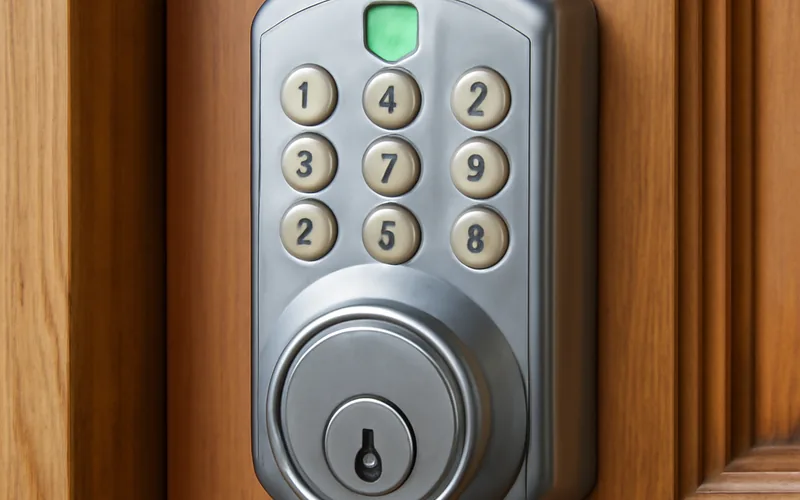
I’ve used electronic deadbolts for years, and they’ve made daily life easier — no more fumbling for keys with groceries in both hands. They’re not flawless, though: my first Kwikset SmartCode failed right when its batteries died, which is what taught me to hold the Program button the full 30 seconds instead of rushing it.
“My first Kwikset SmartCode gave me trouble when the batteries died unexpectedly. Since then, holding the Program button the full 30 seconds — not just 10 — has been the difference between a clean reset and endless beeping.”
FAQs
Why Does My Electronic Deadbolt Keep Beeping?
Beeping usually means low batteries or an error. Replace the batteries with fresh, high-quality ones first. If it keeps beeping, check the manual for error codes — it could be a misalignment or a glitch that needs a full reset.
Can I Reset My Lock Without the Manual?
Yes, but it’s trickier. Check the manufacturer’s website for a digital manual. If you can’t find it, try the steps for your brand (Kwikset, Schlage, or Honeywell) from this guide. If all else fails, a locksmith can help.
How Often Should I Reset My Electronic Deadbolt?
You don’t need to reset regularly unless you have a specific reason, like a forgotten code or a move. Resetting every six months is a reasonable security habit, but it’s optional, not required.
What If My Lock Doesn’t Respond After a Reset?
Double-check the batteries and try the reset again. If it still doesn’t work, inspect for loose wires or physical damage. If you’re stuck, call a locksmith to diagnose the issue.
Can I Use the Same Code After a Reset?
Yes, but it’s not recommended for security reasons. Choose a new code so no one who knew the old one can still get in. Make it unique but easy to remember.
What Is the Default Code After Resetting a Kwikset Deadbolt?
The default Mastercode is 0-0-0-0 and the default User Code is 1-2-3-4 after a Kwikset factory reset, per Kwikset’s official support documentation. Change both immediately after reprogramming for security.
Why Is My Deadbolt Flashing Red After a Reset?
A red flash after a reset usually means the motor didn’t fully calibrate — the deadbolt wasn’t completely retracted or extended during the cycle. Make sure the bolt moves freely with the door open, then repeat the reset.
Conclusion
Resetting an electronic deadbolt takes a few minutes once you know your brand’s button sequence: Kwikset’s Program button, Schlage’s dedicated button, or Honeywell’s programming code, each held during battery reinsertion until you get a beep and LED flash. Fresh batteries fix most failed resets before you even reach for a screwdriver — and if wiring or a jammed bolt is the real problem, a locksmith can finish the job in minutes.
Sponsored / affiliate links. As an Amazon Associate I earn from qualifying purchases. I may earn additional commission from eligible campaigns.