How to Set Up a Schlage Encode Smart Lock
Set up a Schlage Encode by mounting the lock, confirming the deadbolt throws freely, then finishing app and Wi-Fi setup. Skip the mechanical check and you can end up with battery drain, binding, failed calibration, or a lock that won’t secure. This guide covers installation, deadbolt alignment checks, app pairing, Wi-Fi connection, and quick validation steps before daily use.
Prerequisites and hardware preparation
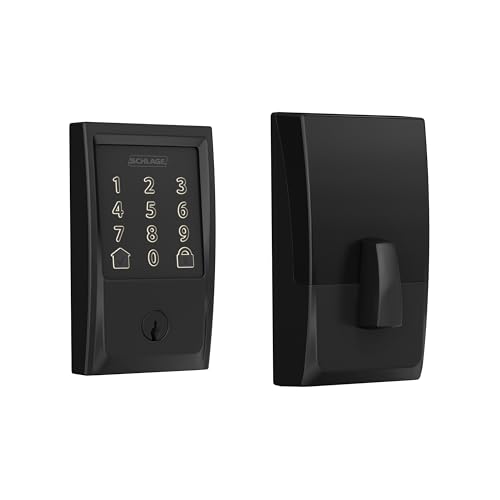
Start with the hardware, not the app. The Encode has integrated Wi-Fi, so it does not need a hub, but it still needs a door that lets the bolt move cleanly before pairing, PIN creation, or remote control setup will work well. Schlage Home is the main app path for connected features, while Alexa, Google Assistant, and third-party options come later.
What you’ll need
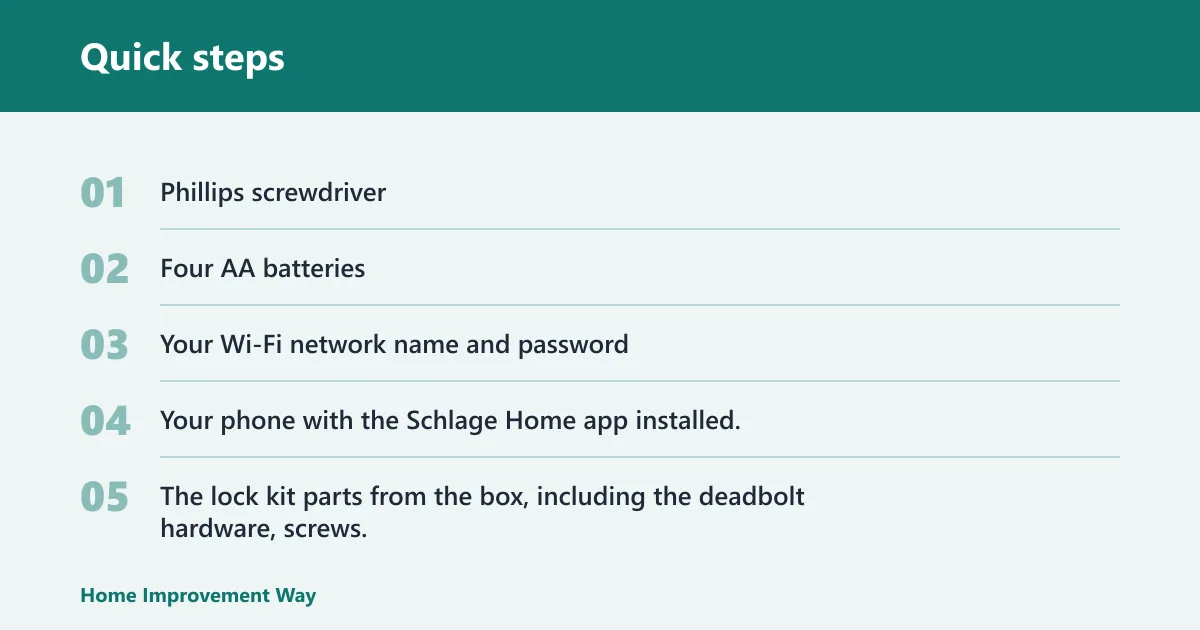
- Phillips screwdriver
- Four AA batteries
- Your Wi-Fi network name and password
- Your phone with the Schlage Home app installed, or a supported app for the integration you plan to use
- The lock kit parts from the box, including the deadbolt hardware, screws, and interior assembly
Setup checklist
| Step | Pass condition | What to do if it fails |
|---|---|---|
| Door alignment | The door closes without forcing the latch, and the strike plate lines up with the bolt path. | Adjust the strike plate or door fit before pairing. A misaligned door can make the bolt bind. |
| Latch orientation | The latch is set for the correct door handing and moves freely in the bore. | Remove the latch, reset its orientation, and reinstall it with the beveled side facing the strike as required by the manual. |
| Screw tightness | The exterior and interior assemblies sit flush, with screws snug but not cranked down. | Back off over-tightened screws, reseat the parts, then tighten evenly. |
| Tailpiece engagement | The tailpiece enters the interior assembly cleanly and does not scrape or skip. | Remove the interior unit and reseat the tailpiece until it fully engages. |
| Battery insertion | All four AA batteries are installed in the battery compartment, and the lock powers on. | Check polarity, replace weak cells, and reinstall the batteries together if the lock does not wake up. |
| App pairing readiness | Your phone has Bluetooth and location permissions enabled for setup, and the Schlage Home app is ready to add a new lock. | Enable the missing permission, close the app, and reopen it before trying again. |
| Wi-Fi connection readiness | You know the correct network name and password, and your router is on a supported band for the lock’s setup flow. | Move closer to the router, confirm the password, and retry the network step after the mechanical check passes. |
Remove the old deadbolt
- Open the door and remove the interior hardware with a Phillips screwdriver.
- Lift out the exterior cylinder and latch parts.
- Check the door prep for stripped screws, uneven drilling, or a tight bore that could keep the new lock from sitting flat.
If the old hardware left damaged screw holes, repair those before moving on. A loose mount can shift after the first few lock cycles.
Install the Schlage Encode hardware
- Set the latch for the correct door handing.
- Insert the latch into the edge bore with the bevel facing the strike plate side.
- Mount the exterior keypad assembly through the door.
- Attach the interior assembly and engage the tailpiece fully.
- Snug the screws evenly until the lock sits flat and the parts do not wobble.
Leave the screws just tight enough to hold alignment. Over-tightening can pinch the mechanism and make the bolt drag.
Test the deadbolt before pairing
- Insert the four AA batteries.
- Wait for the lock to power up and confirm the keypad responds.
- Turn the bolt from the interior side through a full lock and open cycle.
- Repeat the cycle several times and watch for scraping, hesitation, or a bolt that stops short.
- Fix any rubbing or misalignment before opening the app.
Schlage’s battery-powered design can run for months, and Digital Trends reported up to six months in its review context. That does not matter if the bolt binds on day one. Mechanical drag may shorten battery life and make setup harder.
Say the keypad lights up, but the bolt catches halfway. That usually points to alignment, not app trouble. Correct the latch position or loosen the mounting screws slightly, then retest the throw before you try to pair the lock.
Set up the app and Wi-Fi
Use the Schlage Home app after the lock passes the throw test. Pairing, lock naming, PIN creation, and remote control all come after the hardware moves cleanly by hand. The Encode has integrated Wi-Fi, so you do not need a hub or bridge for remote access.
Add the lock in the Schlage Home app
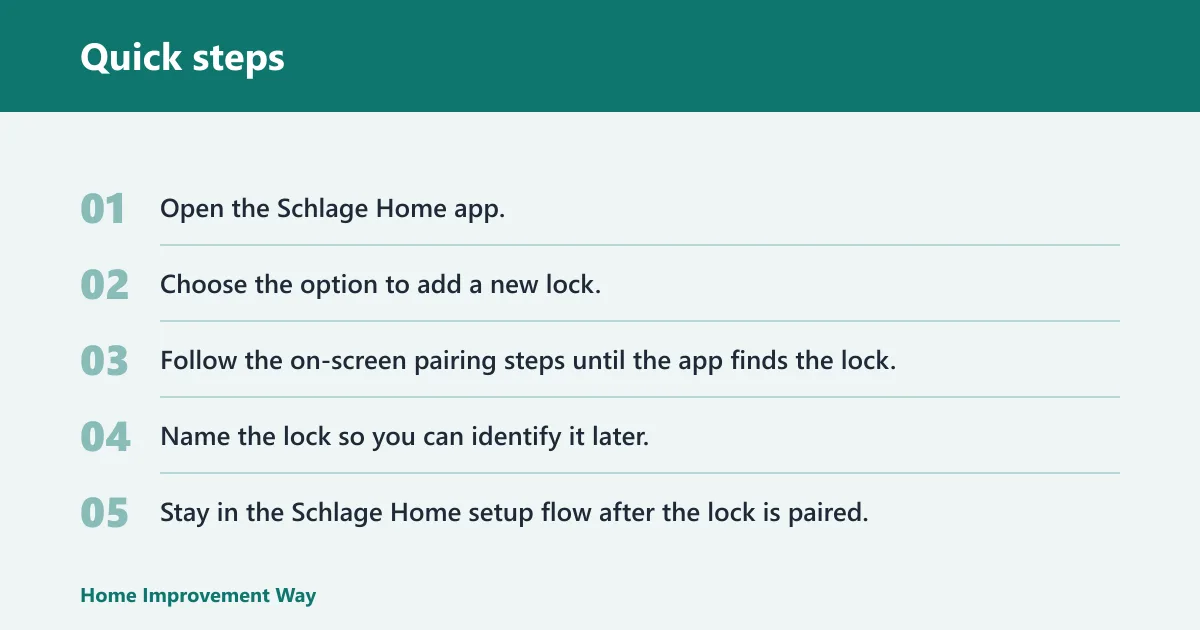
- Open the Schlage Home app.
- Choose the option to add a new lock.
- Follow the on-screen pairing steps until the app finds the lock.
- Name the lock so you can identify it later.
If pairing stalls, check Bluetooth, location access, and the phone’s network settings first. Weak permissions are a common setup snag.
Connect the lock to Wi-Fi
- Stay in the Schlage Home setup flow after the lock is paired.
- Enter your Wi-Fi network name and password exactly as shown on the router label or in your router app.
- Keep the phone near the lock until the connection completes.
- Retry with the correct password if the app reports a network error.
Integrated Wi-Fi is the point of this model. Android Authority notes that the Encode does not need a hub device to work, so a failed network step usually means setup details or signal strength, not missing hardware.
Create PIN codes and finish access setup
- In the Schlage Home app, open the lock’s access or users section.
- Create the main PIN code for household use.
- Add any additional codes you need for family, guests, or short-term access.
- Test each code at the keypad before relying on it.
The same source reports support for up to 100 different codes on the Encode. Use that flexibility carefully. Give each code a clear name in the app so you can revoke it later without guesswork.
Link voice and third-party services
- Use the app or service that matches your platform preference.
- For Amazon Alexa, link the Schlage skill in the Alexa app if your setup path requires it.
- For Google Assistant, connect the lock through Google Home after the main Schlage setup is complete.
- For Amazon Key or Ring, follow the third-party setup path mentioned in the app or service instructions.
Digital Trends reported support for Amazon Key, Ring, Google Assistant, and Amazon Alexa. Keep those integrations separate from the mechanical install. They are optional layers on top of a working lock, not a substitute for one.
How the trims differ
The Encode comes in Camelot trim and Century trim. Camelot uses a more traditional shape, while Century has a sleeker rectangular look. Camelot is listed in Satin Nickel and Aged Bronze, and Century is listed in Satin Nickel and Matte Black. Check the manufacturer’s listing for your model before you buy if finish matters for your door hardware.
Common mistakes
Most setup problems trace back to the door, not the app. If the latch is reversed, the bolt can bind. If the screws are too tight, the assembly can shift out of line. If the tailpiece does not seat fully, the interior side may power on but still fail to move the bolt.
A common first-timer mistake is pairing before the lock passes a hand-turned throw test. If the door looks fine but the bolt scrapes the strike plate on the last 1/8 inch of travel, pairing may still complete. Pairing may still finish, but the lock can fail to calibrate cleanly and chew through batteries faster than expected.
If that does not solve it, remove the interior assembly and recheck the tailpiece, then reinstall the batteries and try the app again. If the lock still will not join Wi-Fi, move the phone closer to the lock and confirm the password before changing anything else.
What the lock includes and why it matters
TechHive reports that the kit includes the deadbolt, strike plate, keypad, interior electronics, batteries, a key, and screws and bolts. That parts list matters because the Encode still keeps traditional key access as backup. If the app path stalls, you can still finish the mechanical install and use the key while you troubleshoot the smart setup.
Frequently asked questions
How do I install a Schlage Encode smart lock?
Remove the old deadbolt, install the latch with the correct handing, mount the exterior keypad, attach the interior assembly, insert four AA batteries, and test the bolt before pairing. If the bolt drags, fix alignment first. Then use the Schlage Home app to add the lock and set codes.
How do I install a Schlage Encode door lock?
Use a Phillips screwdriver, remove the existing lockset, and follow the Schlage mounting sequence on the door edge and interior side. The bolt should move freely by hand before you open the app. If the tailpiece skips or binds, reseat the interior assembly and retighten the screws evenly.
How do I install a Schlage Encode smart WiFi deadbolt?
Install it like a replacement deadbolt first, then treat Wi-Fi as the second stage. Put the latch and exterior keypad in place, attach the interior module, and confirm smooth lock and open travel. After that, pair through Schlage Home and enter your Wi-Fi name and password.
How do I connect a Schlage Encode lock to Wi-Fi?
Finish the mechanical setup, then open Schlage Home and choose the lock’s network step. Keep the phone close, enter the exact Wi-Fi password, and wait for confirmation. If the connection fails, check the phone permissions and the router details before restarting the pairing flow.
How do I change the code on a Schlage Encode smart WiFi deadbolt?
Open Schlage Home, go to the lock’s access or users section, and edit or delete the PIN there. For keypad-only changes, use the app so the code list stays synced. Retest the keypad after every change to make sure the lock accepts the new code.
What batteries does a Schlage Encode use?
The lock uses four AA batteries. Schlage’s review context for the Encode puts battery life at up to six months, though actual life depends on use and how smoothly the bolt moves. Replace all four batteries when the lock reports low power or becomes slow to respond.
What smart home apps work with Schlage Encode?
Schlage Home is commonly used for pairing, naming the lock, creating PINs, and remote control. Reviews also mention support paths for Amazon Key and Ring, plus voice control through Amazon Alexa and Google Assistant or Google Home. Set those up after the lock is already working by hand.
Sponsored / affiliate links. As an Amazon Associate I earn from qualifying purchases. I may earn additional commission from eligible campaigns.