Best Smart Indoor Cameras for Privacy (2026): We Compared
The best smart indoor cameras for privacy-conscious users are local-first models with onboard storage; choose hybrid or cloud cameras only if you accept account-based access and remote processing. Weak storage settings and weak account settings can expose clips, metadata, or live feeds to third parties or account takeover. This guide compares local-only, hybrid, and cloud-dependent cameras, then outlines a less intrusive setup for each.
Quick comparison
| Product | Badge | Best for | Price | ||
|---|---|---|---|---|---|
 |
eufy Security Indoor Cam C220 2K Smart Security Cameraeufy Security | Our pick | Indoor cam · 2K · renewed | $29.99
Price as of 1 Nov 2026
|
View |
 |
Google Indoor Nest Security Cam 1080p (Wired) – 2ndGoogle | Upgrade pick | Indoor cam · 1080p · wired | $94.95
Price as of 1 Nov 2026
|
View |
 |
Aqara 2K Indoor Security Camera E1, HomeKit Secure VideoAqara | Also great | Indoor cam · 2K · HomeKit | $69.99
Price as of 1 Nov 2026
|
View |
Use this table to match your privacy tolerance to the camera setup, not the other way around. Start with local recording, a locked-down router, a unique camera password, and encryption turned on wherever the app offers it.
How we chose
The picks below are based on manufacturer specs, listing details, and published buyer feedback. Privacy architecture mattered most, then local storage options, access controls, account security features, and how much the system pushes you toward a subscription.
That means the ranking favors cameras that can keep footage on-device or in a home-controlled setup, even if that comes with more setup work or fewer app conveniences.
Indoor camera comparison table
| Setup type | Local recording option | Cloud required | Encryption | 2FA support | Guest access control | Router dependence | Subscription pressure | Best fit / avoid if |
|---|---|---|---|---|---|---|---|---|
| Local-first with microSD or local hub | Yes | No | Should be built in and enabled for app data and stored clips | Often available in the app account, but verify before buying | Usually limited but useful if the app supports shared logins or role-based sharing | High, because the home Wi‑Fi network is usually the main attack surface | Low | Best fit: buyers who want the least cloud dependence. Avoid if: you want easy remote access with little setup. |
| Hybrid with local backup and cloud features | Yes, but some features may still route through the cloud | Not always, but account services are common | Should protect livestreams, archived videos, and account information | Often yes | Usually better than local-only systems for family sharing | High | Medium | Best fit: shared households that want a fallback if the camera goes offline. Avoid if: you want no vendor account at all. |
| Cloud-dependent with app history | Usually no local history | Yes | Should be enabled, but cloud handling increases trust in the vendor | Often yes, and it matters more here | Usually the strongest sharing tools | High | High | Best fit: buyers who value easy remote viewing over data minimization. Avoid if: you want to keep footage off the vendor’s servers whenever possible. |
| RTSP-capable to NAS or local recorder | Yes, through your recorder or NAS | No, if you run it locally | Depends on the recorder, the app, and the network path | Varies by app account | Usually controlled by your NAS or recorder permissions | High | Low to medium | Best fit: advanced users who want local history without a cloud plan. Avoid if: you want plug-and-play simplicity. |
Best overall privacy pick
The eufy Security Indoor Cam C220 2K is presented as a privacy-conscious indoor camera. Its local microSD storage, privacy mode that turns the camera away, and 360° coverage make it the clearest match for a strict privacy posture while avoiding monthly storage fees.
That setup keeps you closer to local recording than cloud history, which matters if you want to reduce account-based exposure. The tradeoff is that you should verify microSD storage behavior, confirm your app account settings, and accept that remote features can still depend on the home network.
Tradeoffs you accept for lower cloud dependence
Local-first systems usually put more responsibility on you. You need to secure the home router, keep the app updated, and make sure the camera account password is unique and strong. If you want the easiest family sharing or the least app management, a hybrid or cloud camera may feel simpler.
Eufy security indoor cam c220 2k: best for local-first storage
This is the strongest fit for buyers who want local microSD storage and no monthly fee pressure. The privacy mode is useful in shared spaces because it can turn the camera away instead of leaving the lens active all day.
Its 360° pan and tilt coverage also helps in a nursery or living room where one camera needs to cover a lot of space. The main drawback is that local storage still requires you to manage the card, app access, and router security yourself.
What to verify before you buy: the exact microSD setup path, whether guest access is limited enough for your household, and how the app handles account recovery if you lock yourself out.
Aqara 2k indoor security camera e1: best for smart-home control
This camera fits best when privacy matters, but you also want tighter smart-home control. HomeKit Secure Video support is the key detail here, and the automated privacy mode that pivots the lens gives you a physical privacy cue.
It also supports local automation with on-device detection, which can reduce how often routine events have to leave the home ecosystem. The drawback is that you still need to confirm exactly how storage, sharing, and remote access are handled in your chosen setup.
It is a better match for buyers who already use HomeKit and want a more controlled sharing model than a broad cloud app usually offers. Check whether the permissions you grant are broader than you actually need.
Google indoor nest security cam: best for cloud-centric households
This is the pick for households that prefer cloud-centered convenience and easy remote access. Its built-in intelligence, 24/7 1080p HDR video, and two-way talk make it straightforward for everyday use.
The tradeoff is privacy: a cloud-first setup asks for more trust in account controls, remote processing, and vendor handling of history. That makes it the least private option in this group, even if it is the easiest to live with.
Buy it only if you accept those tradeoffs and plan to use strong passwords, two-factor authentication, and limited sharing from the start.
Which one should you buy?
If privacy is the priority, start with the eufy. If you want smart-home integration with a stronger privacy posture than a cloud-first system, pick the Aqara. Choose the Nest only when easy cloud access matters more than keeping history local.
For a nursery, the eufy is the safest default because privacy mode and local microSD storage keep the setup simple. For a shared household, the Aqara usually works better because smart-home controls can make access more manageable.
If you have limited internet or want the least intrusive setup, local recording is the right lane. RTSP-capable systems that write to a NAS can also work well, but they demand more configuration than most buyers want.
If you want the least setup friction, the Nest is the easiest to place and use, but it is the weakest choice for privacy-conscious users. That is the tradeoff: convenience, or control.
How do you keep an indoor camera safer?
Start with the home network, then lock down the camera account. Most smart indoor cameras connect to the home Wi‑Fi network, so secure the router first, use a strong account password that you have never used before, and turn on two-factor authentication if the app offers it. (FTC)
Secure the home Wi‑Fi and router first
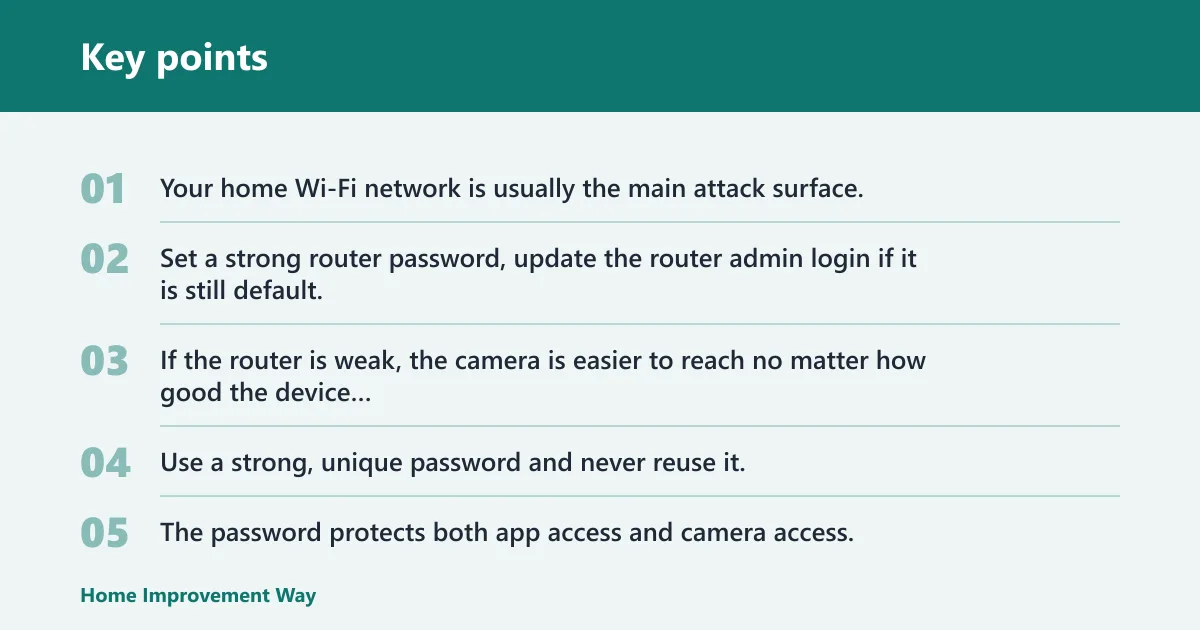
Your home Wi‑Fi network is usually the main attack surface. Set a strong router password, update the router admin login if it is still default, and turn on the firewall, because router security affects camera security directly. If the router is weak, the camera is easier to reach no matter how good the device itself looks.
Use a strong camera account password
Use a strong, unique password and never reuse it. The password protects both app access and camera access, so a reused password can turn one leaked login into a live feed problem. A password manager helps reduce reuse mistakes.
Turn on two-factor authentication
Two-factor authentication adds a second check at login and reduces account takeover risk. Turn it on if the app supports it. For family sharing, this should be paired with limited guest access instead of handing out the main account login.
Install firmware and app updates quickly
Firmware and software updates patch security vulnerabilities in both the camera and the app. Install them promptly. If the app offers update alerts, leave them on so you do not miss a patch window.
Limit livestream sharing and guest access
Livestreams can be watched remotely and may be shared with others, so keep sharing narrow. Give family members only the access they need, and remove old users quickly when a roommate moves out or a caregiver role ends. A common first-timer mistake is leaving full access enabled after the need has passed.
What privacy features should you check before buying?
Look first at storage model, then at account and recovery controls. The most privacy-friendly choice is local recording with clear encryption settings, limited sharing, and a vendor model that does not push every useful feature behind cloud storage or a subscription.
Local storage versus cloud history
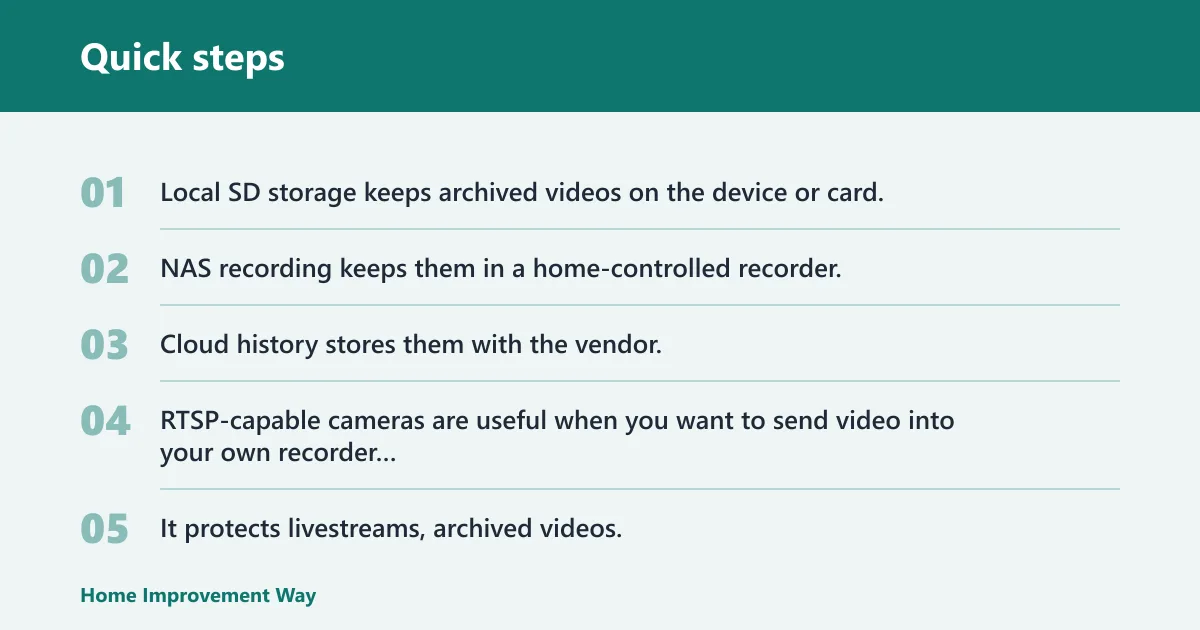
Local SD storage keeps archived videos on the device or card. NAS recording keeps them in a home-controlled recorder. Cloud history stores them with the vendor, which may be convenient but adds account and policy risk. RTSP-capable cameras are useful when you want to send video into your own recorder instead of a cloud app.
Encryption for video and account data
Encryption should be built in and enabled. It protects livestreams, archived videos, and account information by scrambling data so hackers cannot read it. If the app has an encryption toggle or protected-history setting, turn it on before you trust the camera with sensitive rooms.
Account recovery and lockout handling
Check how password resets, device resets, and shared access are handled. A privacy-focused camera should not force broad permissions just to recover access. Say your phone is replaced and you need to get back into the app; the recovery flow should not expose the camera to every household member in the process.
Vendor shutdown risk and data export options
Cloud-dependent cameras carry vendor risk. If the service changes, your archived videos and sharing setup may change too. Before buying, confirm whether you can export footage or keep using the camera in a limited local mode if the vendor shuts down a feature set.
Common mistakes
- Setting up the camera before locking down the router and Wi‑Fi.
- Using the same password for the camera account and other apps.
- Leaving guest access on after the person no longer needs it.
- Assuming a cloud camera is private because it has a privacy mode.
- Ignoring update prompts for the camera app and firmware.
- Buying for storage convenience first and privacy second.
Suppose a bedroom camera has good local storage but the router password is still the default. That weak link can matter more than the camera spec sheet. Fix the network first, then finish setup.
Frequently asked questions
What is the best smart indoor camera for privacy-conscious users?
The eufy Security Indoor Cam C220 2K is the best fit here because it supports local microSD storage and includes a privacy mode that turns the camera away. That combination reduces cloud dependence and gives you a clearer path to keeping footage at home.
Which indoor cameras have local storage instead of cloud recording?
The eufy model in this guide has local microSD storage, and the Aqara can fit a more local-controlled setup through HomeKit Secure Video and local automation. For NAS recording or RTSP workflows, check whether the camera listing explicitly supports local network recording before you buy.
Can I use an indoor camera without Wi-Fi or with limited internet?
Yes, but only certain setups work well. A local recording camera can still store clips on microSD or a home recorder, but you will need the home network for setup and local access. If remote viewing matters, limited internet may reduce app features and cloud alerts.
How do I keep my indoor camera from being hacked?
Use a strong router password, turn on the firewall, and secure the home Wi‑Fi network before setup. Then use a unique camera account password, enable two-factor authentication if available, and install firmware and app updates as soon as they appear.
What camera privacy features should I look for before buying?
Look for local storage, clear encryption for account data and videos, limited guest access, and a privacy mode that physically disables the lens or audio path. Also check whether the app supports 2FA and whether the vendor forces cloud history for basic functions.
Use the app’s guest or shared-user tools instead of sharing the main password. Give each person only the permissions they need, and remove access when their role ends. That keeps account recovery cleaner and limits the damage if one phone is lost.
Sponsored / affiliate links. As an Amazon Associate I earn from qualifying purchases. I may earn additional commission from eligible campaigns.