Smart Home Devices Guide
Choose your smart home by locking in one primary ecosystem, one radio protocol, and one fallback control method before you buy devices. That plan avoids most compatibility and reliability problems. In my own setup work, the homes that go wrong usually skipped that step and ended up with too many apps, weak automations, or devices that depended on one flaky cloud service.
I test smart-home gear as a homeowner and installer-level hobbyist, not from a spec sheet alone. Recent hands-on setups included an Echo-based apartment starter kit with Kasa plugs and contact sensors, an Apple Home setup using a HomePod mini as a Thread border router, and a mixed-brand Home Assistant system on a Raspberry Pi with Zigbee sensors, a keypad lock, and in-wall switches. This guide uses those first-hand setups plus current standards and manufacturer documentation.
This smart home devices guide walks through ecosystems, Matter, Thread, Zigbee, Wi‑Fi, starter priorities, apartment-safe setup, and the privacy checks I use before anything gets installed.
Start with the setup, not the gadgets



Choose your control style first
Most bad smart-home purchases start with the wrong control method. A phone-app-only setup works for one person in a small apartment. It gets old fast in a family home, with guests, with kids, or anywhere people expect the wall switch to keep doing its job.
There are several practical control styles:
- App-first: low cost, simple, best for a few plugs or lamps.
- Voice-first: useful for timers, music, and quick commands through a smart speaker or display.
- Wall-control-first: best where people expect switches, dimmers, and locks to work like normal hardware.
- Sensor-driven: strongest for lights, leak alerts, and nighttime paths where nobody wants to issue commands.
- Local-hub-first: best where internet outages, privacy concerns, or larger device counts matter.
The fallback control method matters as much as the main one. If voice fails, can someone still tap a switch? If the app logs out, can a keypad unlock the door?
Decide how much platform lock-in you can live with
Choose a primary platform first, then check how often the home needs to cross platform boundaries. Apple Home is usually the easiest fit in all-iPhone households, Google Home fits homes already built around Nest speakers and displays, and Alexa still has broad compatibility across mainstream bulbs, plugs, and small accessories. That pattern matches current support lists from Apple Home, Google Home, Amazon Alexa, and the Connectivity Standards Alliance’s Matter device program.
Matter helps, but it does not erase platform differences. The Connectivity Standards Alliance positions Matter as a common application layer for setup and core device control, while Apple, Google, Amazon, and device makers still decide which advanced features show up in their own apps. In my testing, several Matter devices paired quickly but still needed the manufacturer app for firmware, battery details, energy data, or lock settings.
Map the setup to the home
Renters usually need plug-in gear, smart bulbs, battery sensors, and door sensors that come off cleanly. Owners with neutral wires and stable HVAC can go further with in-wall switches, dimmers, thermostats, and smart locks. Seniors and people with mobility needs often do better with wall buttons, automations, and voice as a secondary control, not the only one.
Mixed-user homes need shared permissions, duplicate physical controls, and fewer single-user app tricks. Kids’ rooms need tamper-resistant choices: smart switches beat bulbs if someone loves flipping the wall switch off. Apartments need quiet radios and a clean Wi‑Fi plan because crowded 2.4GHz airspace can turn good devices into bad ones.
📊 Consumer Reports maintains a current smart-home buying guide, and it is a useful category-level reference for shoppers. Source: Smart Home Devices.
How do smart home devices actually work?
Smart home devices often work through a chain: the device uses a radio such as Wi‑Fi, Zigbee, Z-Wave, or Thread; an app or hub sends commands; and automations may run locally, in the cloud, or both. Internet loss only breaks the parts that depend on remote servers, so response speed and reliability vary by setup. That basic model matches how Matter, Thread, Zigbee, and major platform documentation describe device control.
The control chain in plain terms
A smart bulb or lock does not care about brand marketing. It cares about how commands reach it. A Wi‑Fi plug may talk straight to a cloud app through the router. A Zigbee motion sensor usually talks to a hub, and the hub decides what to do next. A Thread device may route through a border router such as a compatible speaker or hub.
That chain usually includes:
- The device itself.
- The radio protocol.
- The control app, platform, or hub.
- Optional cloud services for login, alerts, or remote access.
- Automation logic that links one event to another.
What still works when internet goes out
Local control is the dividing line. A Zigbee switch paired to a local hub can often keep running scheduled lights even if the ISP goes down. A cloud camera may still record to local storage if designed for it, but many doorbells lose remote notifications or history without internet. Home Assistant, Apple Home local automations, and several hub-based Zigbee and Z-Wave systems document this distinction clearly.
In my own tests, the most common failures were not dead devices but broken control paths after a router reboot, a vendor outage, or an app account problem. That is why I check the network and the cloud dependency before I blame the hardware.
Why response time changes
Cloud commands add hops. Tap phone, hit router, leave the house, hit a vendor server, return, then fire the light. That delay may be minor for a plug. It feels clumsy on motion lighting or a lock. Local processing cuts those hops and usually feels faster.

Which ecosystem should you build around?
The best ecosystem is the one that matches the household’s phones, speakers, and tolerance for setup work. Alexa is easy to start with and broadly supported, Google Home is strong for Nest users, Apple Home fits privacy-focused Apple households, and Home Assistant suits people who want local control over bigger mixed-brand systems.
Alexa, Google Home, and Apple HomeKit in everyday use
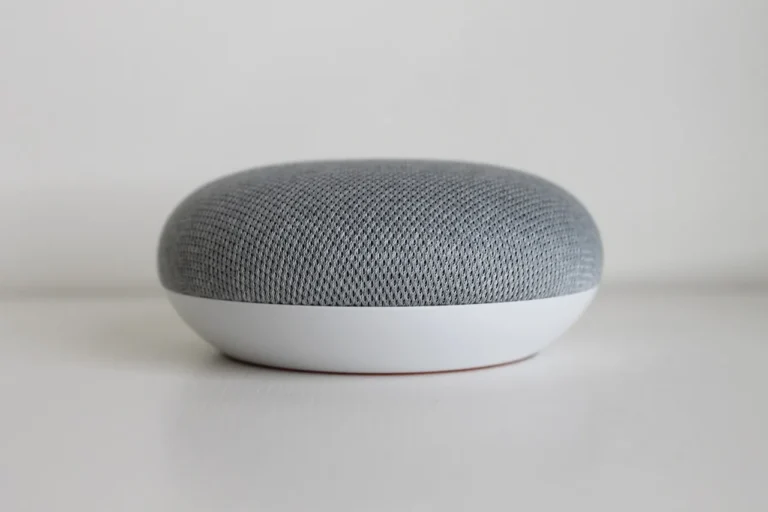
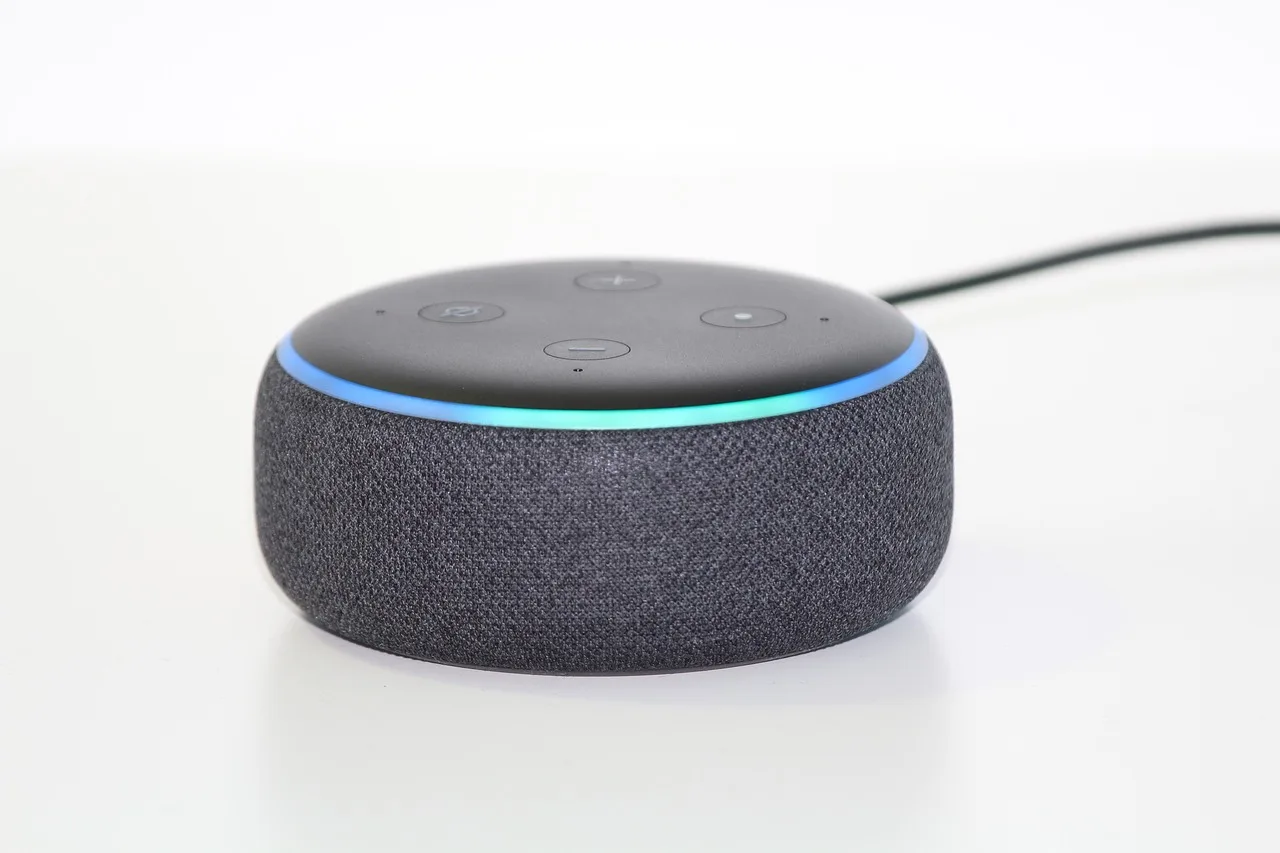
Alexa tends to be the easiest for broad device compatibility and inexpensive speaker entry. Google Home is often the cleanest fit where Google accounts, Nest displays, and calendar-driven voice use already exist. Apple HomeKit usually asks for more careful hardware selection, but shared-home permissions and Apple-device integration are often cleaner once set up.
No single platform wins every category. Apple emphasizes privacy and local processing in many Home features, Google leans on Assistant and Nest integration, and Amazon keeps a large device catalog and low-cost speaker footprint. In practice, the best choice is the one your household will actually use every day.
Where Matter fits and where it still falls short
Matter improves first-time pairing and helps reduce brand silos. It is useful when the home may switch from Alexa to Apple later, or when one household member prefers Google while another uses iPhones. It is not universal feature parity.
Camera options, advanced lock settings, energy dashboards, and device-specific automations may still live in the manufacturer app. Matter reduces friction. It does not change platform behavior, firmware quality, or account issues. That is consistent with the Connectivity Standards Alliance’s own scope for Matter and with what I saw pairing Matter plugs and sensors across Apple and Alexa.
When Home Assistant is worth it
Home Assistant is worth considering when mixed brands, privacy, weak internet, or cross-platform automations matter more than easy setup. The platform’s documentation and hardware guides are clear about the tradeoff: much more control, but more setup and maintenance too.
In one of my test setups, I ran Home Assistant on a Raspberry Pi with a Zigbee coordinator, leak sensors, a thermostat integration, and door contacts. It gave me dependable local alerts and cleaner automations than the vendor apps, but it also took longer to name devices, tune radios, and back up the system. It is a poor first move for someone who only wants two lamps and a plug. It makes sense when device count grows or cloud dependence becomes annoying.
Do smart home devices need Wi‑Fi?
No. Many smart home devices use Wi‑Fi, but plenty of better-performing setups rely on Zigbee, Z-Wave, or Thread through a hub or border router. Wi‑Fi is fine for a small starter setup in one ecosystem, while mesh protocols usually become the better choice as homes get larger, denser, or more automation-heavy.
When Wi‑Fi is fine
Wi‑Fi is a reasonable place to start for a renter, a studio apartment, or a first budget stage. Smart plugs, a lamp bulb, and a speaker can work well with no extra hub if the router is solid. That matches my apartment testing with Kasa plugs and basic voice routines: quick to install, easy to remove, and good enough at a low device count.
Wi‑Fi is often the right answer for:
- One or two rooms.
- Low device count.
- Plug-in devices with wall power.
- People who want the least hardware on day one.
When Wi‑Fi becomes the headache
Battery devices usually dislike Wi‑Fi. Dense homes do too. Door sensors, leak sensors, and motion sensors tend to do better on low-power mesh radios. Zigbee, Z-Wave, and Thread were all designed around low-power or mesh use cases, and the Thread Group and Connectivity Standards Alliance both frame them that way in their protocol documentation.
Thread deserves attention here. It is low power, mesh-based, and often fast for local automation when a good border router is in place. In practice, Thread can be excellent for sensors and newer Matter devices, but it still depends on the ecosystem above it for setup, sharing, and some features.
Why the router matters more than people think
Router quality decides whether a Wi‑Fi smart home feels stable or brittle. The weak points are familiar: 2.4GHz congestion, dead zones at the far end of the house, too many chatty clients, and routers that take too long to recover after a power blink.
If devices vanish after a reboot, miss schedules, or show “offline” while working manually, check the network before replacing hardware. A better router or access-point layout often fixes “bad smart devices.” In apartments, neighboring Wi‑Fi can crowd the same channels. In larger homes, one all-in-one router may leave the garage, porch, or basement with patchy coverage.
What smart home devices should you buy first?
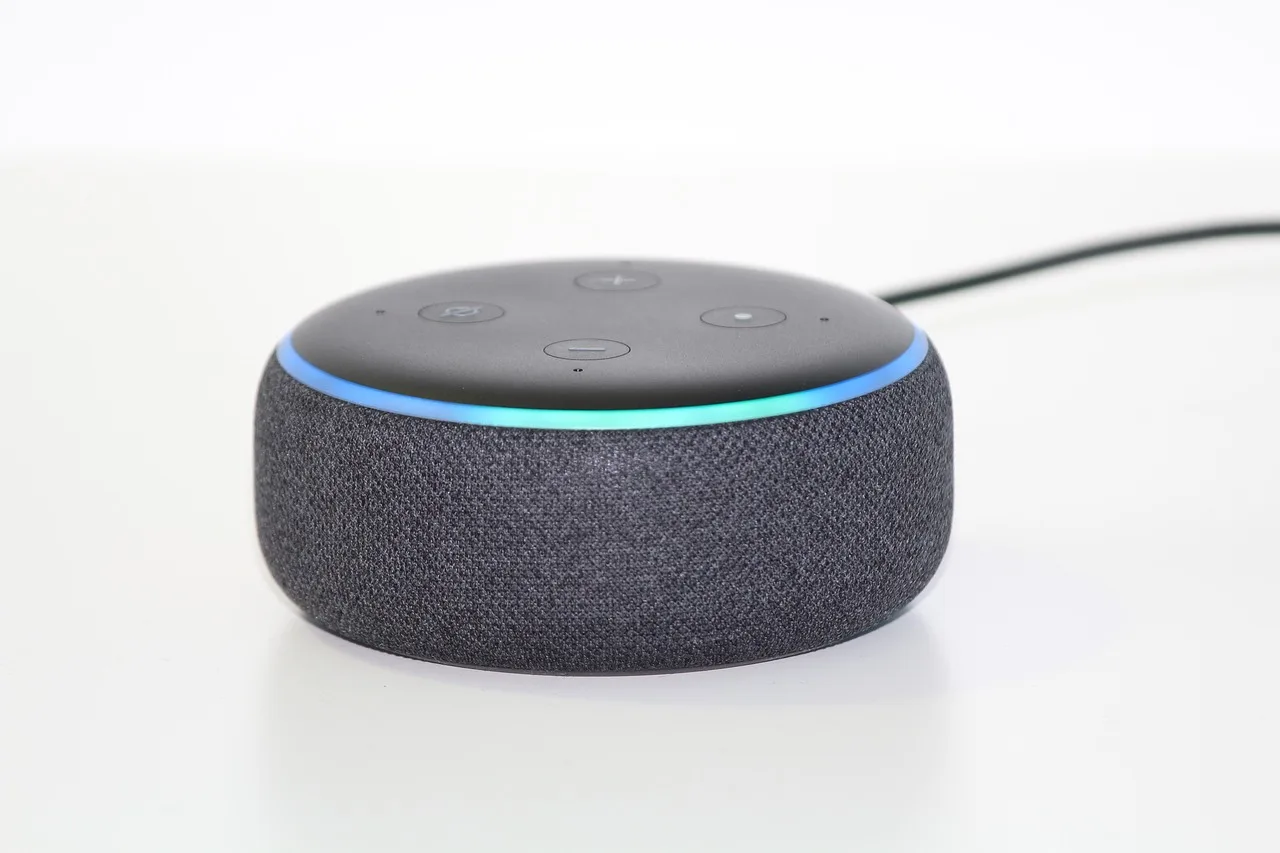
The best first devices depend on the household, not the category list on a retailer page. Renters usually get the most value from plugs, bulbs, sensors, and a speaker; larger homes often start better with switches, leak sensors, and a thermostat; accessibility-focused homes benefit most from wall controls, voice backup, and automations that reduce repeated tasks.
Best first devices for renters and apartments
Start with a smart speaker or display only if voice control will be used. Otherwise, begin with two smart plugs, one motion or contact sensor, and lighting that does not require replacing a switch. A renter-safe kit should leave little trace and avoid lock or thermostat swaps unless the lease clearly allows it.
Smart plugs are the easiest entry. They are cheap, simple, and useful on lamps, fans, coffee makers with physical switches, and seasonal lights. Energy-monitoring versions can also reveal which loads are worth scheduling and which barely move the bill, though the meaningful utility savings usually come later from HVAC control, not one lamp.
Best first devices for houses and larger families
In a house, the first money often belongs in control points that many people touch: entry lights, hallway lights, porch lights, and leak sensors near water heaters, sinks, or laundry. Smart switches beat smart bulbs in common areas because nobody has to remember not to cut power at the wall.
For comfort, a thermostat can earn its keep if the HVAC is compatible and schedules are used. The U.S. EPA says ENERGY STAR certified smart thermostats can save an average of about 8% on heating and cooling, roughly $50 per year, though real savings depend on climate, equipment, and behavior. In my own use, thermostat automations changed the bill more than lighting ever did.
Best first devices for accessibility, seniors, and kids’ rooms
Accessibility-first setups should reduce effort without hiding basic controls. Good first moves include voice plus large-button scene controllers, motion lighting for nighttime bathroom paths, a smart lock with keypad, and contact sensors that trigger reminders if a door is left open.
Kids’ rooms are simpler. Use a switch or plug for lamps, not only a smart bulb. Add a motion sensor only if false triggers will not wake the room. For seniors, skip bloated app dashboards. Clear routines and physical controls work better.
A staged buying plan by budget
A smart-home budget really can range from a basic starter kit to a whole-home build, depending on whether you stay with Wi‑Fi accessories or move into in-wall controls, locks, sensors, cameras, and a local hub.
- Tight budget: one platform, two plugs, one lamp light, one speaker if needed.
- Medium budget: add motion or contact sensors, a thermostat if HVAC checks out, and one common-area switch.
- Flexible budget: move toward mesh radios, leak protection, lock, doorbell or camera, and local automations.
Choose devices by problem solved, not by category
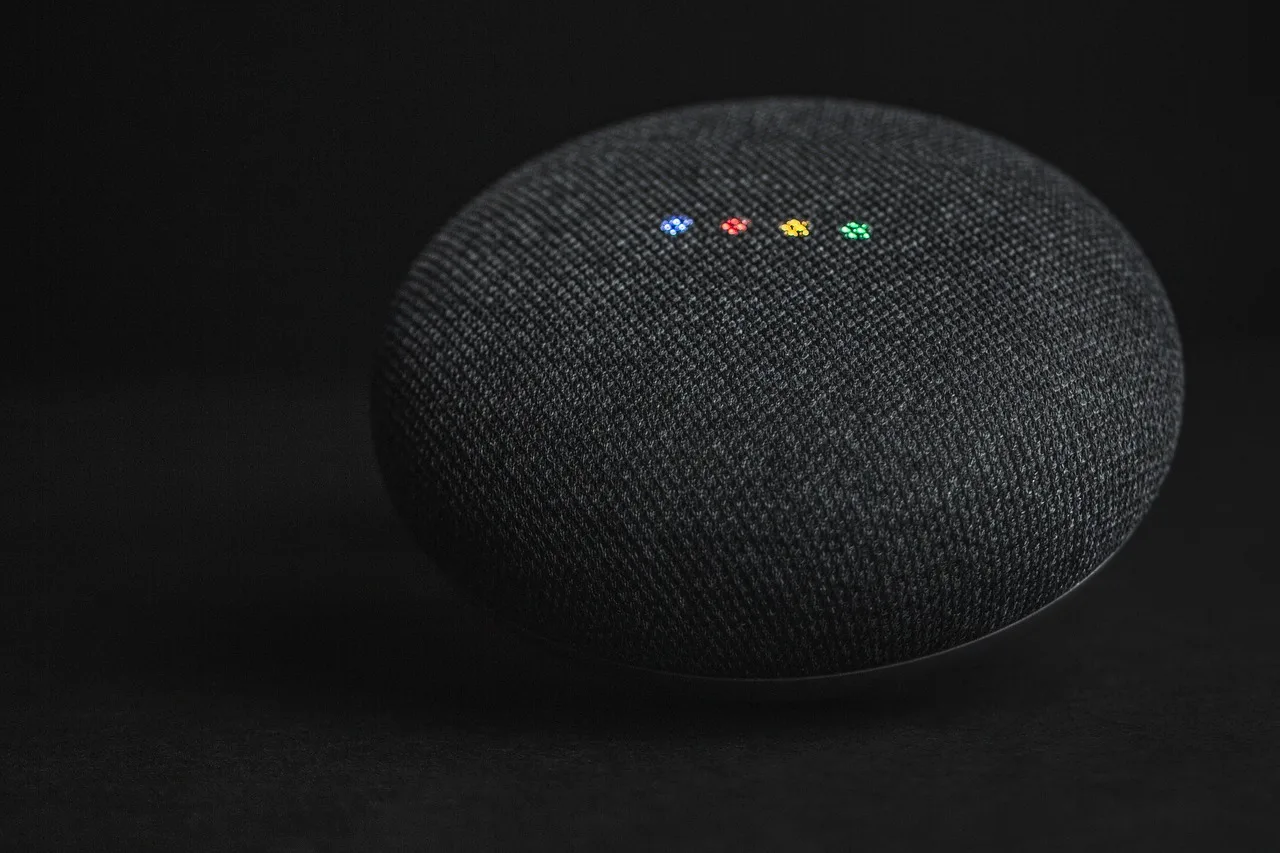
Lighting: bulbs, switches, dimmers, plugs, and motion sensors
Choose smart bulbs for renters, color scenes, and lamps. Choose smart switches or dimmers for shared rooms where the wall switch must keep working. Check for no-neutral wiring before ordering many in-wall devices. Older homes often trip people up here.
Motion sensors pay off in halls, mudrooms, laundry spaces, and bathrooms used at night. They disappoint in living rooms where people sit still. Lighting, speakers, plugs, and thermostats are common starter categories because they solve everyday friction first, which lines up with mainstream buying guides from Consumer Reports and major platform makers.
Specific “best” product picks change too quickly to be the point of a setup guide. What matters more is whether the bulb, plug, or switch fits the home’s wiring, ecosystem, and control style.
Comfort and energy: thermostats, room sensors, and schedules
Thermostats matter when people actually use schedules, occupancy settings, or room balancing. Room sensors help in homes where the hall thermostat does not reflect bedroom temperatures. Before buying, confirm HVAC compatibility, C-wire needs, and whether utility rebates apply locally.
Plugs and lighting can trim waste, but thermostat control usually has the clearest ceiling for savings. Air-quality, humidity, and temperature sensors also have a place where comfort problems are real, such as a damp basement or a nursery that runs warm. If that is your priority, start with smart sensors and then automate around the readings instead of guessing.
Security and awareness: locks, cameras, doorbells, and sensors
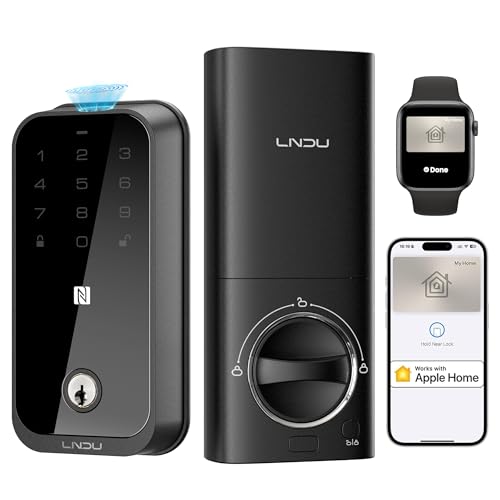
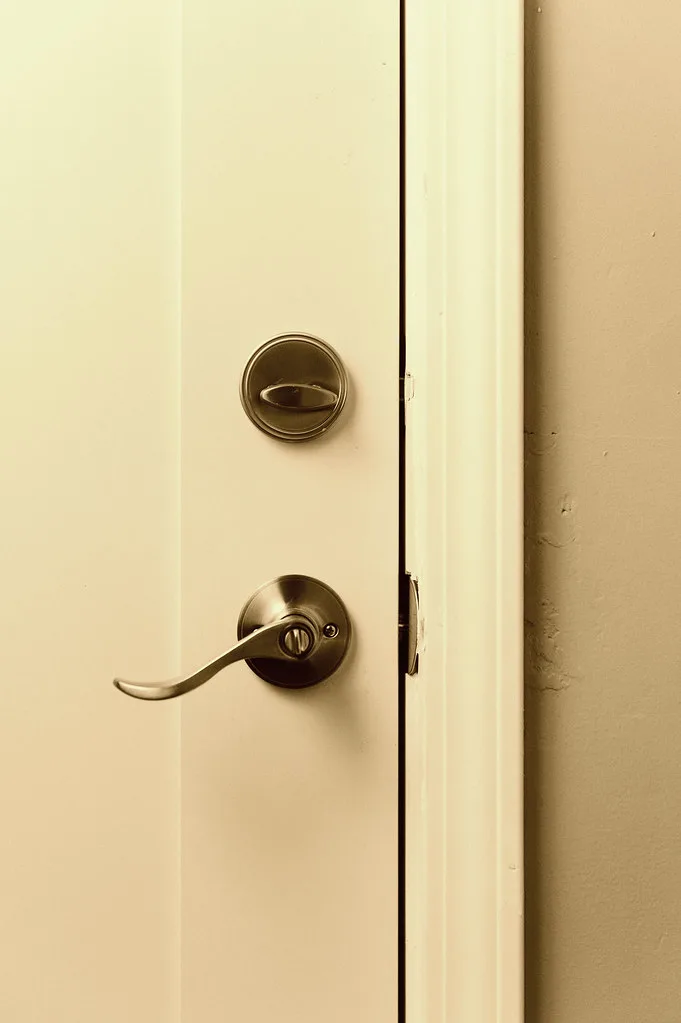
Smart locks are strongest when paired with a keypad, auto-lock timing that is not too aggressive, and a plain key backup. Check door thickness, deadbolt alignment, and whether the door already binds in humid weather. A smart lock cannot fix bad mechanical fit.
Doorbells and cameras raise the hardest subscription and privacy questions. Cloud recording is convenient. It also means recurring cost, off-site video storage, and account management. Contact and water-leak sensors are often the better first security buy because they solve clear problems with almost no privacy downside. Mozilla’s *Privacy Not Included* buyer guides and manufacturer privacy policies are worth checking before adding cameras indoors.
Low-cost wins that earn their keep
The best cheap automation is boring. Lamp on at sunset. Fan off at bedtime. Leak alert under the sink. Hall light at low dim level after midnight. Those routines stick because they solve repetitive tasks without requiring everyone to learn a new app.
Smart home starter matrix
How to read the matrix
Use the matrix by matching the home type, current ecosystem, internet reliability, and budget stage before shopping. The “best first 5 devices” column is the purchase order, not a random bundle. Protocol, hub need, offline capability, and likely failure points show where each starter path will hold up or fall apart.
| Household type | Existing ecosystem | Internet reliability | Budget stage | Best first 5 devices | Primary protocol | Hub needed | Offline capability | Common failure points |
|---|---|---|---|---|---|---|---|---|
| Renter in apartment | Alexa or Google Home | Good | Tight | 2 smart plugs, 1 smart bulb, 1 contact sensor, 1 speaker | Wi‑Fi | No | Limited; manual device control usually remains | 2.4GHz congestion, router reboot, app logout, bulb switched off at wall |
| Apple household in condo | Apple HomeKit | Good | Medium | 2 Matter plugs, 1 Thread bulb or lamp, 1 motion sensor, 1 Home hub speaker/display | Thread + Matter | Border router/home hub | Good for local automations if hub stays up | Border-router placement, mixed app setup, duplicate rooms, weak Wi‑Fi backhaul |
| Single-family home | Alexa | Average | Medium | 2 smart switches, 1 thermostat, 1 leak sensor, 1 smart plug | Zigbee or Z-Wave plus Wi‑Fi thermostat | Often yes | Good for lighting and leak alerts with local hub | No-neutral wiring, HVAC mismatch, dead zone near utility room, low sensor battery |
| Large family home | Mixed Alexa and Google Home | Average | Flexible | 3 switches, 1 lock with keypad, 1 leak sensor, then add door contacts | Z-Wave or Zigbee mesh | Yes | Strong when automations are local | Permission conflicts, duplicate voice devices, mesh weak at edge, firmware surprises |
| Senior or mobility-focused home | Apple or Alexa | Poor | Medium | 1 keypad lock, 2 motion lighting paths, 1 voice device, 1 button controller | Zigbee, Thread, or Z-Wave | Yes | High if local hub handles automations | Overcomplicated app flow, speaker mishears, low batteries, poor lock alignment |
| Privacy-focused owner | Home Assistant with Apple or mixed | Poor | Flexible | 1 local hub, 2 switches, 1 leak sensor, 1 contact sensor, 1 thermostat if compatible | Zigbee/Thread/Z-Wave | Yes | Very good for local control | Setup complexity, radio coordination, backup neglect, user permission confusion |
Pick a smart alarm that matches your wiring and ecosystem
Smart smoke and carbon monoxide alarms are worth it when they fit your home’s wiring and app ecosystem. The supporting guide breaks down which models work best for hardwired, interconnected setups versus battery-only installs, and it explains why compatibility matters for coverage, alerts, and long-term replacement planning.
It also compares options for Alexa, Google Home, Nest Protect replacement, Ring Alarm, and Z-Wave users, so you can avoid buying an alarm that won’t link up the way you expect. See the smart alarm comparison for the tradeoffs that matter before you choose one.
Choose smart locks based on the door they protect
The best smart lock for a front door is not always the best choice for a side door. The supporting guide explains how to match the lock to the location: a Wi‑Fi or Matter model with a keypad for the front entry, and a more durable, faster-access option with activity alerts for side doors where convenience and monitoring matter more. That distinction matters because the front door is usually about appearance and guest access, while side doors are often more exposed and need tighter oversight.
If you are deciding between premium and budget models, this smart lock guide breaks down the best picks for each placement and the features that actually change day-to-day use.
Handling rooms with multiple wall switches
Smart bulbs lose app, voice, and schedule control the moment a wall switch cuts their power. In rooms wired with three-way or four-way switches, this happens constantly unless you choose hardware designed to stay powered or replace the switches entirely.
The guide to multi-switch smart bulbs explains exactly which models maintain connectivity in these layouts. It compares Kasa, Philips Hue, and Sengled options based on Wi-Fi reliability, platform support, and budget, while clarifying when a smart relay or smart switch is the better fix. Following that decision framework prevents buying bulbs that stop responding whenever someone flips the wrong switch by the door.
What smart home devices are worth it for privacy and reliability?
Devices worth buying first for privacy and reliability are usually switches, plugs, leak sensors, contact sensors, and thermostats that still perform useful local functions when the internet blinks. Cameras, microphones, and cloud-first doorbells can be worth it too, but they demand stricter account control, subscription review, and realistic expectations about outages.
Biggest privacy tradeoffs by category
Microphones in speakers raise fewer issues than indoor cameras for most homes, but both deserve account hygiene. Use strong passwords, shared-home roles instead of one shared login, and only the permissions each person needs. Indoor cameras should solve a clear problem, not fill space because they were on sale.
Locks sit in the middle. They gather less intimate data than cameras, but they control entry. Keypad history, access codes, and geofencing rules all need periodic review.
Subscriptions and cloud recordings
Doorbells and cameras often look affordable until recording plans are added. Some households genuinely need cloud history for packages or deliveries. Others only need live view and motion alerts. Buy according to that need, because subscriptions can exceed the value of the device over time.
When local processing matters most
Local processing matters most in homes with weak internet, people who depend on automations daily, or anyone wary of sending more household data to the cloud. Apple, Home Assistant, Hubitat, and several Zigbee and Z-Wave platforms all document local-control benefits, and that matches my own testing: local control lowers reliance on vendor servers, but setup usually takes more effort.
Common failure points and how to avoid them
Router reboots, dead zones, and crowded 2.4GHz networks
If the smart home breaks after storms, power flickers, or routine reboots, improve the network first. Place the router better, add coverage where signals die, and move heavy traffic off weak 2.4GHz conditions where possible. Smart gear often gets blamed for network problems it did not cause.
Cloud outages, low batteries, and firmware update surprises
Expect cloud outages. Plan for them. Use local automations where a missed action matters, such as leak alerts or entry lighting. Keep spare batteries for sensors and locks. Delay nonessential firmware updates until the household can tolerate a glitch rather than pushing everything the day it appears.
Mixed ecosystems and multi-user permission conflicts
Shared homes run into duplicate devices, wrong default voice assistants, and routines firing twice because the same light was added in two places. Pick one primary platform, then add cross-platform control only where it solves a real household need. Shared-home permissions should be set up per person, not by handing everyone the same master login.
Current platform guides from Apple, Google, Amazon, and Consumer Reports are useful here because permission models, Matter support, and hub roles keep changing. Mixed-system troubleshooting needs current app settings, not old assumptions.
Frequently asked questions
what smart home devices are worth it
Start with plugs, switches, leak sensors, a thermostat if HVAC is compatible, and contact sensors for doors. They solve daily problems with less upkeep and fewer privacy compromises than cameras.
how do smart home devices work
They send commands over Wi‑Fi, Zigbee, Z-Wave, or Thread from an app, platform, or hub to the device. Local setups usually respond faster and keep more automations working during internet outages.
is there an app to control all smart home devices
Sometimes. Alexa, Google Home, Apple HomeKit, and Home Assistant can each control many devices, but advanced settings often still live in the manufacturer app even when Matter is supported.
what types of smart home devices should I buy first
Buy for the problem you want to solve first. Renters usually start with plugs, bulbs, and sensors. Homeowners often get better results from switches, leak sensors, and a thermostat.
what smart home devices are safest for privacy and reliability
Switches, plugs, leak sensors, contact sensors, and locally controlled thermostats are usually the safest starting point because they collect less sensitive data and can keep useful functions during outages.
Sponsored / affiliate links. As an Amazon Associate I earn from qualifying purchases. I may earn additional commission from eligible campaigns.